Setting Up Call Harbor Connect - Guide
Last updated: Jul 29, 2026
1260
views

Step 1 - Download Call Harbor connect
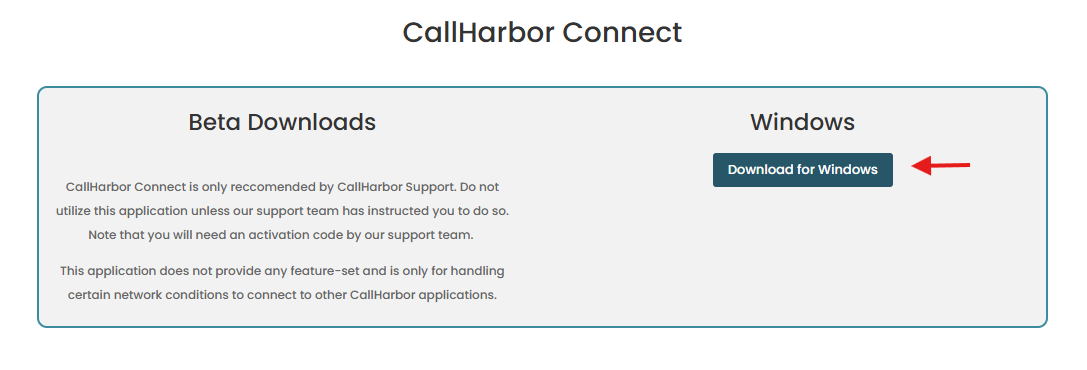
- Go to https://callharbor.com/apps/ and find the download button
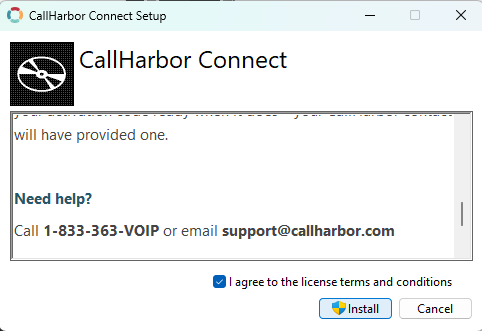
- Check the "I agree with the license terms and conditions" option and click on "Install"
Step 2 - Enter your activation code
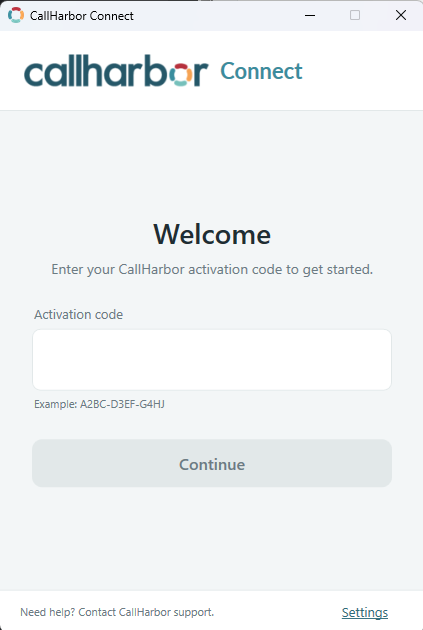
- Enter your activation code, previously provided by our support team. Note: If you don't have a code, you can request one by submitting a ticket to [email protected]
- Click on Connect. After that, all traffic going to the Call Harbor servers will be allowed.
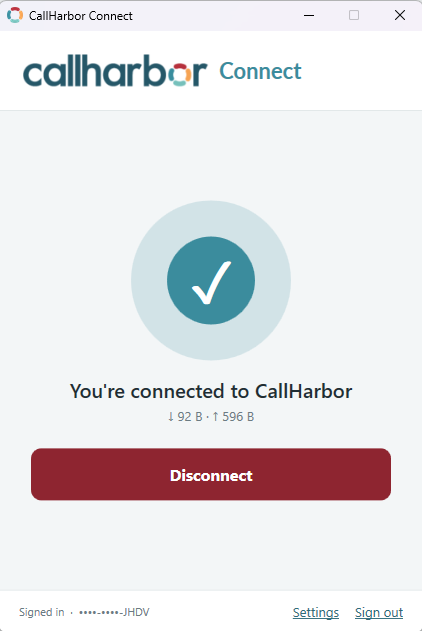
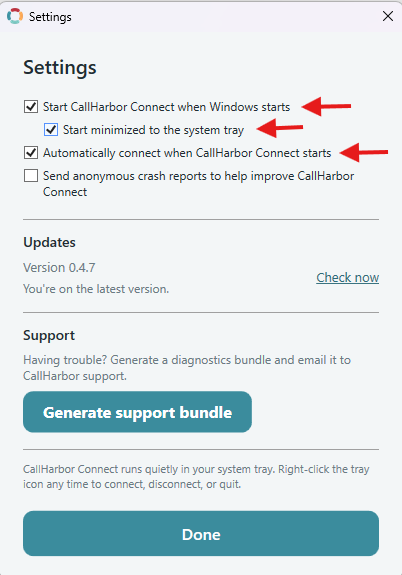
Note: You can enable the app to automatically start when Windows starts by clicking on Settings and checking the following options. After that, click Done.