How Contacts Work with Calling and Texting in Teams
Last updated: Nov 10, 2026
1
views

Your CallHarbor apps in Teams use contact information that already lives in your Microsoft account. This article explains where those contacts come from and where each kind shows up.
The three kinds of contacts
| Contact type | Who manages it | Who can see it | How long changes take to appear |
|---|---|---|---|
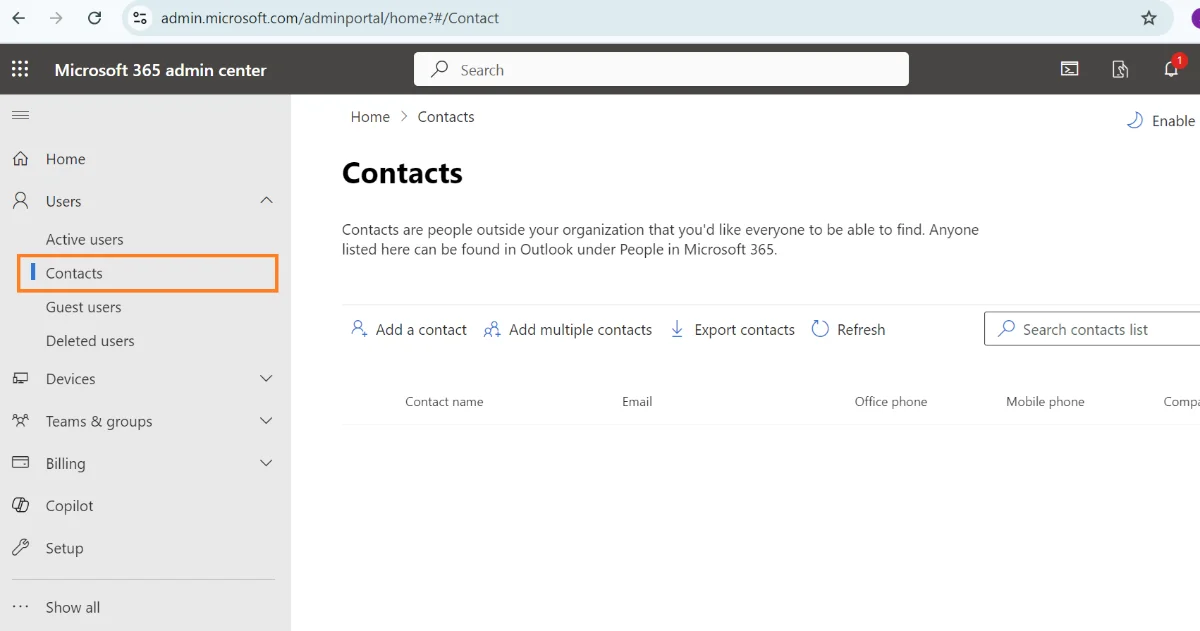
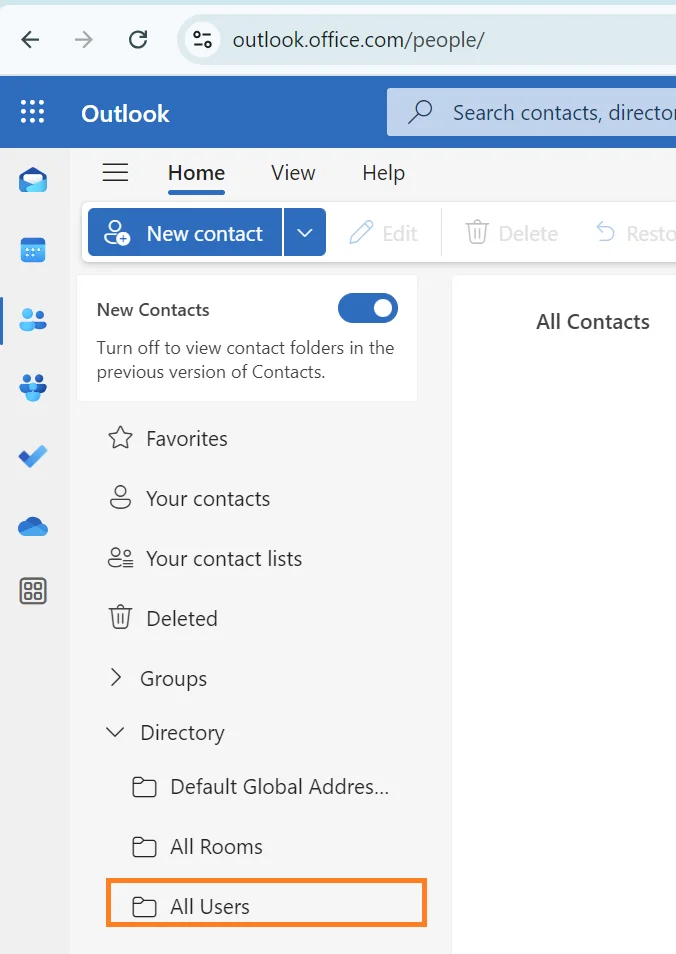
| Organization contacts (your company directory in Microsoft 365) | Your Microsoft 365 administrator | Everyone in your organization | Up to 4 hours |
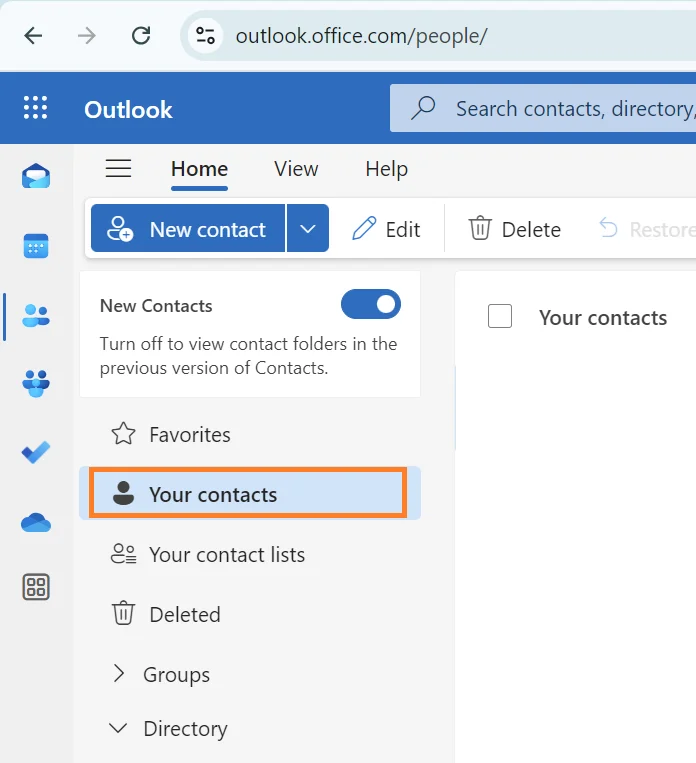
| Outlook contacts (your personal contacts) | You | Only you | Up to 10 to 15 minutes |
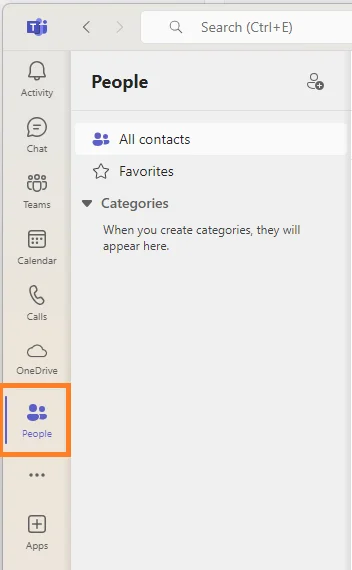
| Teams contacts (contacts saved inside Teams) | You, inside Teams | Only you | Not shared with the CallHarbor apps |
The delays come from Microsoft, which takes time to pass contact changes along. Microsoft does not make Teams contacts available to outside apps, so they only work in the built-in Teams screens.
Where each kind of contact is used
- The Teams dial pad. When you call or transfer from the built-in Teams calling screen, you can pick from your Teams contacts and your organization contacts. Organization contacts are not used to name incoming callers.
- The Call App. You can call or transfer to an extension, an outside number, or a contact. Organization contacts and your Outlook contacts are available.
- Texting. You can text any contact that has a mobile number, and incoming texts are matched to a contact name when the number matches. Organization contacts and Outlook contacts are used. You can also add, edit, and delete your Outlook contacts from the SMS Page.
Tip: make coworker extensions easy to find
Ask your Microsoft 365 administrator to add your coworkers' phone extensions as organization contacts. They then show up by name when anyone transfers a call from the Teams dial pad.
Related articles
- Syncing Your Phone System Contacts to Outlook
- Managing Contacts from the SMS Page