Call Handling
Answering a Call:
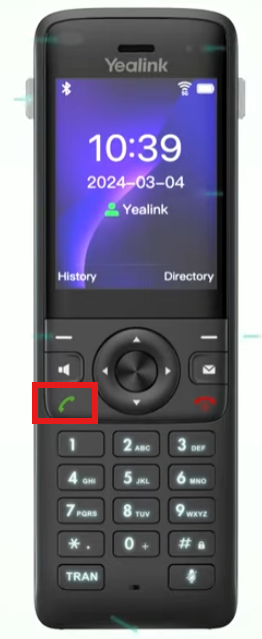
To answer a call, press the "Green Phone" on the left of the device.
Placing a Call:
To place a call with the handset: Dial the number or extension you intend to call, then press the "Green Phone" context button
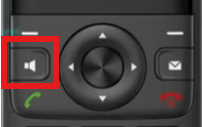
To place a call with the speakerphone: Dial the number or extension you intend to call, then press the "Speaker" context button
Ending a Call
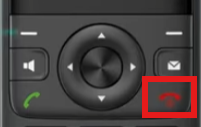
Press the ‘End Call’ context button
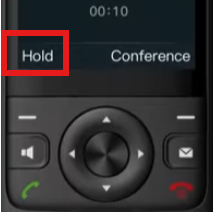
Placing a Call on Hold
To place an active call on hold, press the ‘Hold’ context button.
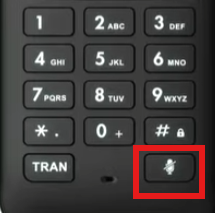
Muting a Call
To mute a call, simply press the ‘mute’ button. This will mute your microphone, but not place the caller on hold.
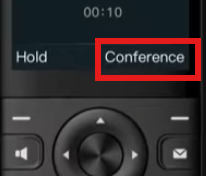
Initiating a Conference Call
While on a call with your first participant, press the ‘Conference’ context button, then dial the number or extension of the second party you would like to add. Once they have connected, press the ‘Conference’ context button again and the calls will be merged
Transferring Calls
Performing a Blind (non assisted) Transfer
With this style of transfer, the call will be sent to the target user without you having the ability to first talk to the target user. This is the typical style of transfer that is utilized.
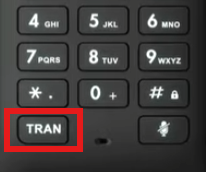
To perform a blind transfer, while in a call press the ‘Transfer’ context button, dial the number or extension of your transfer target, and then press ‘B Transfer’ at the bottom left of the screen.
Transferring Directly to Voicemail
To transfer a call directly to voicemail, simply put * in front of the extension number. For example to transfer a call to the voicemail box of 100, enter *100 when asked for the extension number while transferring.
Voicemail and Other Features
Checking your Voicemail
To check your voicemail, press the voicemail button. You will then be prompted to enter your voicemail box pin.
For more information on navigating the voicemail system, please click here.
Volume Adjustment
Ringer Volume
To adjust ringer volume, simply press the volume up or down button while not on an active call.
Speaker Volume
To adjust speakerphone volume, press the speakerphone button, and then press the volume up or down button.
Handset Volume
To adjust handset volume, while on an active call, press the volume up or down button.
Do Not Disturb
To enable Do Not Disturb, press the center button, navigate to features, and select option 4: Do Not Disturb button. This will stop the phone from ringing and send all calls to your forward if unanswered rule (by default, this is your voicemail box).
Star Codes
Note: All star codes may not be applicable to your system setup. Please ensure that you test each star code after utilization. If you do run into any issues, please reach out to CallHarbor Support.
|
**<ext> |
Intercom |
|
*<ext> |
Direct to voicemail, can be used for transferring |
|
*97 |
User voicemail |
|
*98 |
Voicemail portal |
|
*72<phonenumber> |
Set forward always |
|
*73 |
Disable forward always |
|
*78 |
Activate do not disturb |
|
*79 |
Deactivate do not disturb |
|
*77 |
Reject anonymous callers |
|
*87 |
Accept anonymous callers |
Intercom Another Extension
To intercom another extension, simply dial **<ext> and press send, or pick up the handset. For example, to intercom extension 100, you would dial **100.
Optionally Enabled Features
The features listed here may not apply to your system setup. Please reach out to your phone system administrator or CallHarbor Support to ensure the feature is available if you are unsure.
Call Parking
Option 1:
Park the call by transferring to the parking lot, and retrieve by dialing the parking lot number.
Example: Transfer to 700 to park, Dial 700 to retrieve.
See the section on blind transferring for more information on transferring.
Option 2:
Dialing *** while on a call.
This will automatically look for parking lots within 700-710 and 7000-7010 and park the call, reading back which lot the caller was parked in. You may dial the number to pick up the call. If you would like to configure a button to do this you must set the button type as Mid-Call DTMF.
Accessing Manager Portal
Our Manager Portal is a way to control your phone system or extension. To learn more about using the Manager Portal, please click here.
To log in to our Manager Portal, go to https://control.callharbor.com and log in with your existing credentials. If you do not have credentials, please reach out to either your phone system administrator or CallHarbor Support.
Administrative Functions & Troubleshooting
Please only perform these functions when asked by your phone administrator or CallHarbor Support. Factory resetting your phone may result in your phone no longer functioning if it is unable to redownload its configuration.
Rebooting your Phone
Option 1:
To reboot your phone, press Menu, navigate to Basic, and then select Reboot.
Option 2:
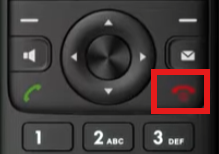
Press and hold the "Red phone" and confirm reboot.