

Turning Off Voicemail Notifications in Teams
Last updated: Nov 10, 2026
1
views

The CallHarbor app can post a notification in Teams every time you get a voicemail. If you would rather not see them, for example because you already get voicemail by email, you can turn them off.
Option 1: Mute the app's channel
- In the Teams sidebar, select Teams.
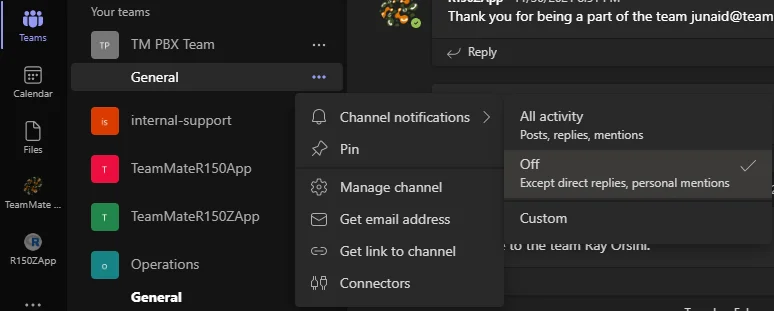
- Find the team that was created for the app and select its channel.
- Select the menu (...) next to the channel name.
- Select Channel notifications, then Off.
Option 2: Mute the app's chat
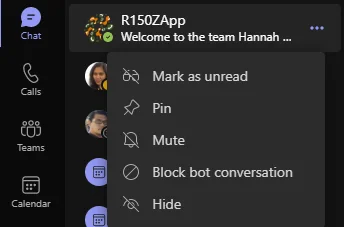
- In the Teams sidebar, select Chat.
- Find the chat for the app, select the menu (...) next to it, and select Mute.
Option 3: Turn voicemail cards off for everyone
Voicemail cards can be switched off for your whole organization. Ask your administrator or contact CallHarbor Support.
Muting only hides the notifications. Your voicemail messages are still saved and you can listen to them the usual way.

