

Pausing and Resuming Call Recording in Teams
Last updated: Nov 10, 2026
2
views

If call recording is turned on for you, your calls in Teams are recorded automatically. When your organization allows it, you can pause the recording during sensitive parts of a call, such as when a customer reads out a card number, and resume it afterward.
What gets recorded
- All of your incoming and outgoing calls.
- Any Teams meeting you organize.
- Any meeting or conference you join, even if the organizer does not have call recording.
Pause a recording
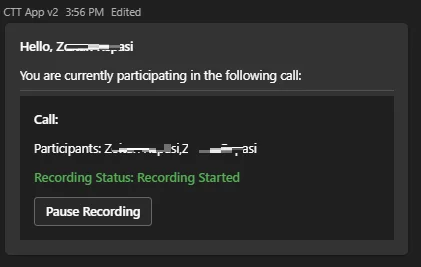
- During a call, look for the recording card that appears in the CallHarbor app in Teams.
- Select Pause Recording.
Resume a recording
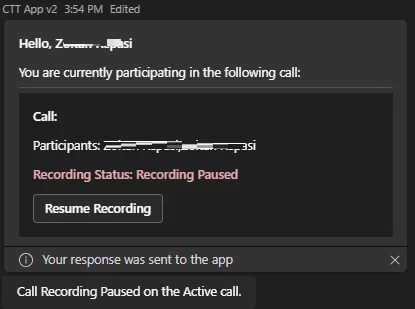
On the same card, select Resume Recording.
Good to know
- The pause button only appears if your administrator has given you permission to pause recordings. To request it, have your administrator contact CallHarbor Support.
- Nothing said while the recording is paused is captured.
- To listen to your recordings, see Accessing Your Call Recordings.

