

Accessing Your Call Recordings
Last updated: Nov 10, 2026
2
views

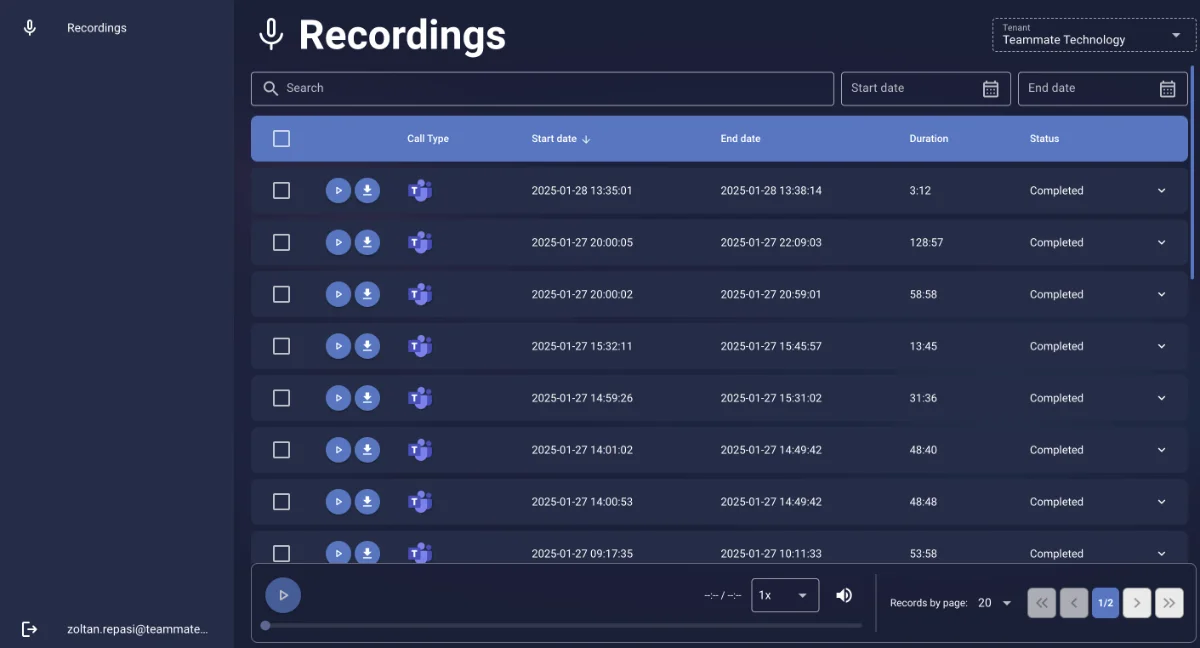
If call recording is turned on for you, you can search, play, and download your own recordings from the call recording portal.
- Go to the call recording portal: https://compliancerecording.connectoteams.com.
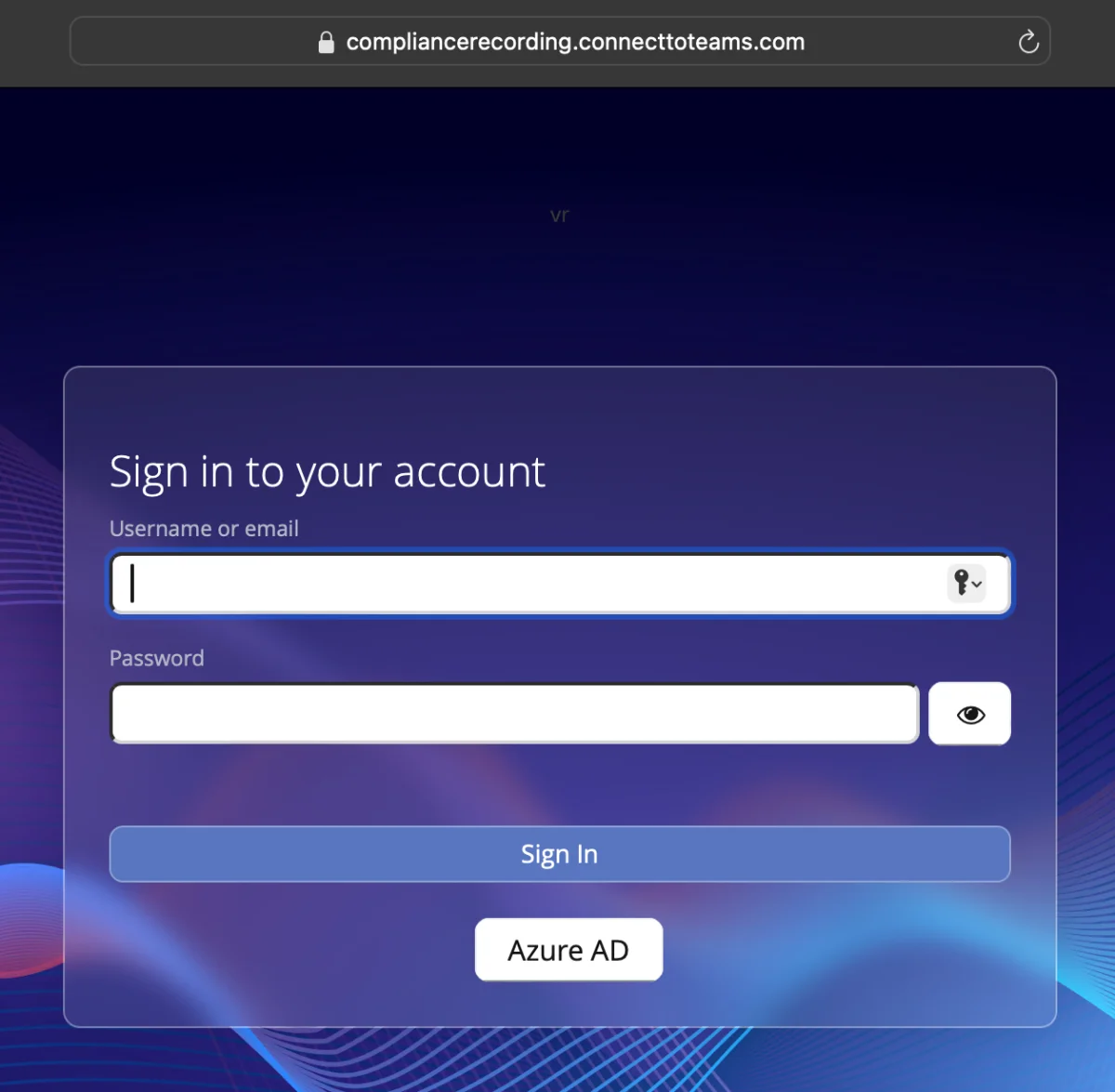
- Select Azure AD.
- Sign in with your Microsoft 365 work account.
- Search for the recording you need, then play it or download it.
Good to know
- You only see recordings of your own calls.
- If you can't sign in or your recordings are missing, call recording may not be enabled for your account. Contact CallHarbor Support.
- To pause a recording during a call, see Pausing and Resuming Call Recording in Teams.

