

Syncing Your Phone System Contacts to Outlook
Last updated: Nov 10, 2026
0
views

The Contact Sync Portal copies the contacts from your CallHarbor phone system into your Outlook contacts. Once they are in Outlook, they show up by name when you call and text from Teams, so you don't have to type them in twice.
Sync your contacts
- Go to https://contact-sync.connecttoteams.com/login.
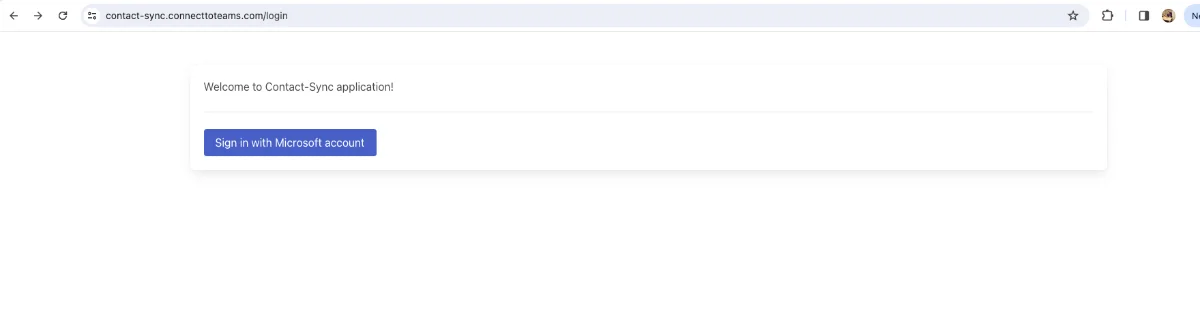
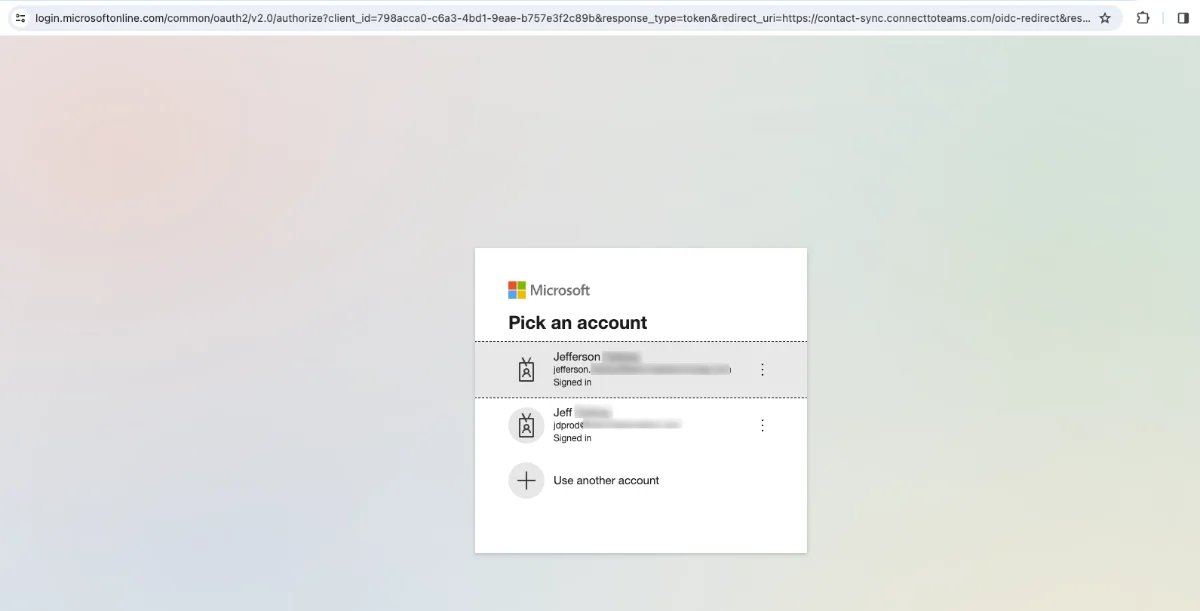
- Sign in with your Microsoft work account.
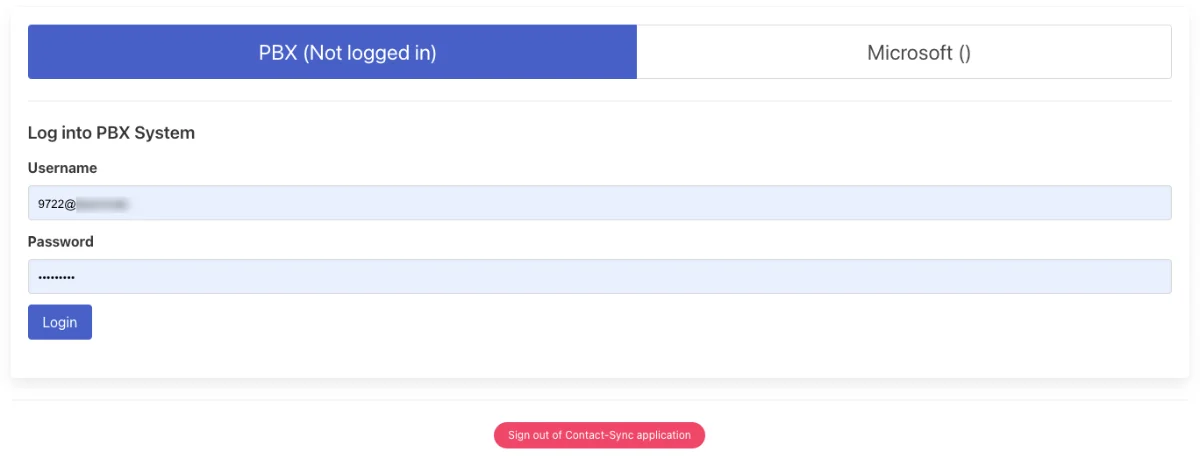
- On the PBX tab, enter your CallHarbor phone system username and password, then select Login. Your phone system contacts appear in a list.
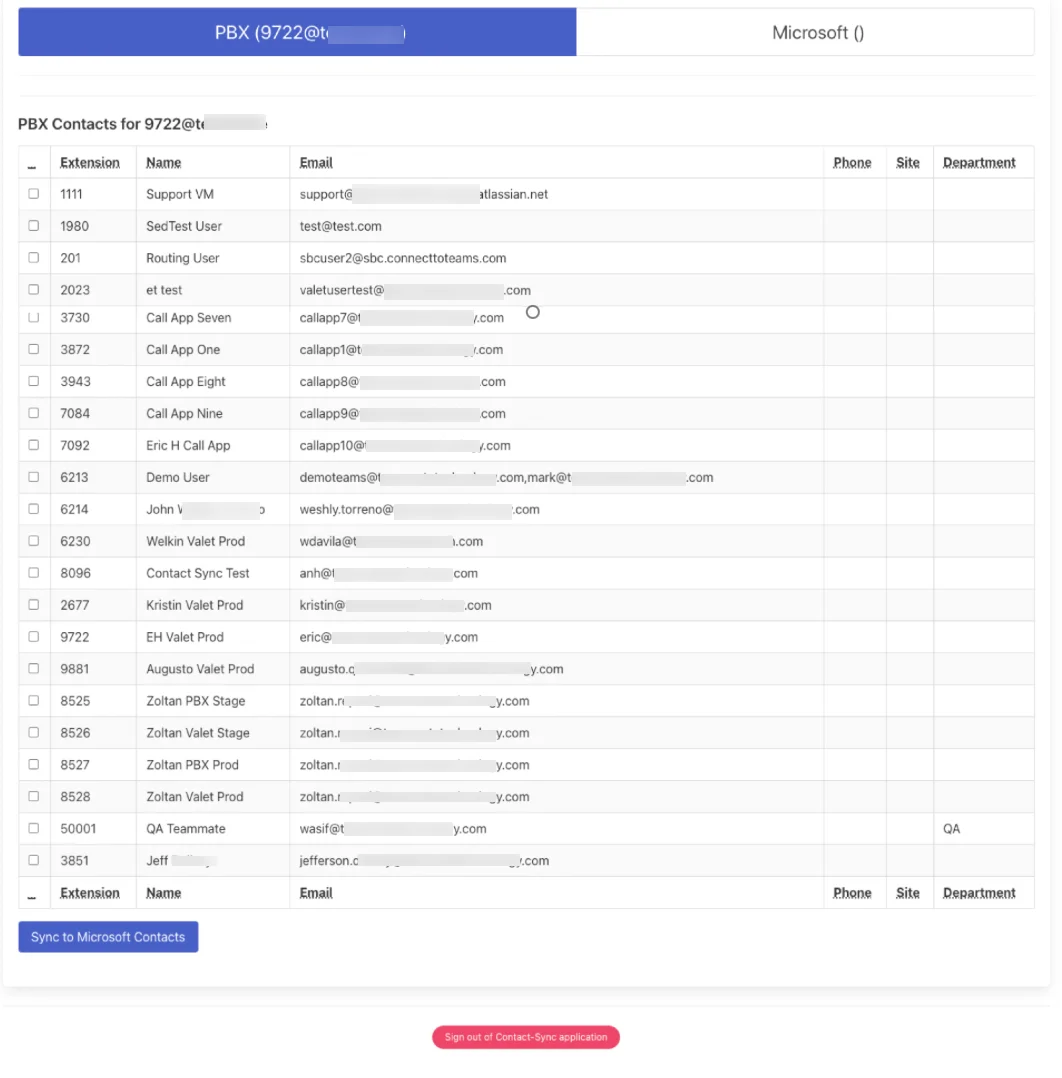

- Select the contacts you want to copy. You can select all of them at once.
- Select Sync to Microsoft Contacts. A confirmation message appears.

Allow up to 10 minutes for the contacts to appear in your Teams apps.
Merge duplicate contacts
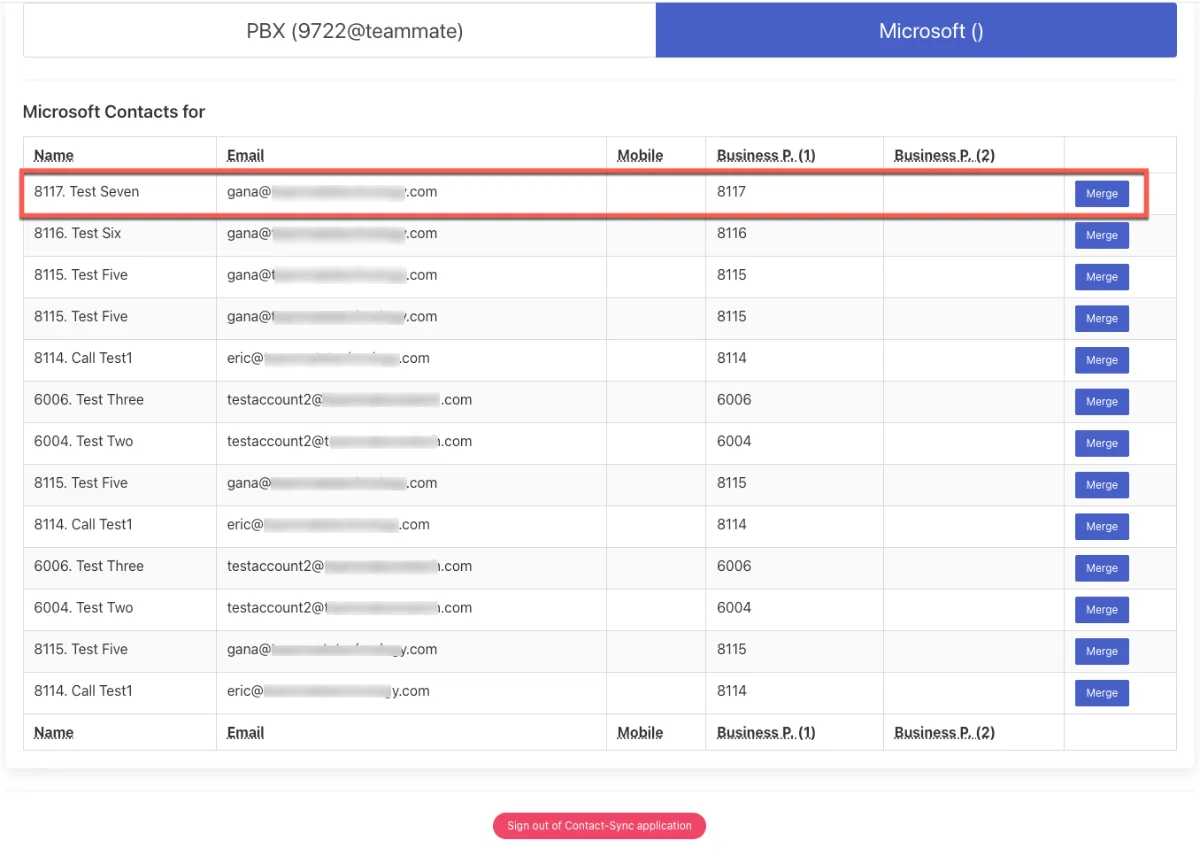
After a sync you may end up with two entries for the same person. To combine them:
- Open the Microsoft tab in the portal.
- Find the duplicate and select Merge next to one of the entries.
- In the Source Contact list, choose the entry you want to merge into the other one.
- Select the details you want to keep, such as an email address.
- Select Merged contact. A success message appears.
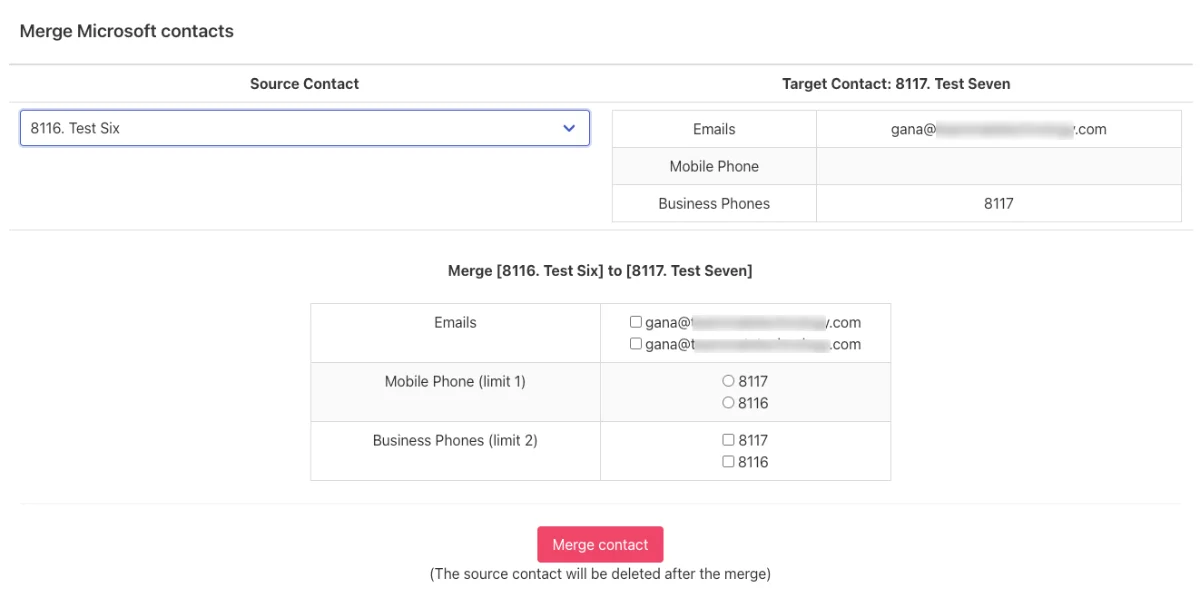
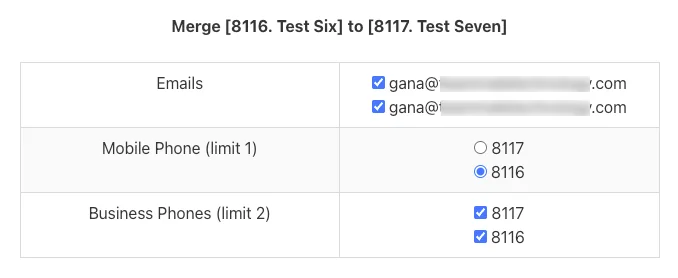

Note: the source contact is deleted once the merge is complete.
Need help signing in? Contact CallHarbor Support.

