Managing Contacts from the SMS Page
Last updated: Nov 10, 2026
0
views

You can save, edit, and delete your Outlook contacts right from the SMS Page in Teams, without opening Outlook. Saved contacts make your text conversations show a name instead of a phone number.
What you can and can't change
| Action | Your Outlook contacts | Organization contacts (company directory) |
|---|---|---|
| Shown by name in conversations | Yes | Yes |
| Add | Yes | No |
| Edit | Yes | No |
| Delete | Yes | No |
Organization contacts are managed by your Microsoft 365 administrator, so no Edit or Delete buttons appear for them.
Timing: changes to your Outlook contacts can take up to 15 minutes to show in the SMS Page. Changes your administrator makes to organization contacts can take up to 4 hours.
Save a new contact
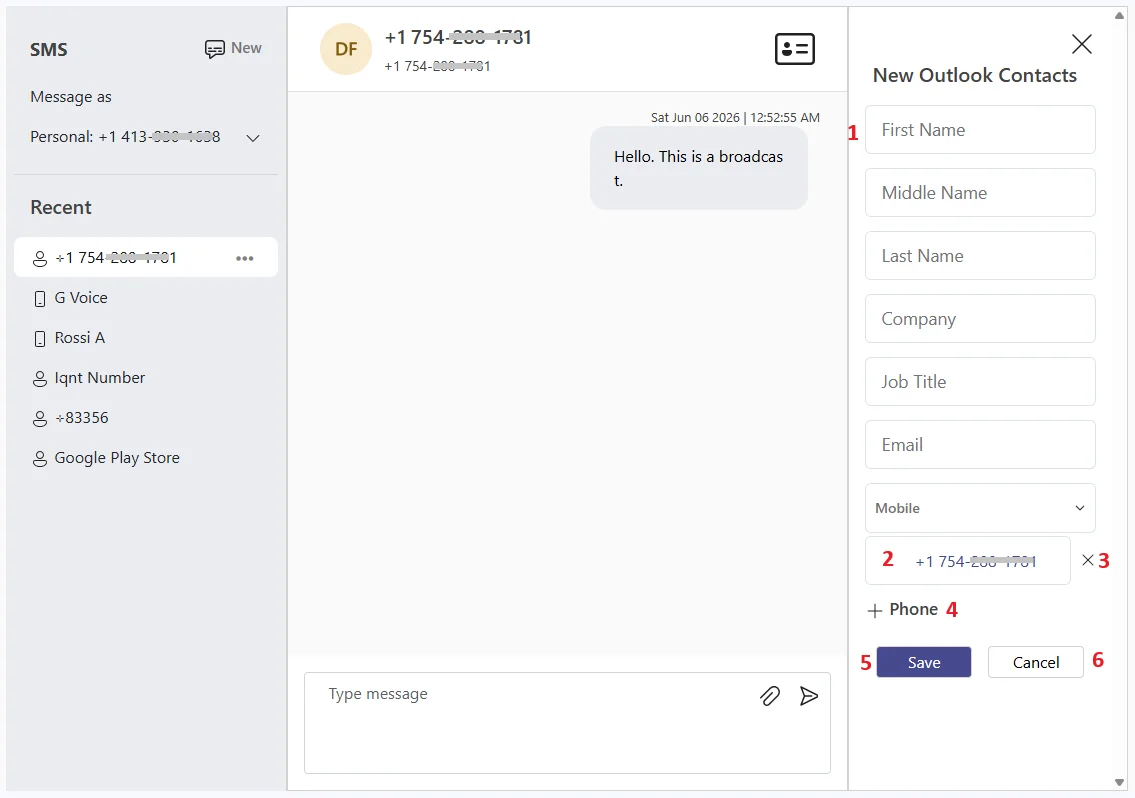
- Open a conversation with a number that isn't saved.
- Select the contact card icon next to the phone number.
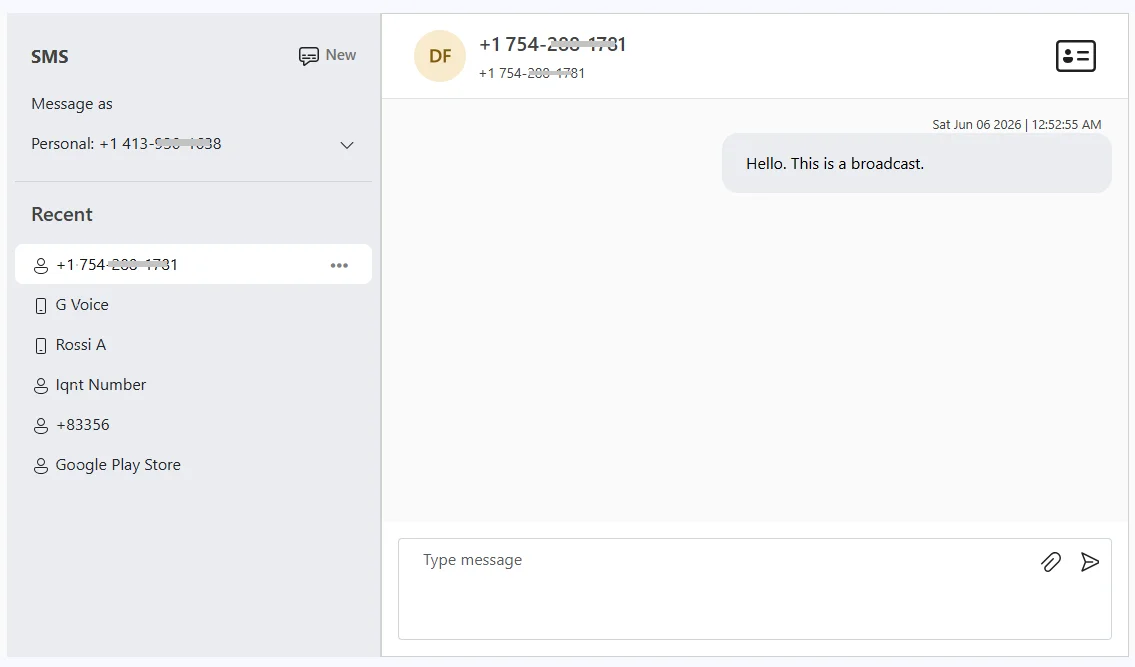
- Select Add New Contact. The mobile number is already filled in.
- Fill in the details. First name, last name, and at least one phone number are required. Select +Phone to add more numbers, each with its own type (Mobile, Business, or Home).
- Select Save.
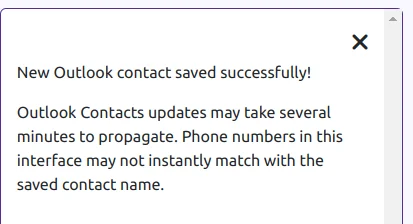
The number may still show as unknown for up to 15 minutes.
Add a number to a contact you already have
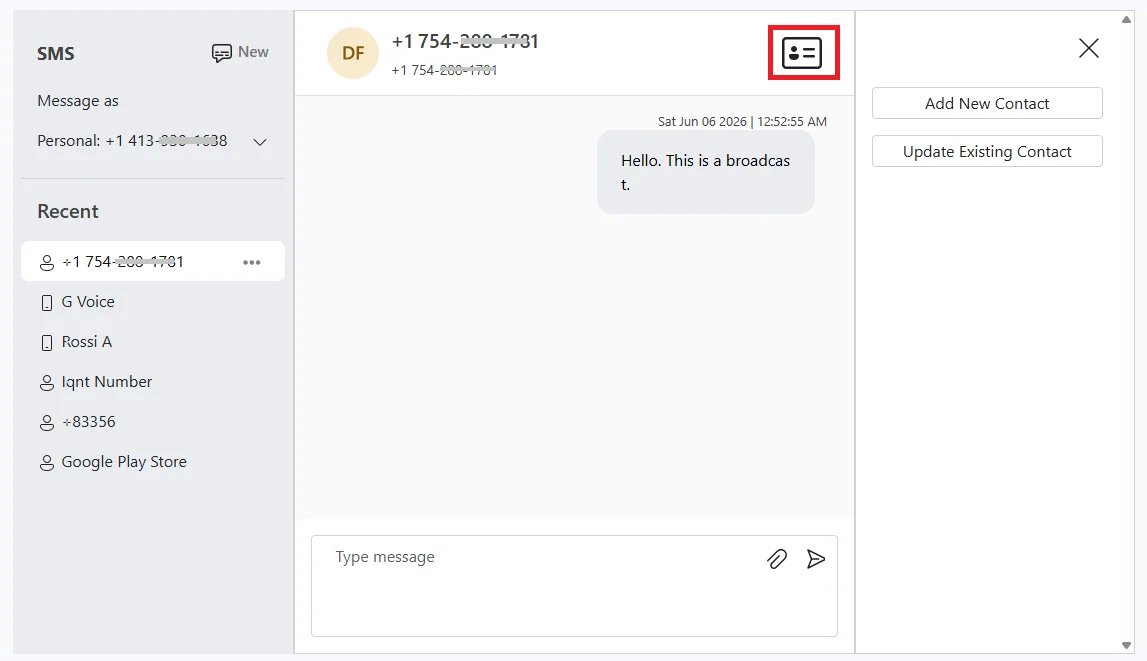
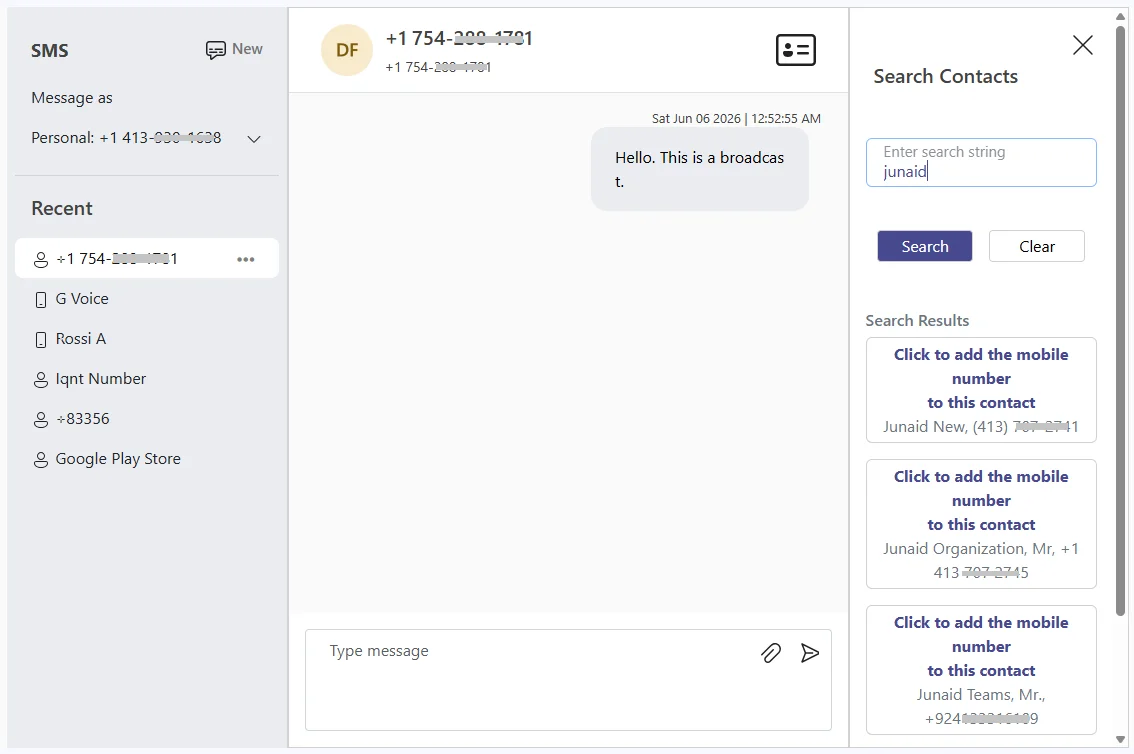
- Open the conversation and select the contact card icon.
- Select Update Existing Contact.
- Type a name and select Search.
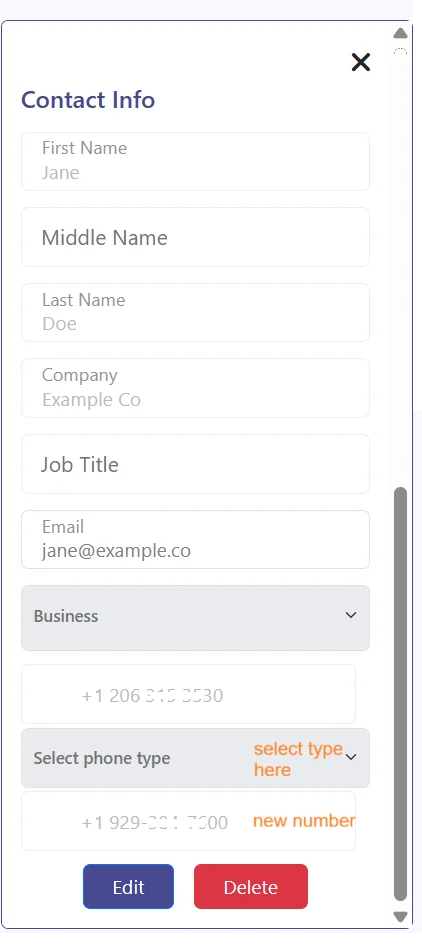
- Select the contact you want, then select Edit.
- Add the new number, choose its type, and select Update.
Delete a contact
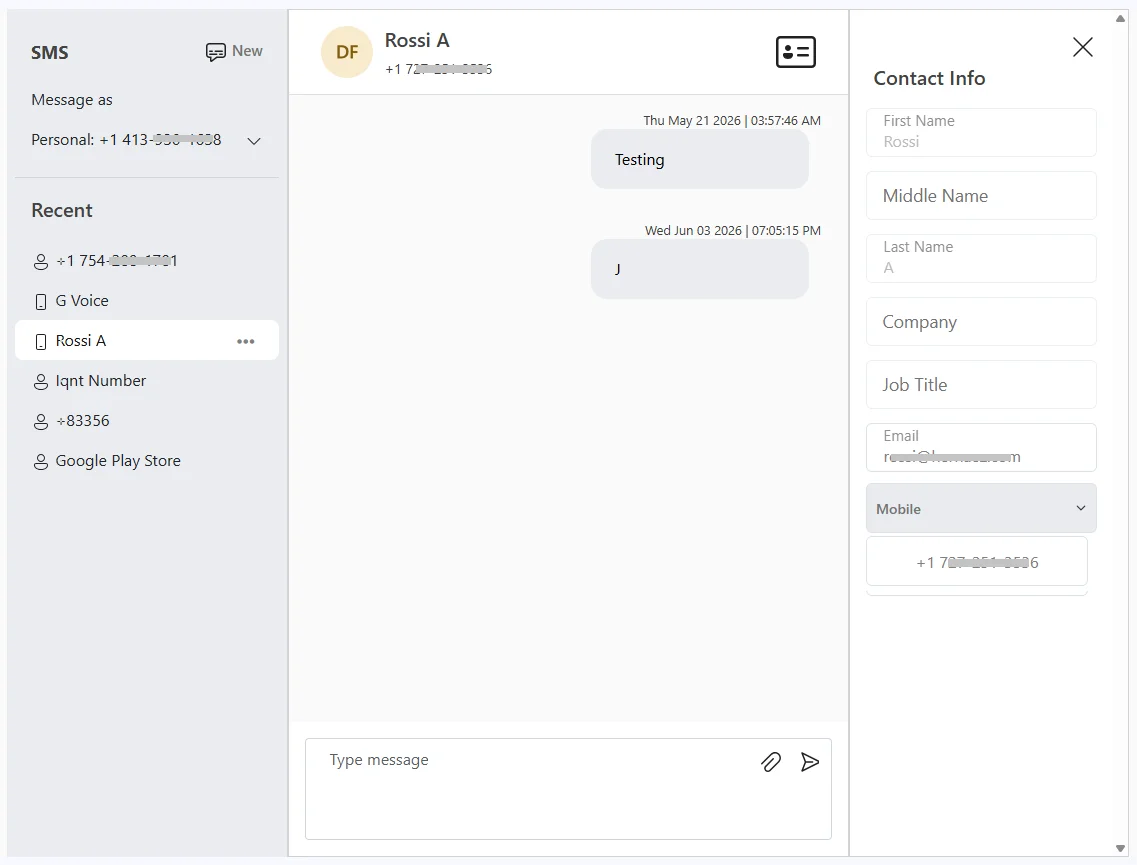
- Open the contact's details by selecting the contact card icon.
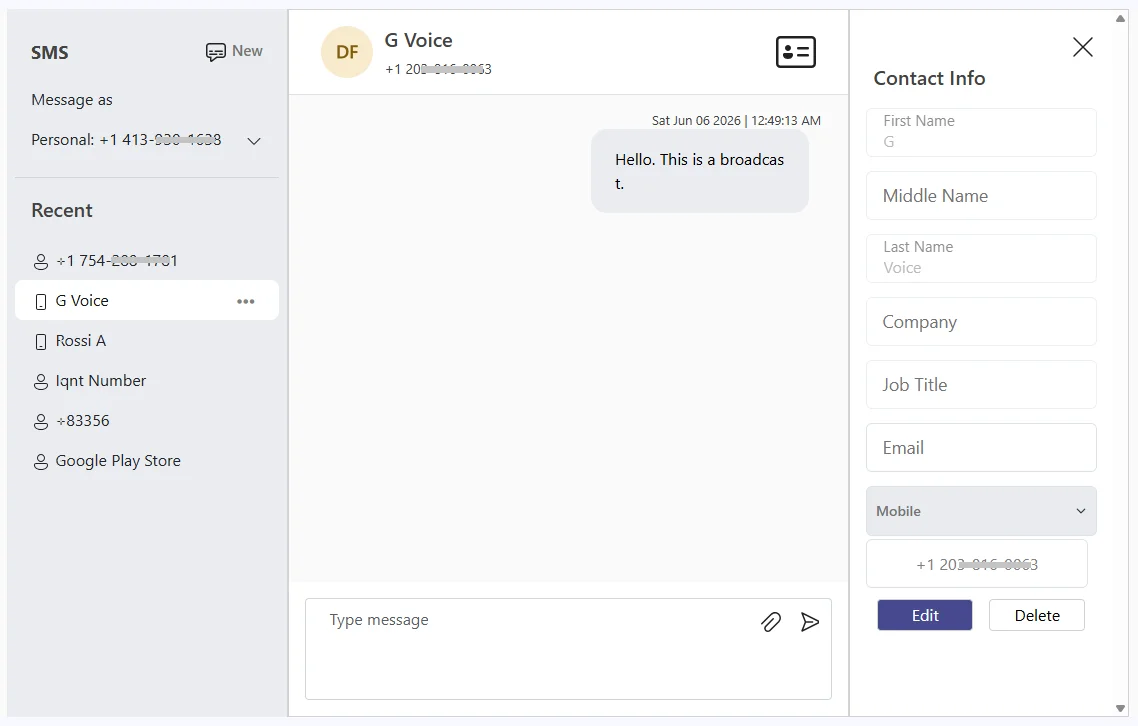
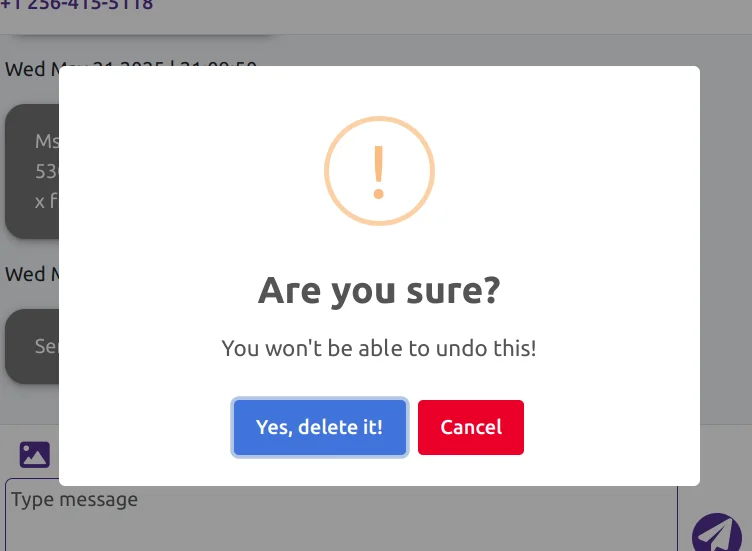
- Select Delete, then Yes, delete it! to confirm.
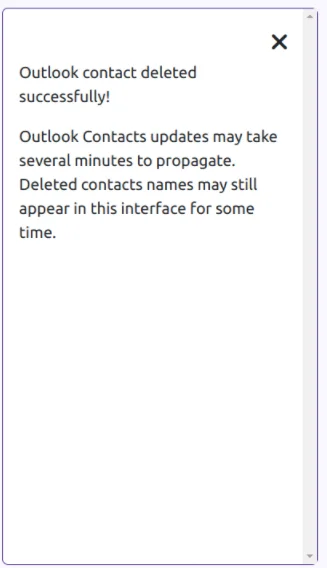
This removes the contact from your Outlook contacts completely, not just from the SMS Page. It may still appear in search results for a short time.