


Star codes (also called feature codes) are short codes, usually starting with *, that tell your phone system to do something, such as turn on call forwarding or Do Not Disturb. You can use them from Teams in three ways.
1. The Teams dial pad and call buttons
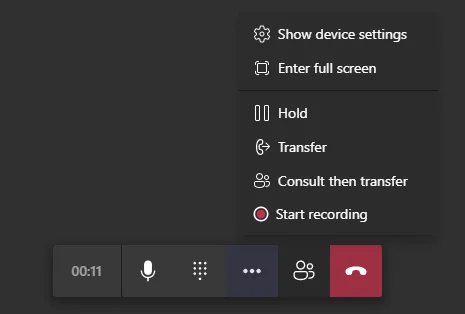
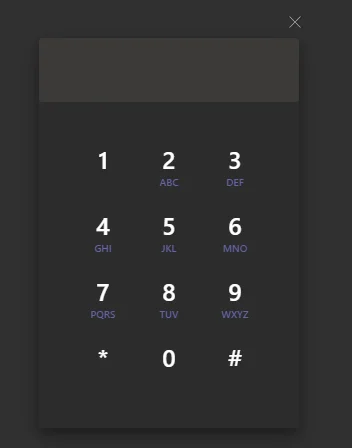
Teams has built-in buttons for Hold, Transfer, and Consult then transfer during a call. You can also type a star code on the Teams dial pad and place it like a call. No setup is needed.
2. Buttons that appear during a call
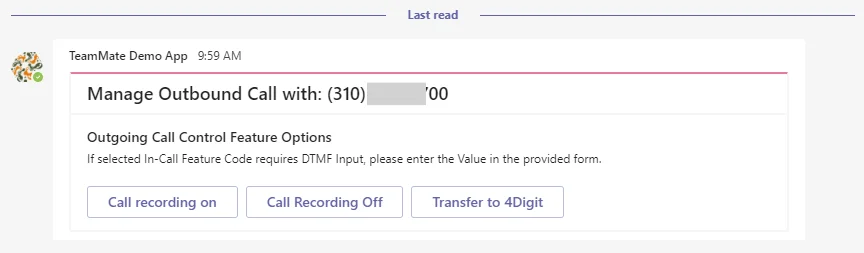
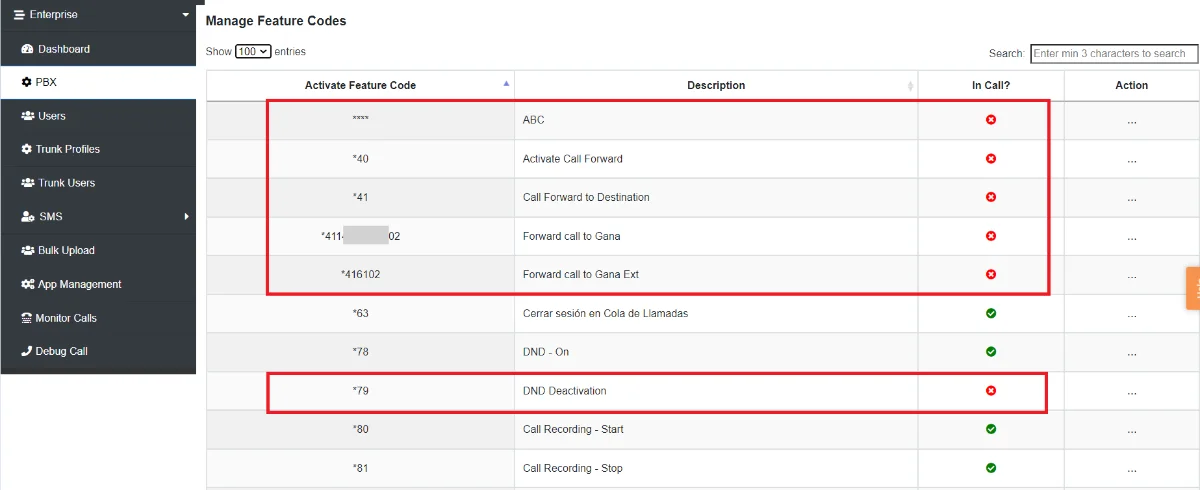
If your administrator has set up in-call star codes, a card with buttons appears in Teams as soon as a call is answered and disappears when the call ends. Use these buttons to act on the live call, for example to start or stop recording, transfer, or park the call. Some buttons ask for one more piece of information, such as which park spot to use.
3. Shortcut buttons in the app
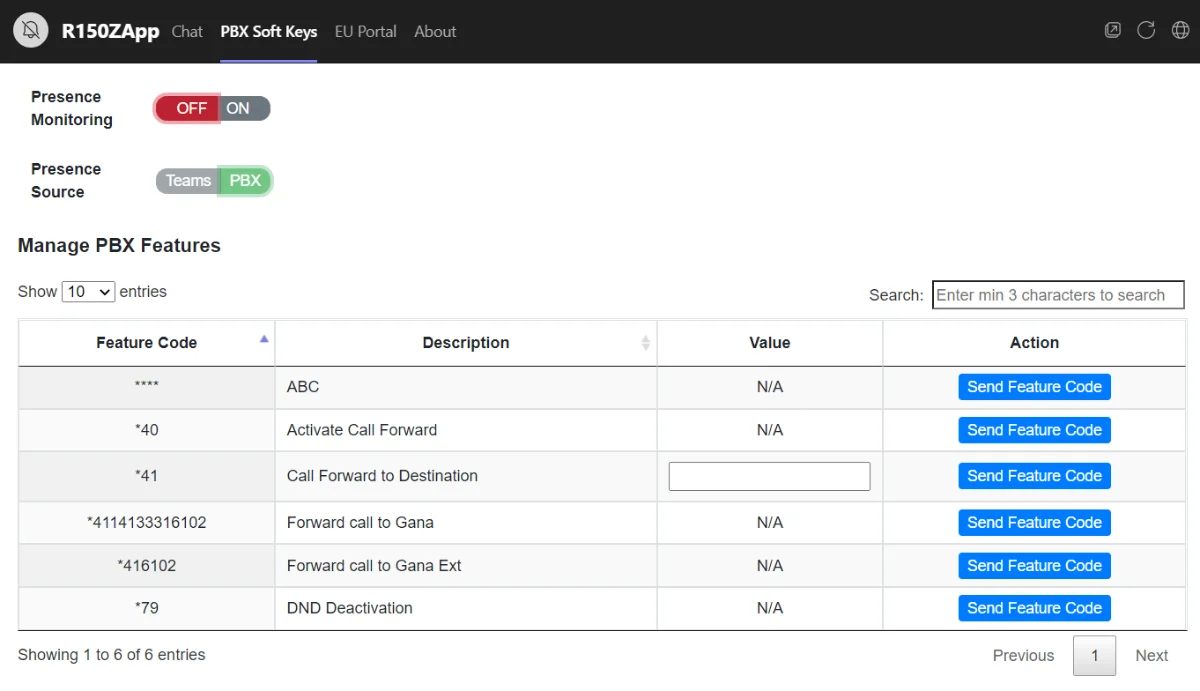
Star codes that are not tied to a live call appear as shortcut buttons in the CallHarbor app in Teams. Select a button to send the code. Codes that need extra information, such as the number to forward your calls to, ask you for it.
Voicemail
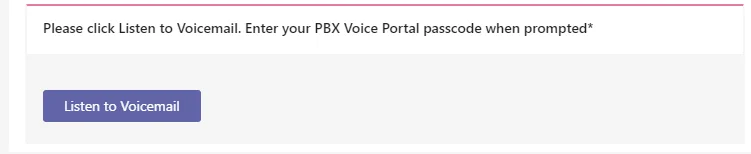
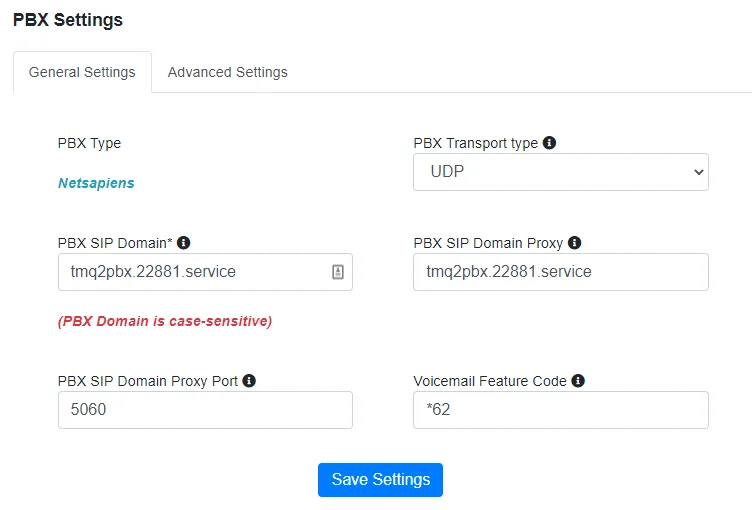
The Listen to Voicemail button on your voicemail notification card works the same way: it dials the voicemail star code for you and connects the call.
Good to know
- Which star code buttons you see depends on what your administrator has set up for your organization.
- If a button doesn't do what you expect, contact CallHarbor Support and tell us which button you pressed and whether you were on a call at the time.

