

After-Call Options: Call Back, Schedule a Meeting, Save a Contact
Last updated: Nov 10, 2026
0
views

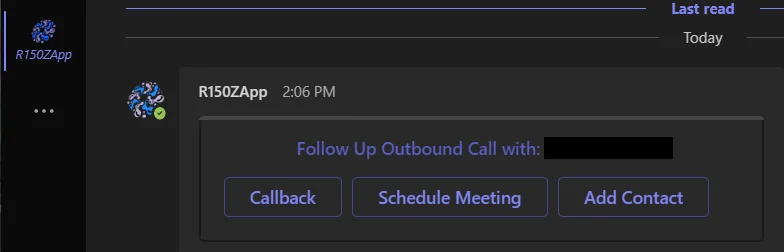
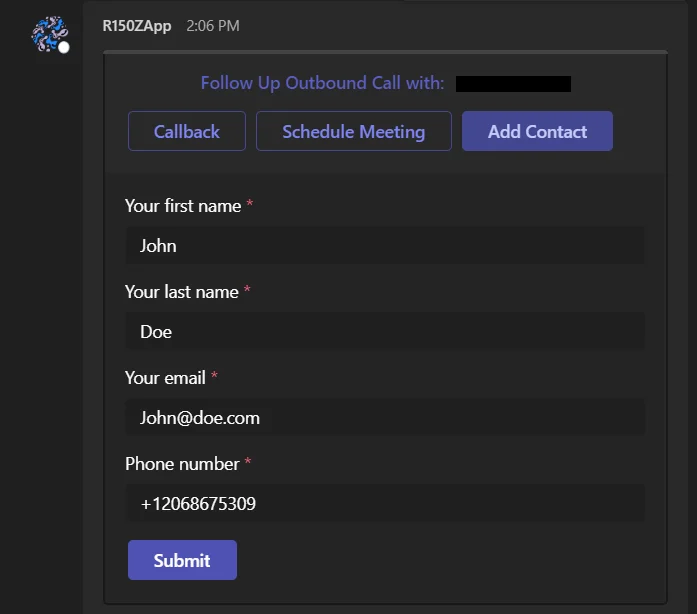
When this feature is turned on for your organization, a card appears in Teams after each call with quick follow-up actions for the number you just spoke with.
Call back
- Select Callback on the card.
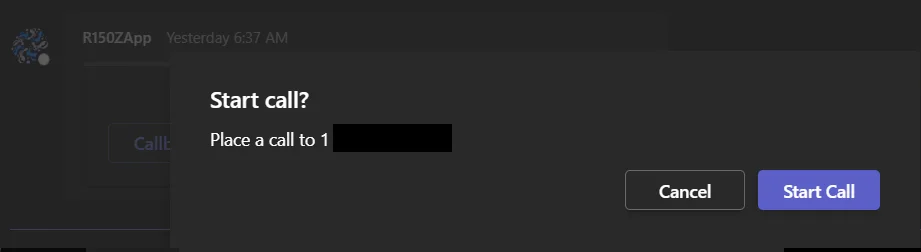
- Select Start Call to confirm.
Schedule a meeting
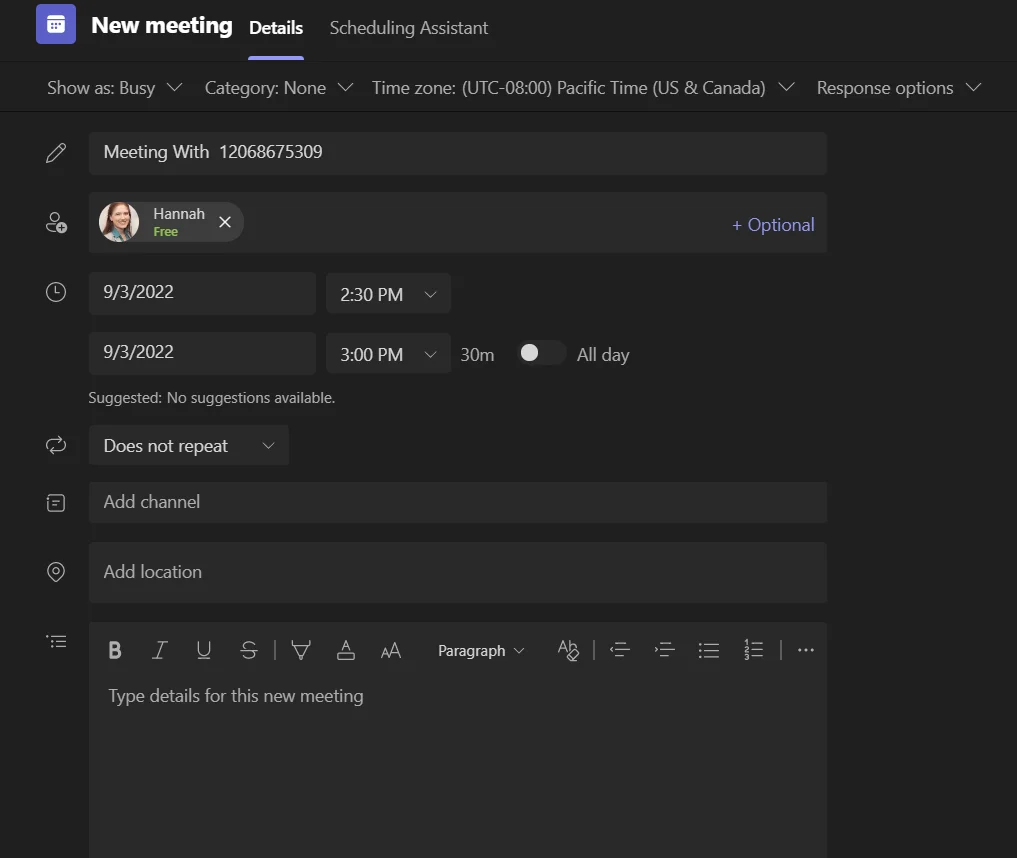
Select Schedule Meeting to open the regular Teams meeting scheduler. The meeting title starts as "Meeting with" followed by the phone number. Change the title, time, and attendees as needed.
Save the caller as a contact
- Select Add Contact.
- Enter the person's name and email. The phone number is already filled in from the call.
- Save the contact.
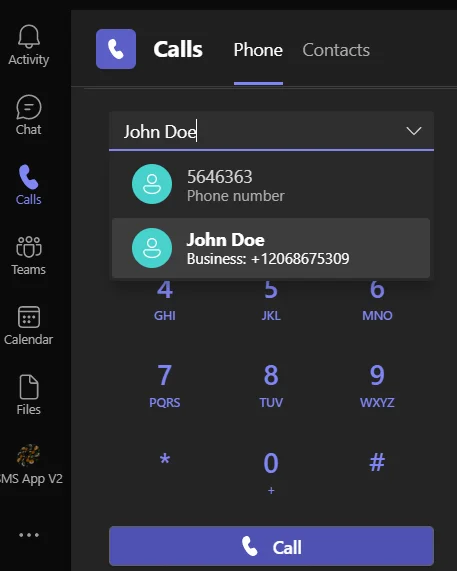
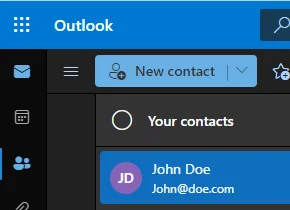
The person is added to your Teams and Outlook contacts, so next time you can call them by typing their name instead of dialing the number.
Don't see the card?
This feature is off by default. To have it turned on for your organization, have your administrator contact CallHarbor Support.

