

Using the Call App in Teams
Last updated: Nov 10, 2026
1
views

The Call App puts a business phone dialer inside Microsoft Teams, so you can make and receive calls on your work number. You don't need a Microsoft Teams Phone license. A Microsoft 365 license that includes Teams is enough.
Before you start
- Your administrator must set up your account for the Call App and deploy the app to your Teams.
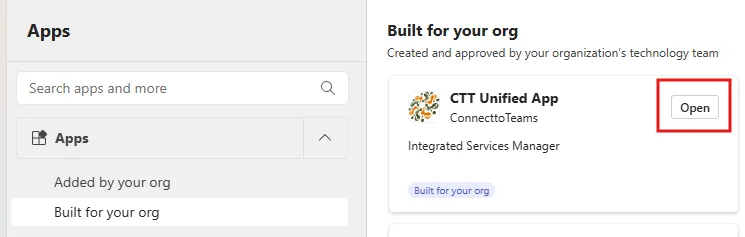
- In Teams, go to Apps > Built for your org and find the app. It is ready when the button says Open. If it still says Add after 24 hours, contact your administrator or CallHarbor Support.
Where it works
- Teams in the Chrome browser on a computer.
- The Teams desktop app on Windows or Mac.
- On a phone, through the separate Connect2Teams mobile app. The Call App does not work inside the Teams mobile app. See Using the Connect2Teams Mobile App.
Turn on notifications so you don't miss calls
Chrome
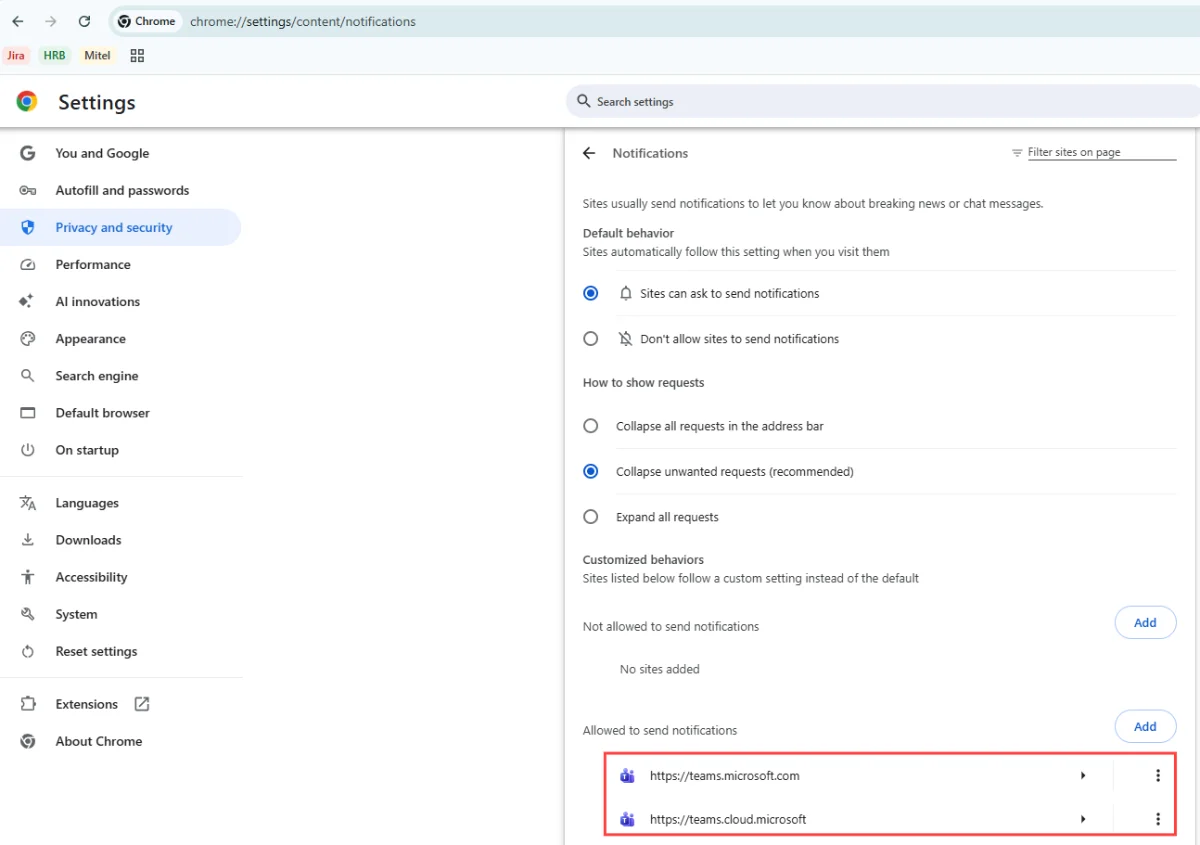
- In Chrome, open the three-dot menu and select Settings > Privacy and security > Site Settings > Notifications.
- Under Allow, select Add and enter https://teams.microsoft.com. Repeat for https://teams.cloud.microsoft.
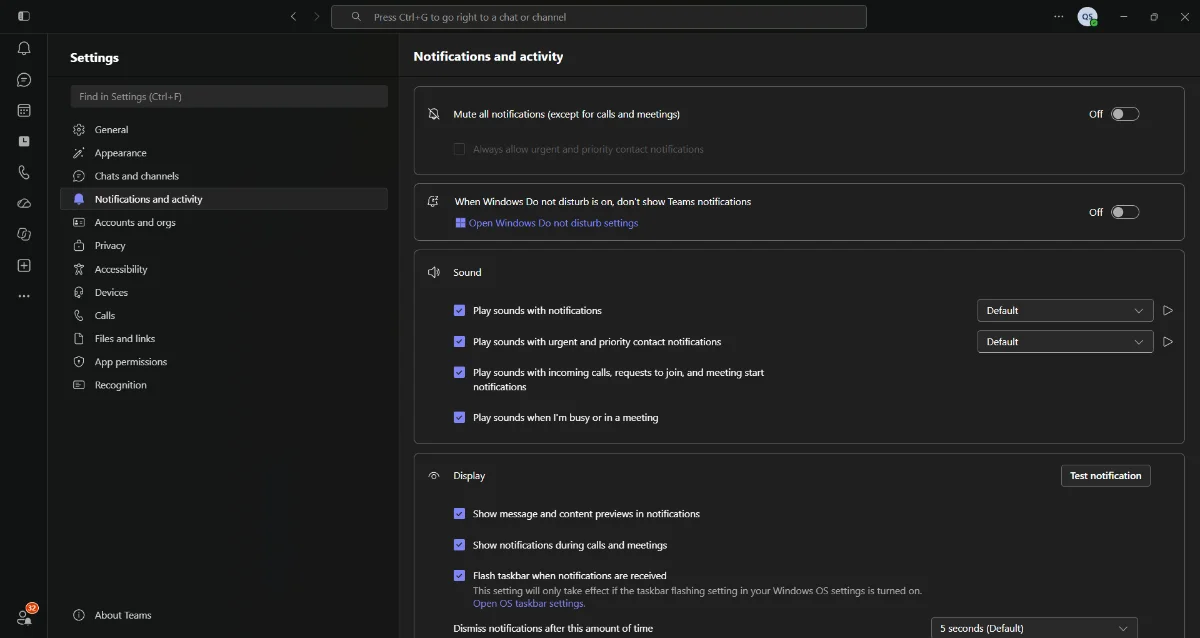
- In Teams, open Settings > Notifications. Under Appearance and sound > Notification style, choose Windows or Mac so alerts go through your computer's notification center.
- Make sure Chrome is allowed to send notifications in your computer's own settings (Windows: Settings > System > Notifications. Mac: System Settings > Notifications > Google Chrome).
Teams desktop app on Windows
- Open Settings > System > Notifications.
- Find Microsoft Teams in the app list and turn it on.
Teams desktop app on Mac
- Open System Settings > Notifications and select Microsoft Teams.

- Turn on Allow Notifications. Setting the alert style to Alerts keeps the call notice on screen until you act on it.
- In Teams, open Settings > Notifications and make sure call notifications are on.
If call alerts still don't appear
- Check that your Teams status is not Do Not Disturb.
- Check that Focus or Do Not Disturb is off on your computer, or add Teams to the allowed apps.
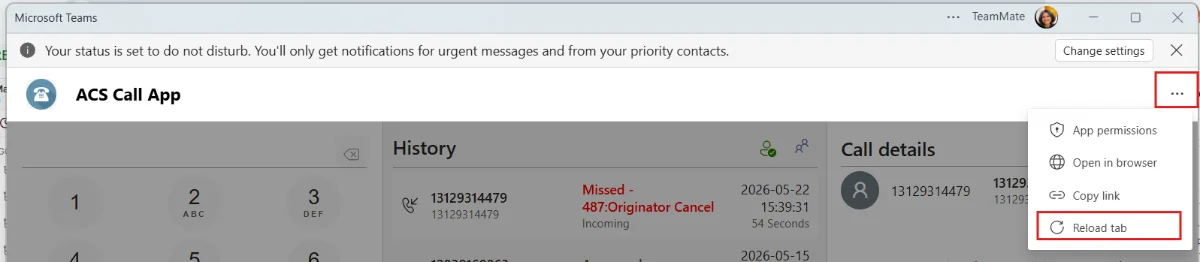
- Reload the app: select the three dots at the top right of the app and choose Reload.
- Sign out of Teams and back in.
Allow microphone and speaker access
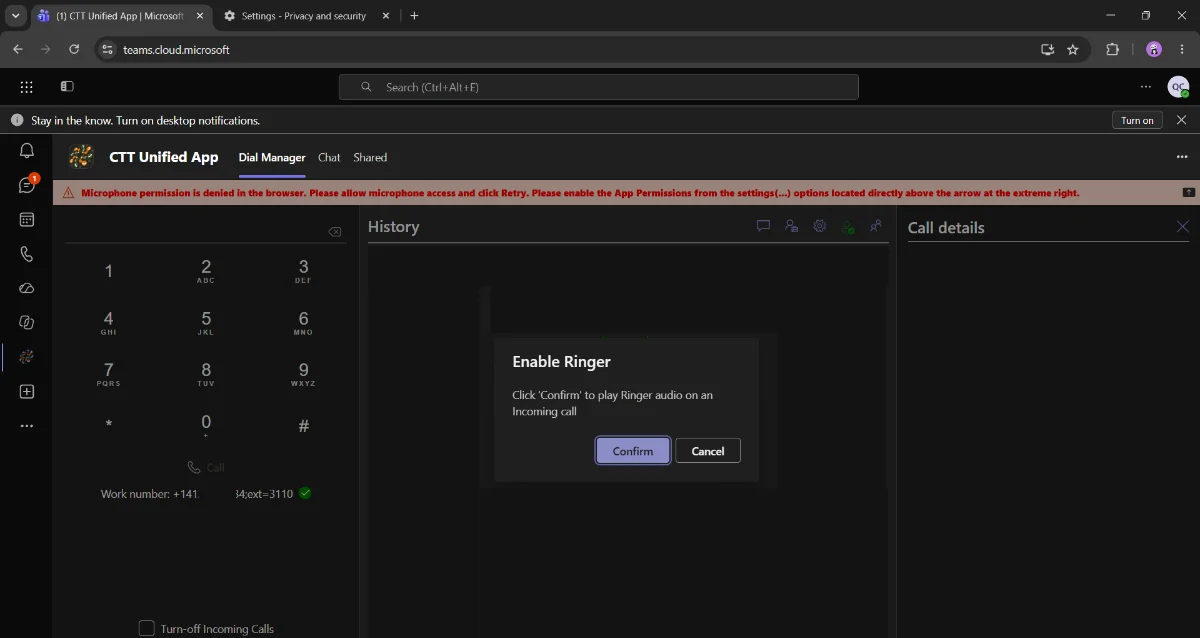
- If you see a banner about the ringer, select Confirm.
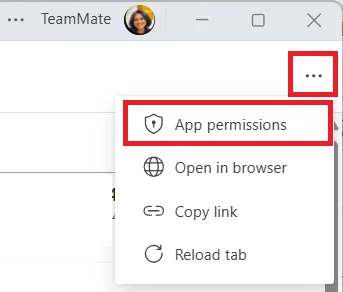
- Select the three dots at the top right of the app and choose App permissions.
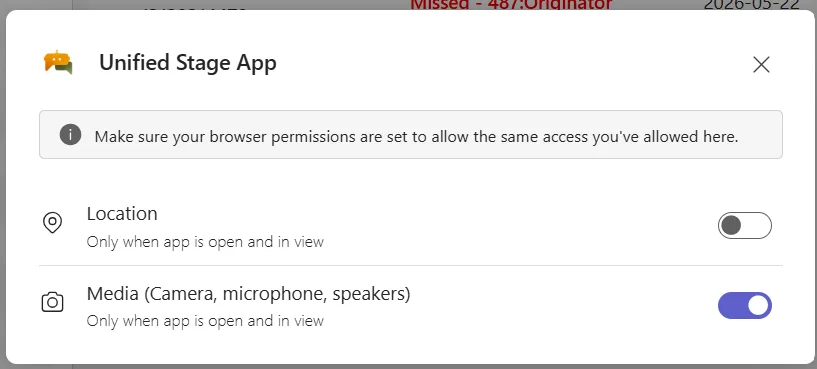
- Turn on Media (Camera, microphone, speakers).
Make a call
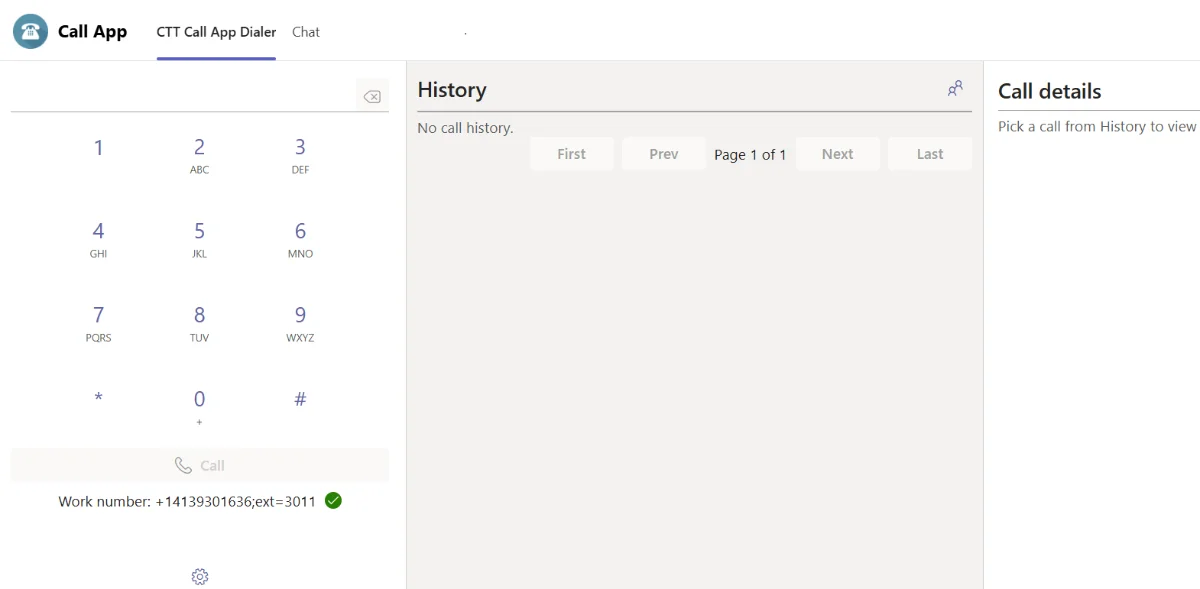
Enter the phone number on the dial pad and select the call button.
Stop calls from ringing in the app
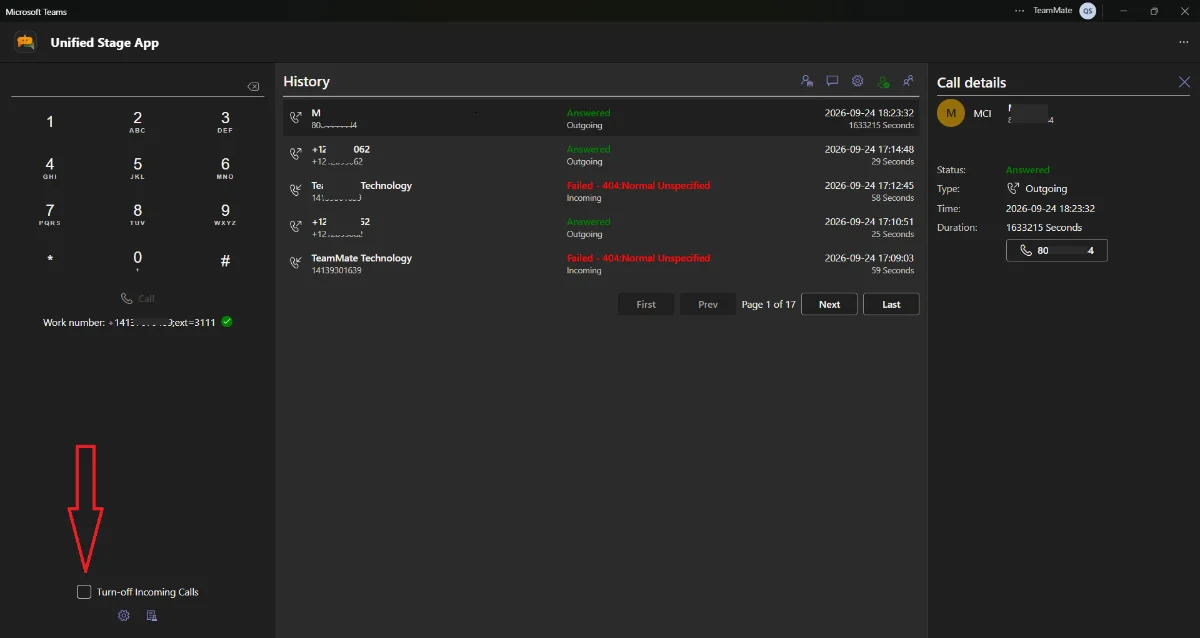
If you only want to answer calls on your desk phone, open the dialer and turn on Turn off Incoming Calls. Turn it off again to receive calls in the app. This setting also applies to the Connect2Teams mobile app. If you don't see the toggle, your organization hasn't enabled it.
Related articles
- Using the Dial Manager
- Using the Connect2Teams Mobile App

