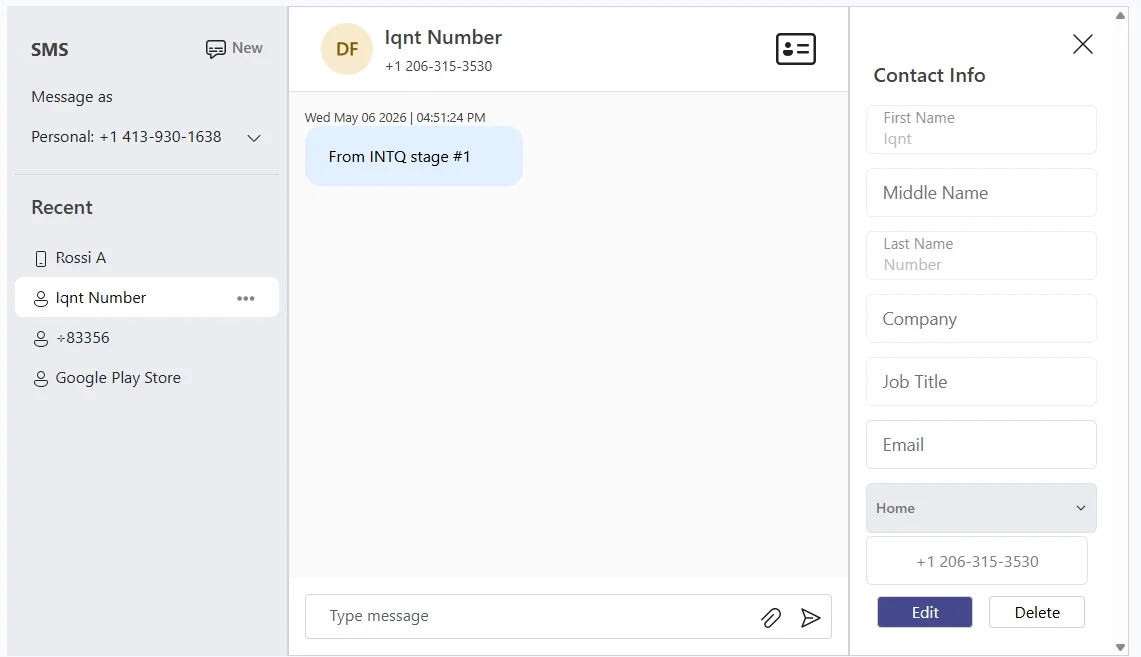
The SMS Page is the main texting screen inside your CallHarbor app in Teams. It looks and works the same in the current app and the legacy SMS app. To open it, see Texting in Teams: Which App Do You Have?
Note: the SMS Page is not available if your organization uses Secure SMS. See Texting When Secure SMS Is Turned On.
Layout
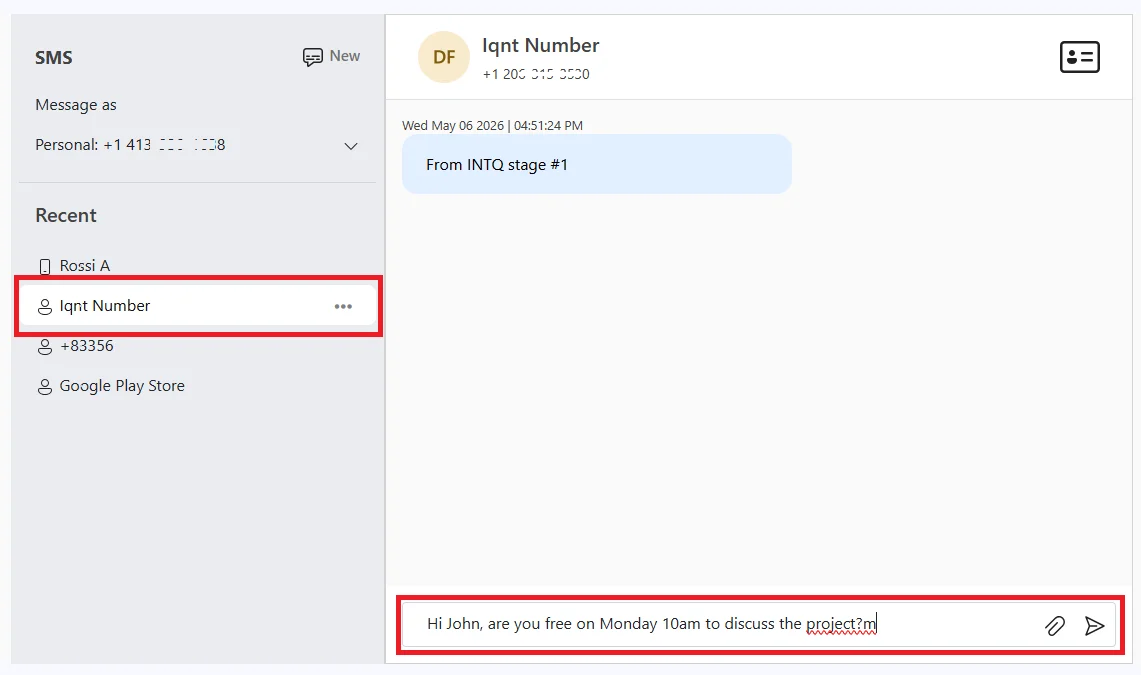
- Left: the Message as selector, with your recent conversations below it.
- Center: the conversation you selected, with a box for typing a reply.
- Right: contact details, shown when you select the contact card icon.
Message as
This drop-down sets which of your numbers you are sending from. It lists your own numbers and any shared numbers you belong to. The conversation list only shows conversations for the number selected, so if a conversation seems to be missing, check that the right number is chosen.
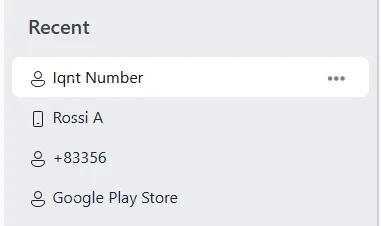
Recent conversations
The list shows the people and groups you have texted in the last 120 days.
Send a text or picture message
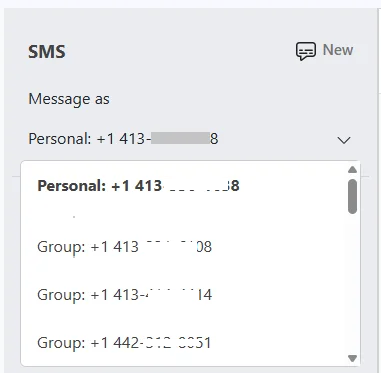
- Choose your number under Message as.
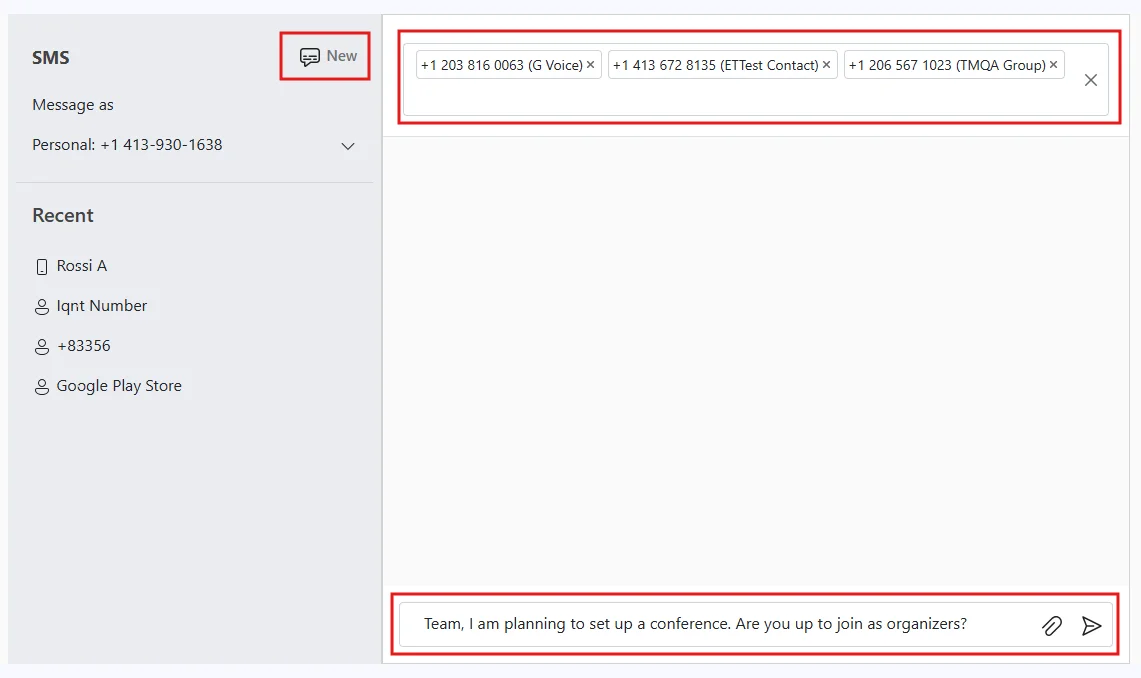
- Either select an existing conversation, or select New and enter the recipient's full number or contact name.
- Type your message. To attach a picture or file, select the paperclip.
- Select the send icon.
- Several recipients: press Enter or type a comma after each one. You can then send as a broadcast or as a group text. See Texting Multiple People: Broadcast vs. Group Text.
- International numbers: include the + and country code. International texting depends on your service; contact CallHarbor Support if you are unsure.
- Contacts: type a name to text any Outlook or organization contact that has a mobile number.
- Attachments: see Picture Message (MMS) Limits.
New message notifications
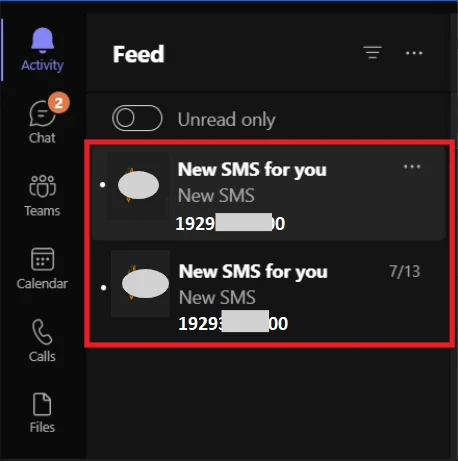
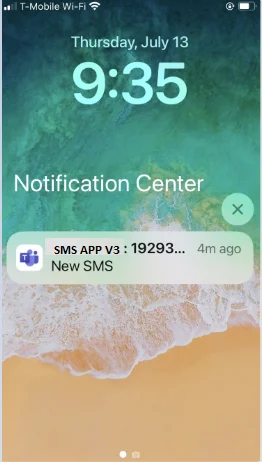
New texts appear in your Teams Activity feed, on your computer and in the Teams mobile app.
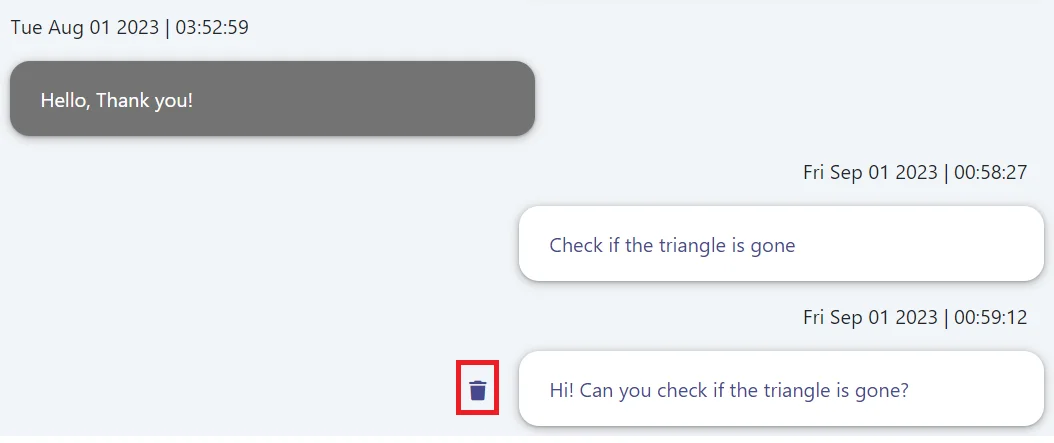
Delete a single message
- Hover over the message and select the trash icon.
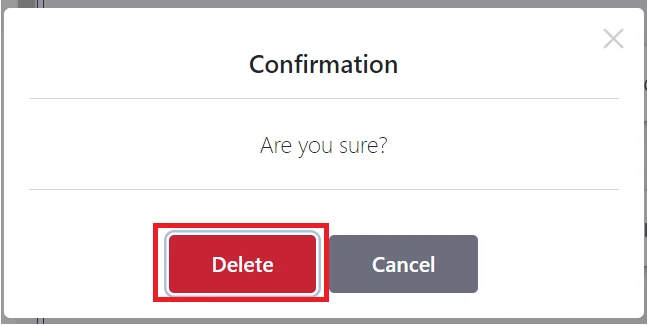
- Select Delete.
The message is removed from the SMS Page and from the matching conversation in Teams. A copy is still kept in your organization's Microsoft Teams archive.
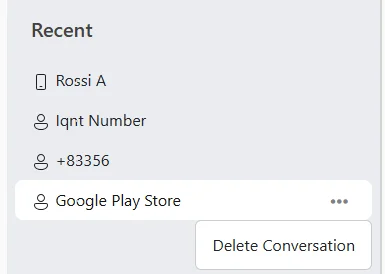
Delete a whole conversation
- Select ... next to the conversation and choose Delete Conversation.
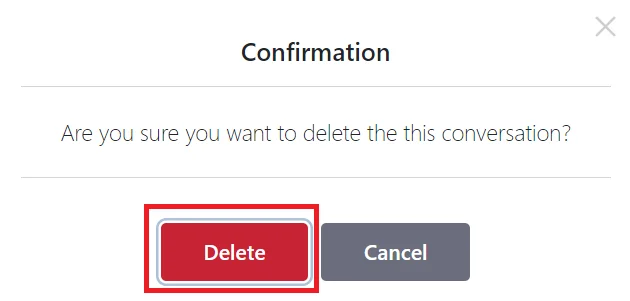
- Select Delete to confirm.
This only tidies up the SMS Page. The conversation still appears in Teams as a chat (current app) or a channel (legacy app).
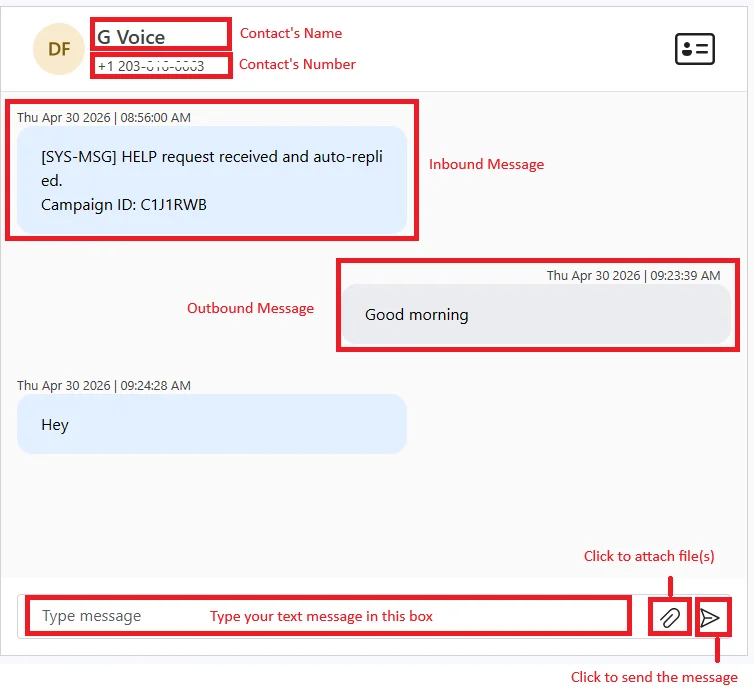
Contacts
Conversations with saved contacts show the contact's name. Select the contact card icon to see details or save a new contact. See Managing Contacts from the SMS Page.