


A group text is one conversation with several recipients. Everyone in it can see who else is included and can see every reply. You can send text and picture messages to the group.
A group text is different from a broadcast, where each person gets the message privately, and from a shared number, where several coworkers use one phone number. See Texting Multiple People: Broadcast vs. Group Text.
Before you can use it
- Group texting is off by default. Carriers usually bill group texts at picture-message (MMS) rates, which are higher than standard text rates. To have it turned on, have your administrator contact CallHarbor Support.
- Your text number must support group texting.
- Not every mobile carrier supports group texts. A recipient on a carrier that doesn't may receive your message as an ordinary one-to-one text instead.
- A group text can have up to 10 recipients.
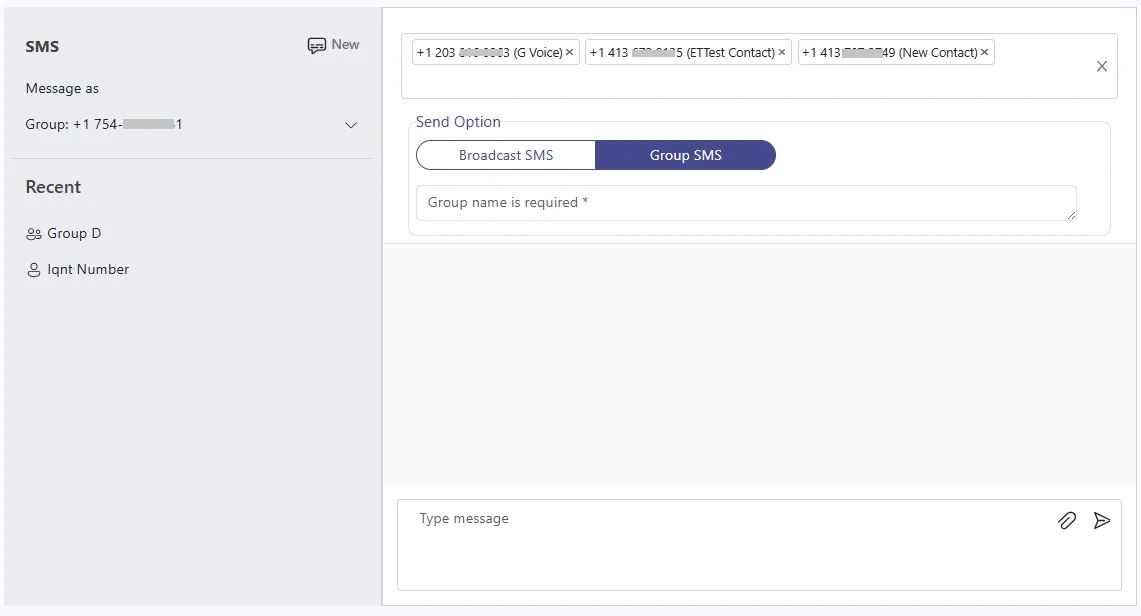
Start a group text from the SMS Page
- Open the SMS Page in your CallHarbor app in Teams.
- Under Message as, choose the number to send from.
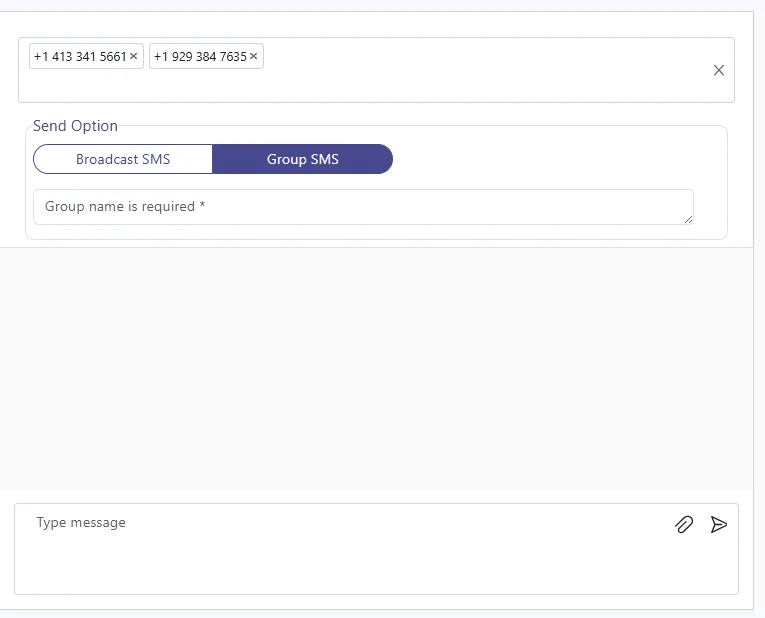
- Select New and enter up to 10 recipients.
- Select Group SMS.
- Enter a Group Name. This is your own label for the conversation.
- Type your message and select Send.
Start a group text in plain language (current app)
In the app's Chat tab, describe the group text, for example: Send a group text to +1 555-123-4567 and +1 555-987-6543 saying the team meeting has moved to 3 PM. The app asks for anything missing, such as a group name, then sends it.
- This method starts the group with text only. To send a picture, start the group first, then attach the picture in the Teams group chat that is created.
- Don't start your request with echo, help, invite, or initiate.
Where the group text appears
- Current app: as a group chat in your Teams Chat list. The pinned message at the top lists the sending number and the group recipients.
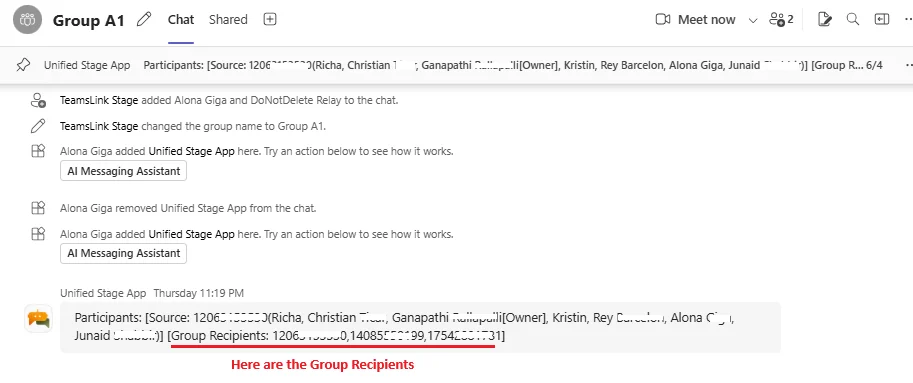
- Legacy SMS app: as its own channel under the team for your number.
Reply to a group text
- SMS Page: open the group from your recent conversations, type, and send.
- Teams group chat (current app): send a message in the chat. Attachments are sent as picture messages.
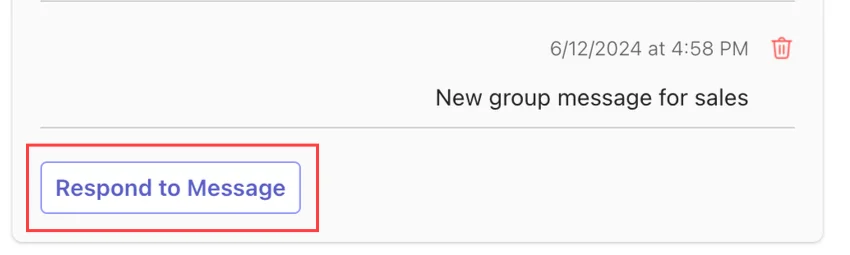
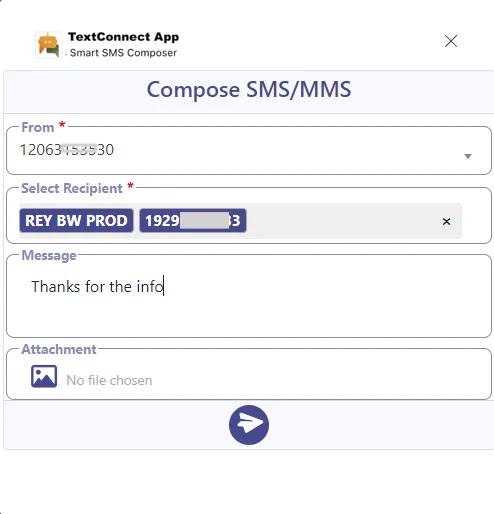
- Teams channel (legacy app): select Respond to Message, type your reply in the SMS Composer, and select Send.
Manage a group text
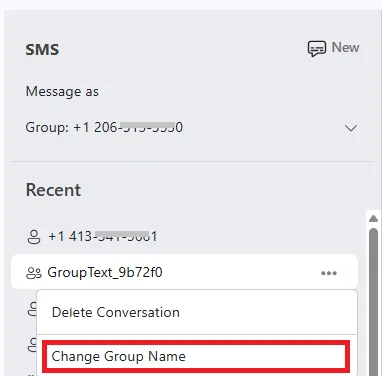
- Rename: use Change Group Name. The name is personal to you; other people can name the same group differently.
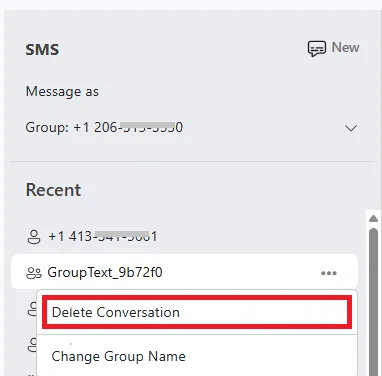
- Delete: use Delete Conversation in the SMS Page. If someone in the group texts again, a new conversation is created.
- Change who is in it: open the group in the SMS Page and select the + at the end of the participant list. Add or remove people, give the new group a name, and send a message. A change in membership creates a new group. If the list exactly matches an existing group, that group is reused.

With Secure SMS
If your organization uses Secure SMS, the SMS Page is not available. In the current app you can still start a group text in plain language from the Chat tab and reply from the Teams group chat. In the legacy app you can reply to existing group texts but not start new ones.
Texting rules
You are responsible for having permission to text the people you add and for honoring requests to stop.

