


This guide covers sending and receiving text and picture messages with the current CallHarbor app in Microsoft Teams. If your texts appear under Teams as teams and channels instead of in your Chat list, see Texting with the Legacy SMS App.
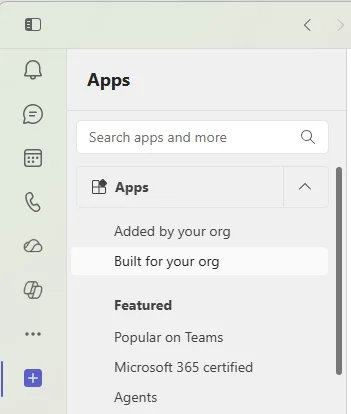
Before you start
- Your administrator must enable texting for you and assign you a number, or add you to a shared number.
- In Teams, go to Apps > Built for your org and find the app. It is ready when the button says Open. If it still says Add after 24 hours, contact your administrator or CallHarbor Support.

- Pin the app to your sidebar for quick access.
Where your texts live
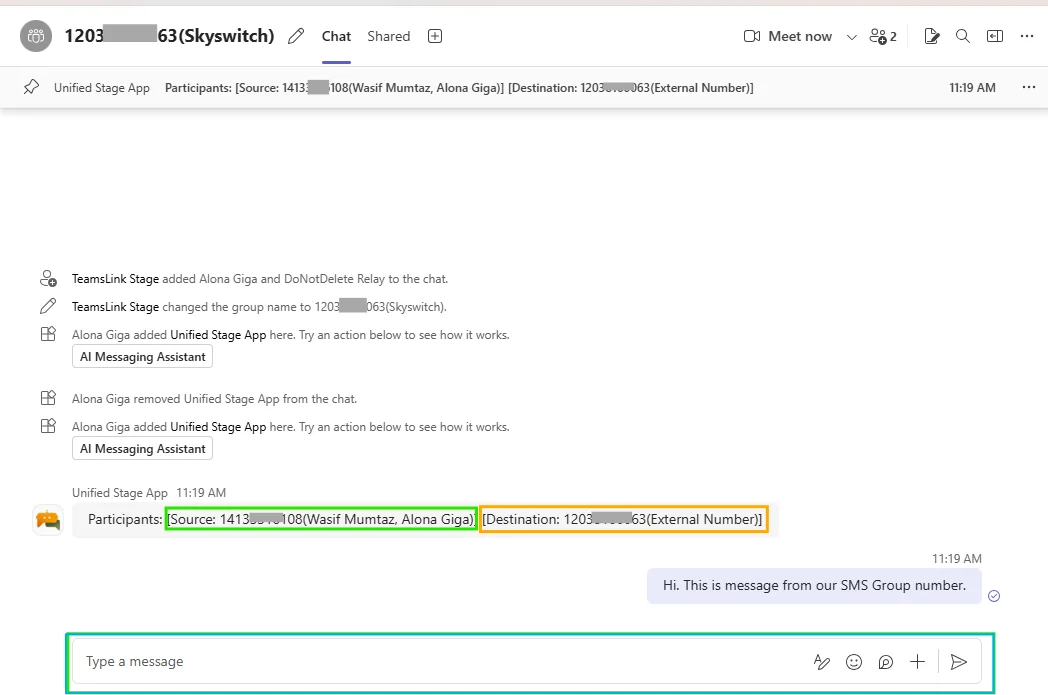
Each text conversation appears in your Teams Chat list as a group chat. The chat is named with your number followed by the other person's number in brackets. If the other person matches one of your contacts, you see their name instead.
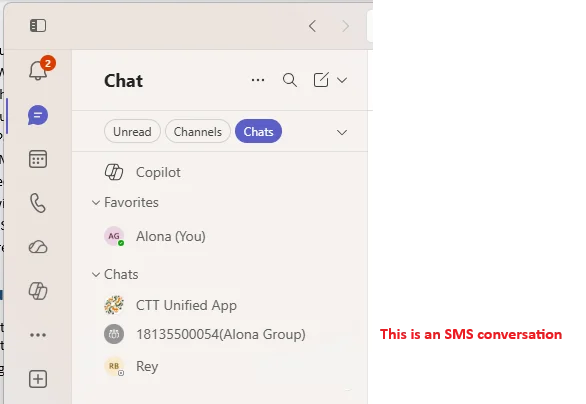
- Find a conversation: search your chat list for your text number or the contact's name.
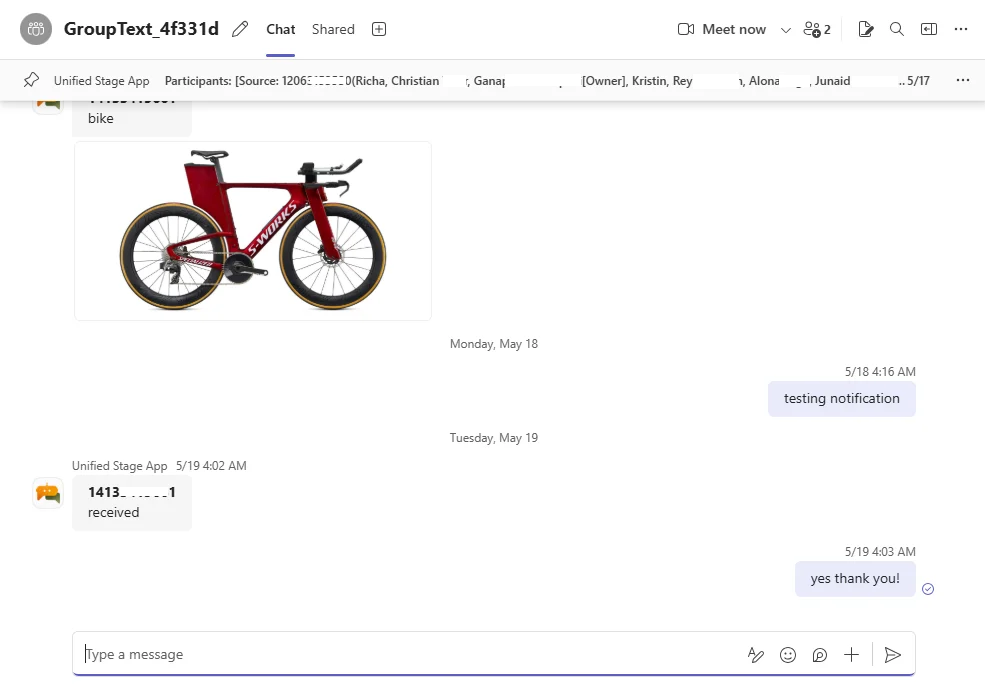
- Reply: type in the chat like any other Teams chat.
- Send a picture or file: attach it to your chat message before sending.
The SMS Page
The SMS Page inside the app is the best place to start a new conversation. From it you can send and receive texts, message several people at once, send group texts if your number supports them, and manage your Outlook contacts. See Using the SMS Page.
Send a text by describing it
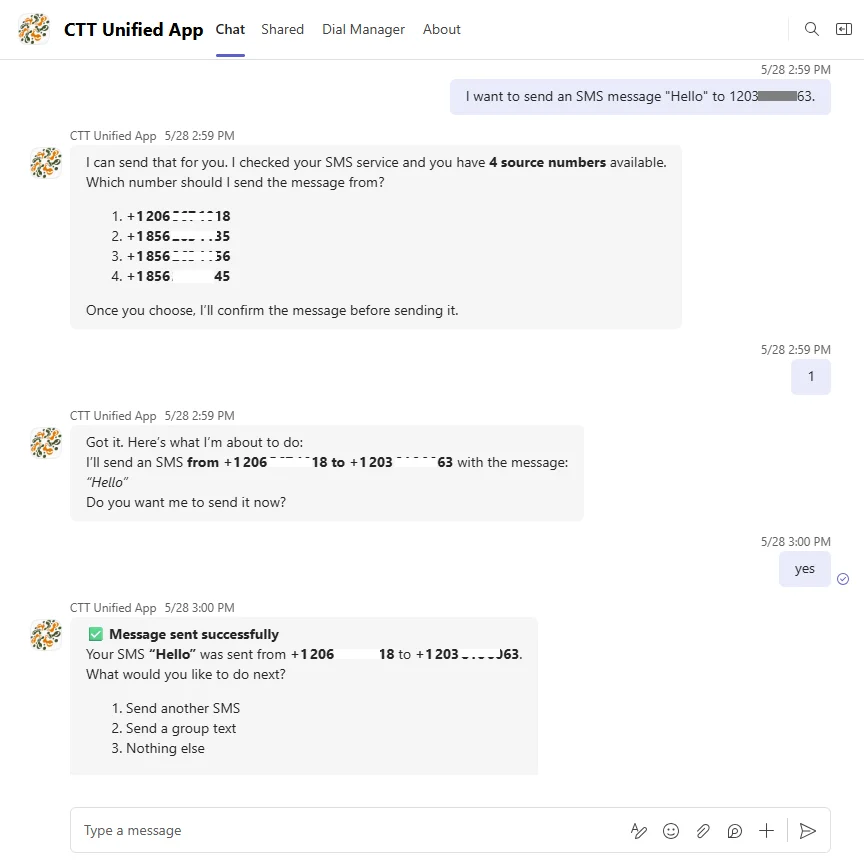
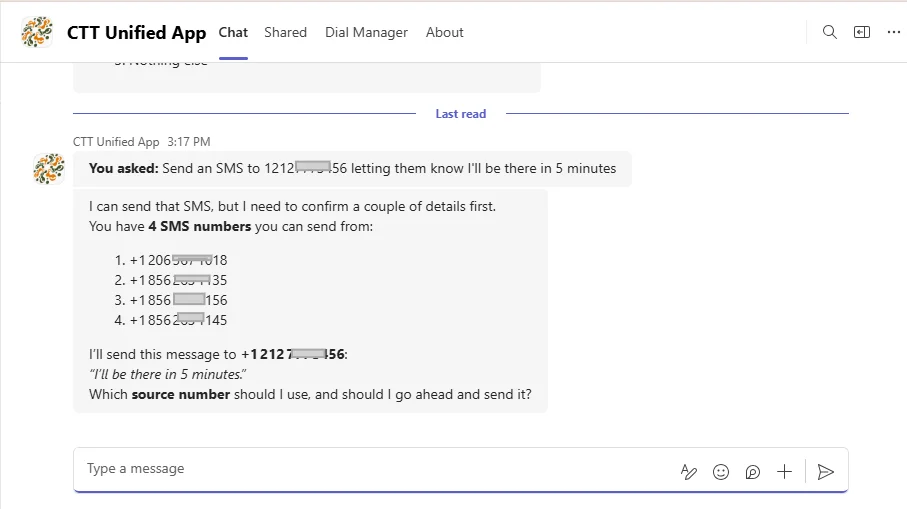
The app's Chat tab understands plain language. Type what you want, for example:
- Send a text to 555-123-4567 saying I'll be 10 minutes late.
- Text +1-555-123-4567 that the meeting has been moved to 3 PM.
The message is sent and then appears in the matching Teams chat. If you have more than one number, you may be asked which one to send from.
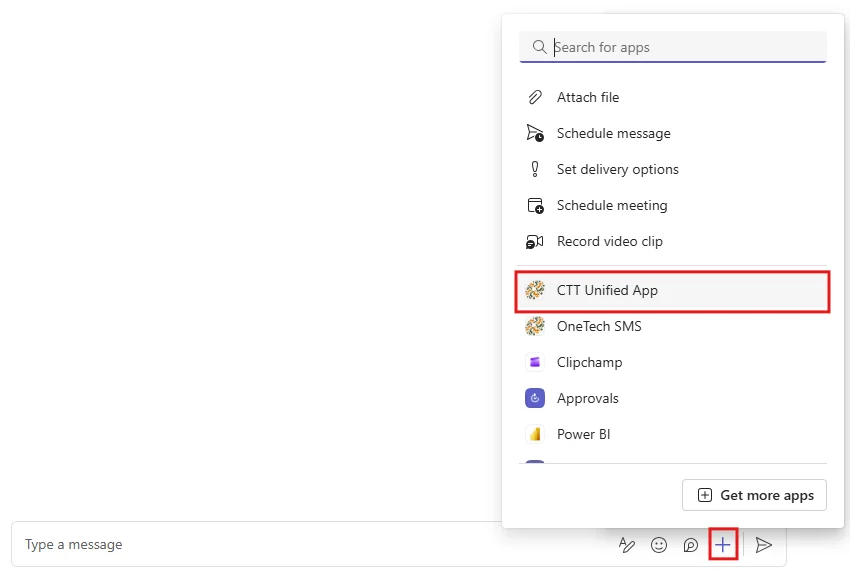
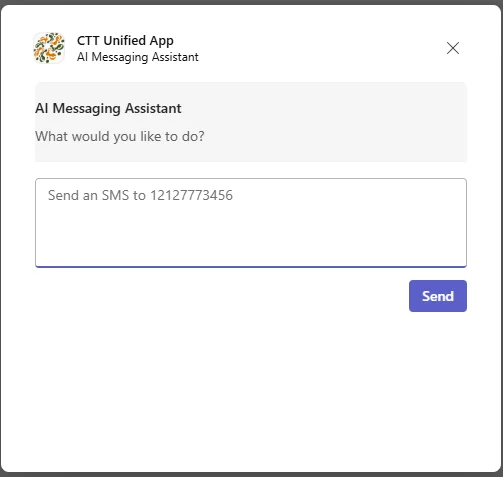
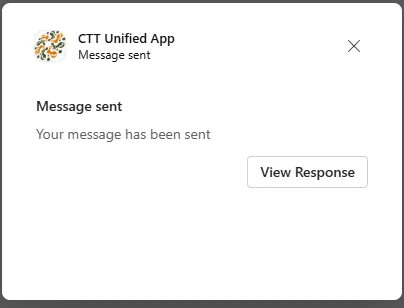
You can also start from any Teams conversation: open the apps menu in the message box, select the CallHarbor app, describe the text you want to send, and select Send. Select View Response to continue in the app's Chat tab.
Two limits:
- This method sends text only. To send a picture, use the chat thread or the SMS Page.
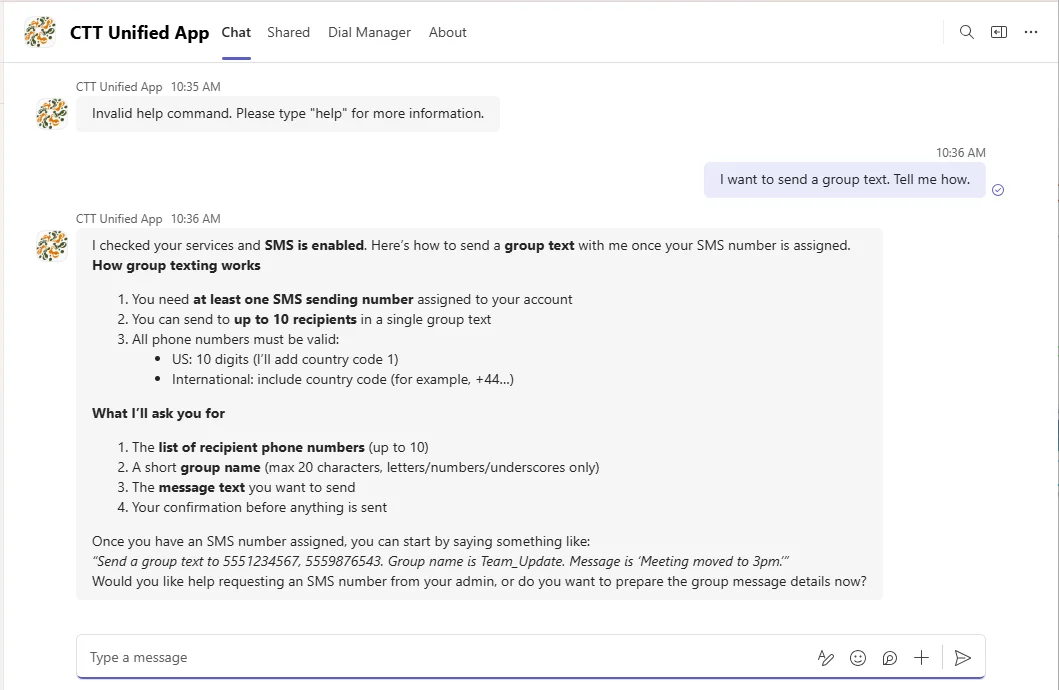
- Don't start your request with the words echo, help, invite, or initiate. The app treats those as commands.
Group texts and shared numbers
These are two different things:
- A group text is one message thread with several recipients who can all see and reply to each other. See Group Texting.
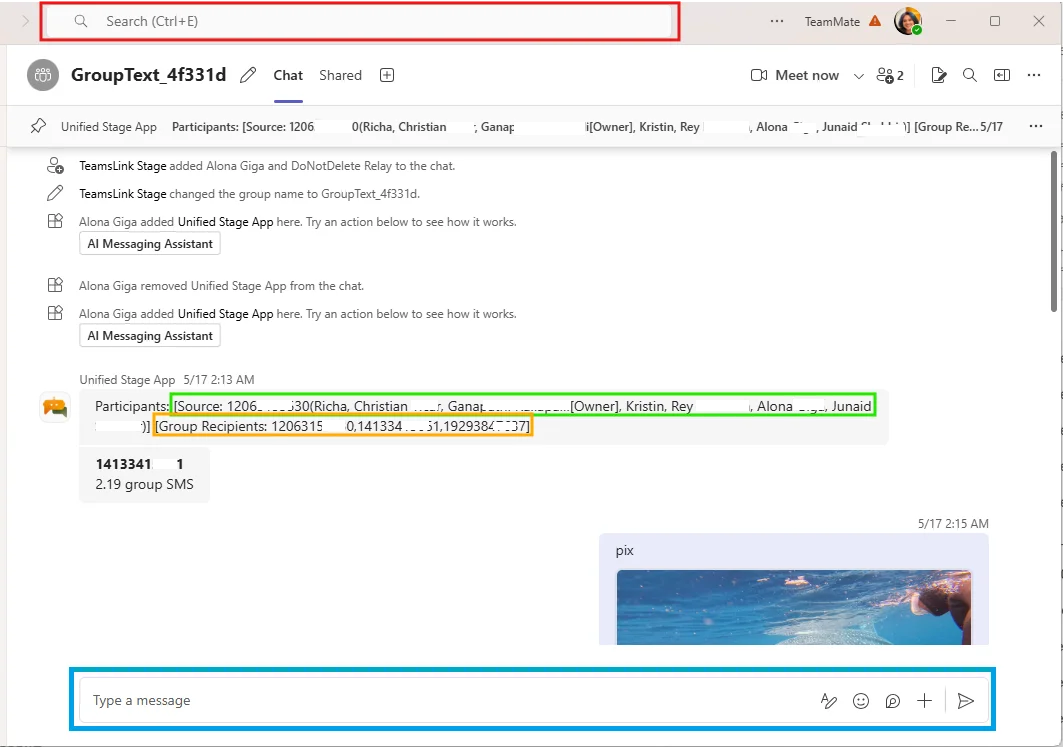
- A shared number (SMS Group) is one phone number shared by several people in your organization, such as a sales or support line. Every member sees every message sent or received on that number.
Text from a shared number
- Open the SMS Page.
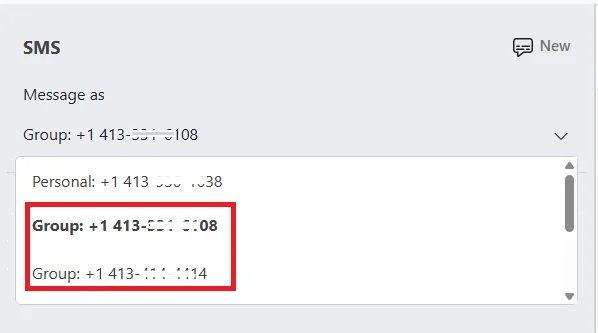
- In the drop-down at the top left, select the shared number.
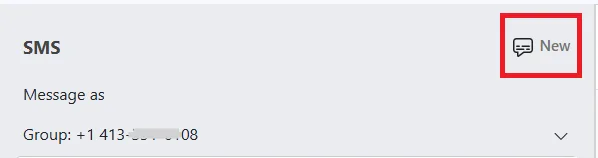
- Select New and enter up to 10 recipients by number or contact name.
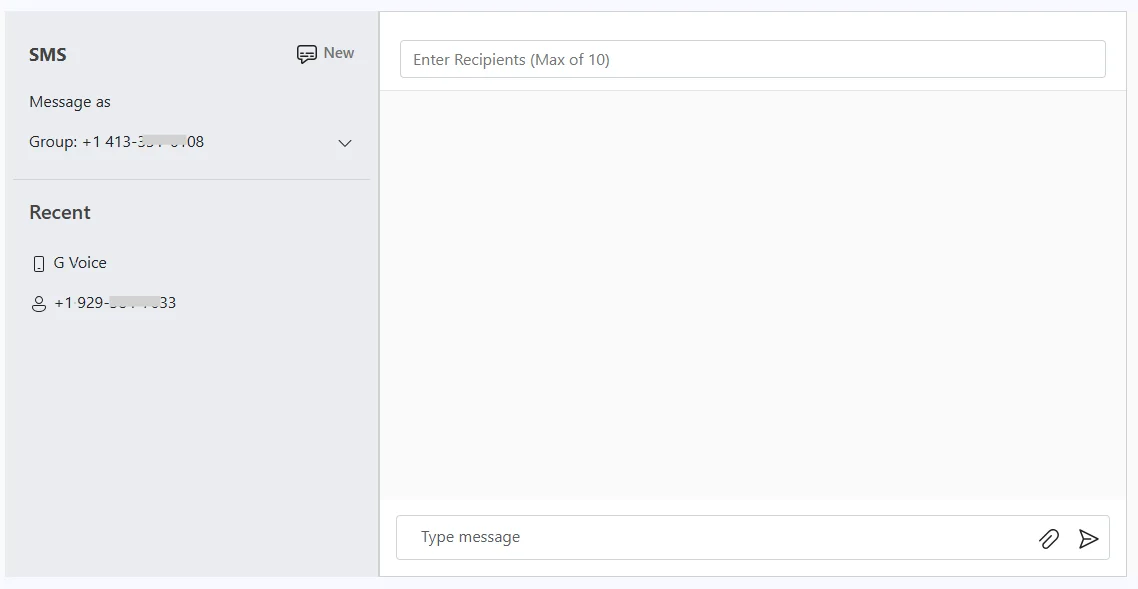
- Type your message. Select the image icon to attach a file.
- Select Send.
To reply later, search your Teams chat list for the shared number or the recipient. The sending number and the recipients are pinned at the top of the chat so you can confirm you are in the right one.
Getting notified
New texts appear in the matching Teams chat and in your Teams Activity feed. If you use Teams on your phone, you also get a push notification.
Need help?
If the app is missing, conversations aren't appearing, or a contact shows as a number instead of a name, contact your administrator or CallHarbor Support.

