


Important: support for the legacy SMS app ends June 1, 2027, and the app stops working on October 1, 2027. Your organization will be moved to the current CallHarbor app for Teams before then, and your number stays the same. To schedule the move, have your administrator contact CallHarbor Support.
This guide is for organizations still using the legacy SMS app, where text conversations appear under Teams as teams and channels. If your texts appear in your Chat list, see Texting with the CallHarbor App for Teams.
Open the app
- In Teams, go to Apps > Built for your org.
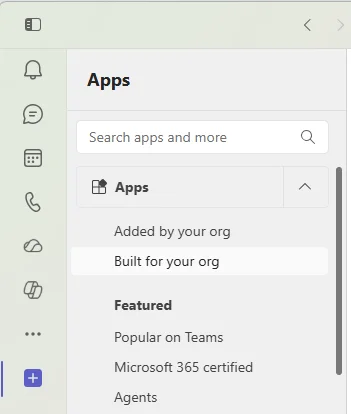
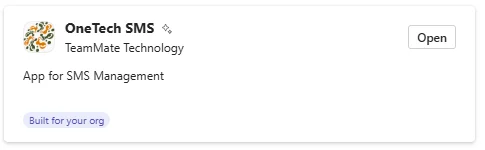
- Find the SMS app and select Open. If the button still says Add after 24 hours, contact your administrator or CallHarbor Support.
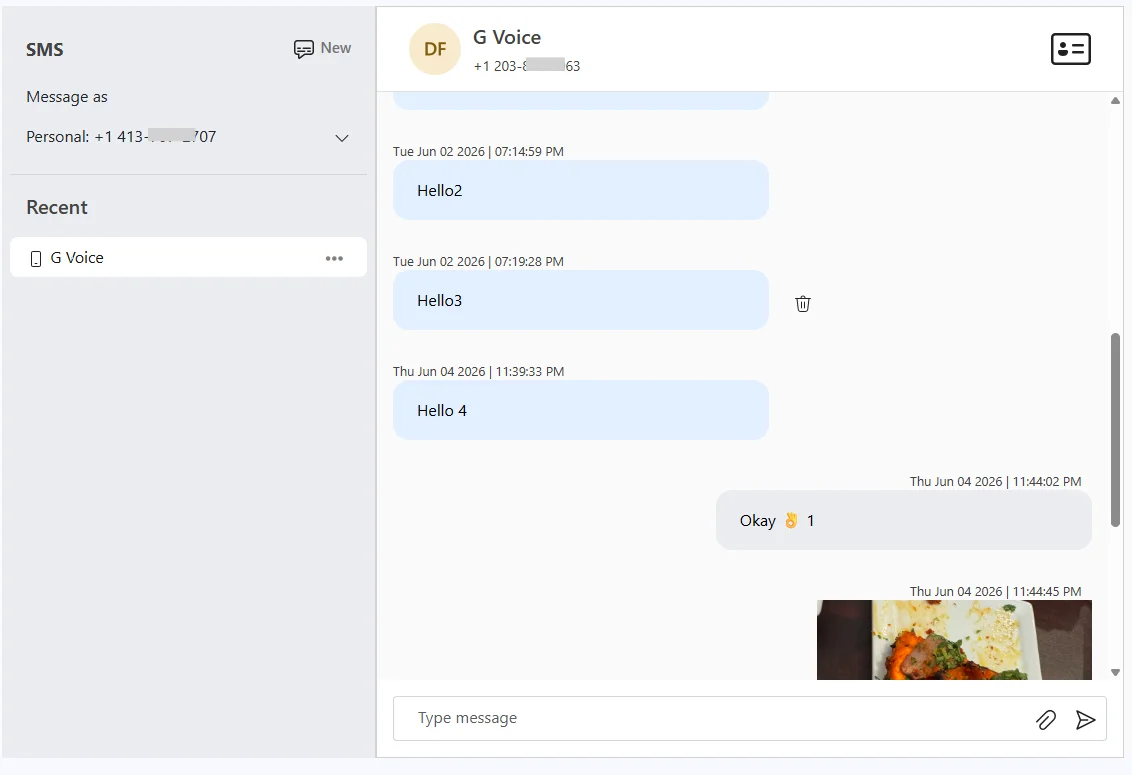
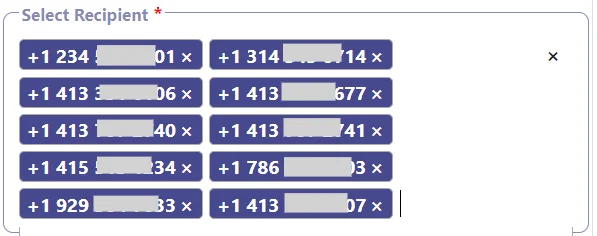
The first tab is the SMS Page, where you can start new conversations, message several people, and manage contacts. See Using the SMS Page.

Where your texts live
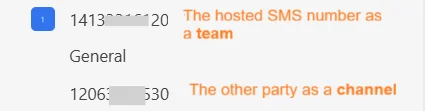
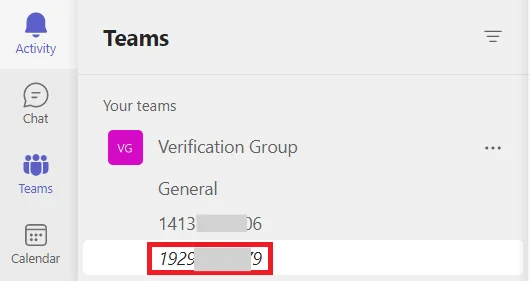
- Each text number assigned to you appears as a team.
- Each person you text appears as a channel inside that team, named with their number or contact name.
Do not delete a team used for texting. If you do, incoming texts to that number stop reaching you. See Renaming and Restoring SMS Teams and Channels.
Reply to a text
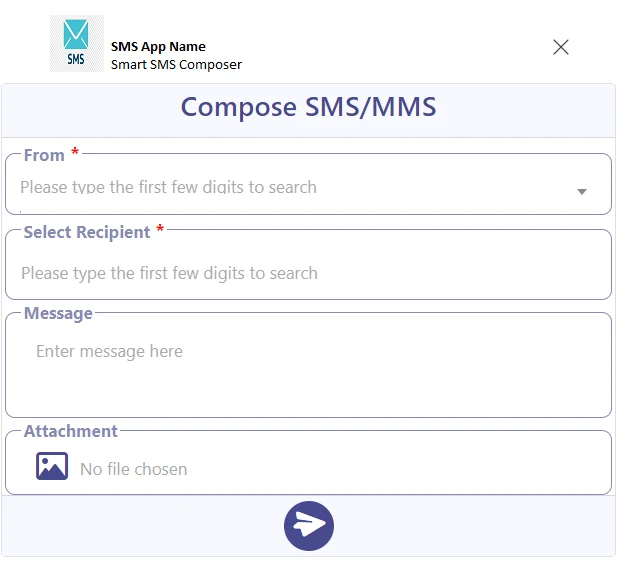
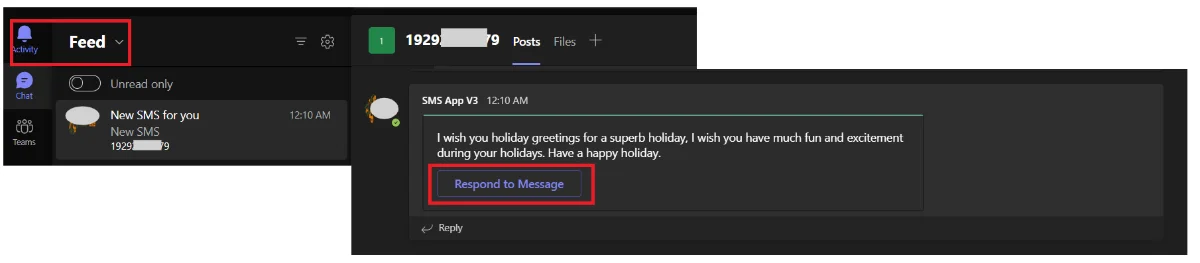
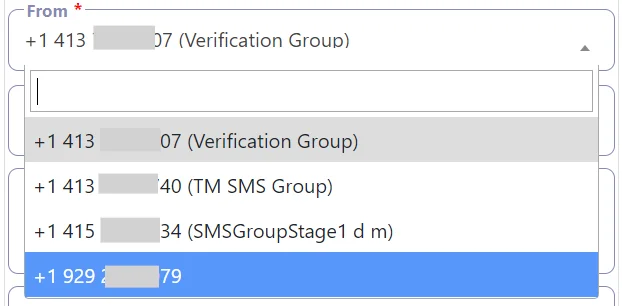
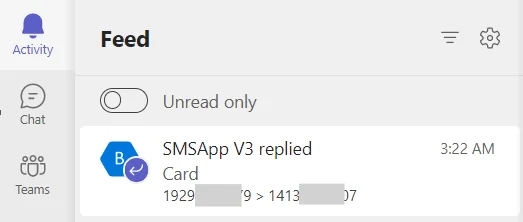
Every incoming text appears as a card with a Respond to Message button, both in the channel and in your Activity feed. Select it to open the SMS Composer with the sender and recipient already filled in.

Watch out: the regular Reply option under the card posts a normal Teams message. It is not sent as a text.
Quick reply by tagging the app
For a fast, text-only reply in a one-to-one channel:
- Open the channel for the person and select Reply.
- Type @ followed by the app name (for example, @sms), then your message.
- Select Send.
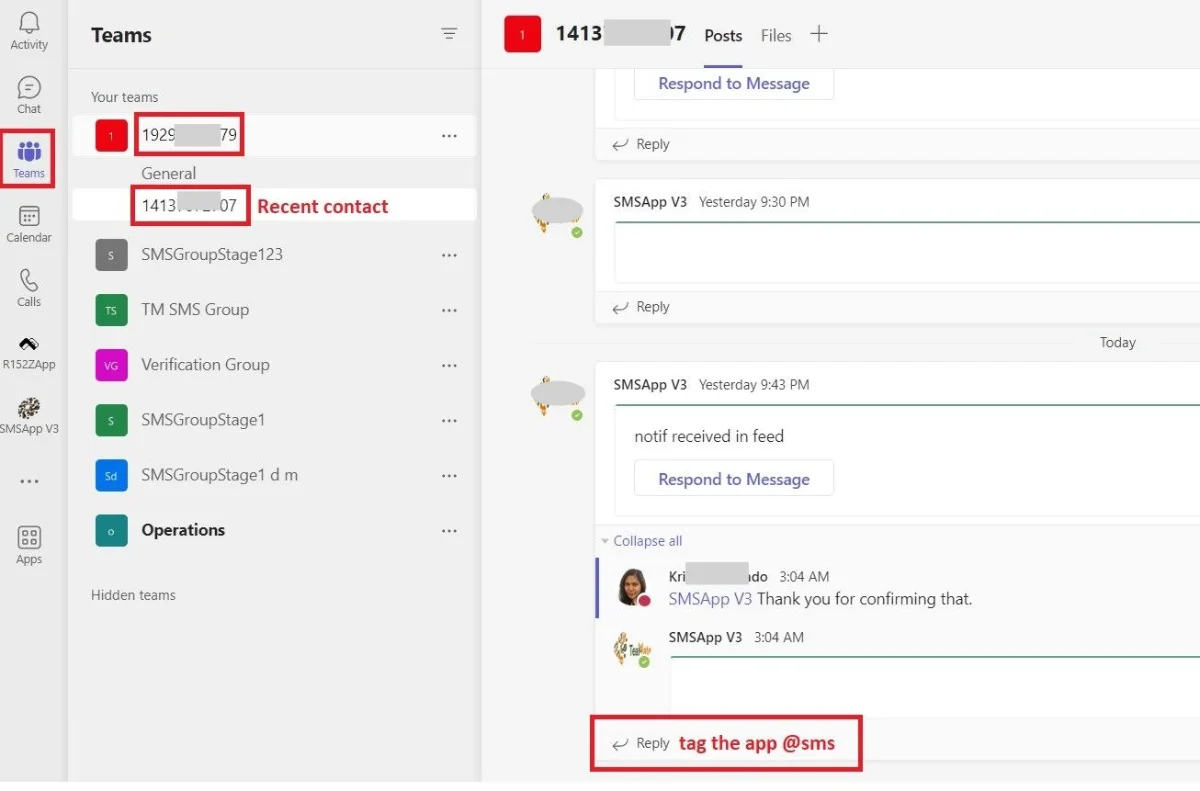

This cannot send pictures and cannot be used for group texts.
Start a new text
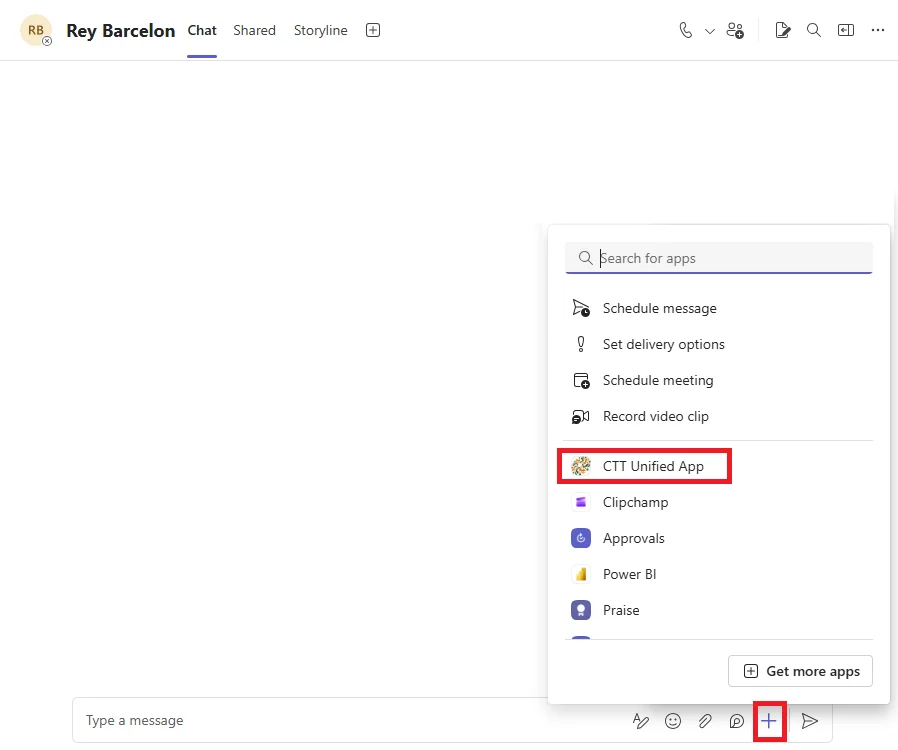
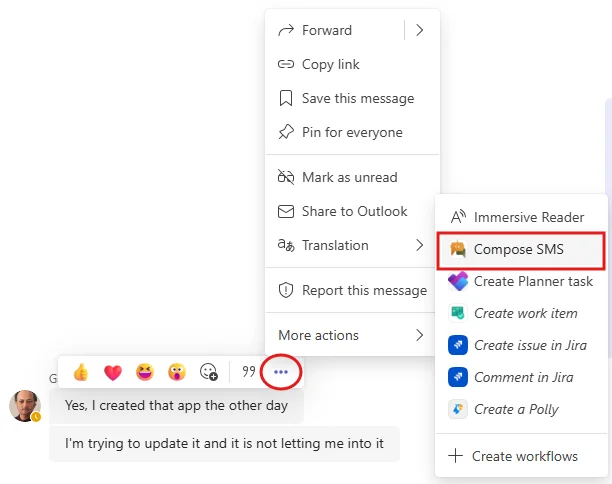
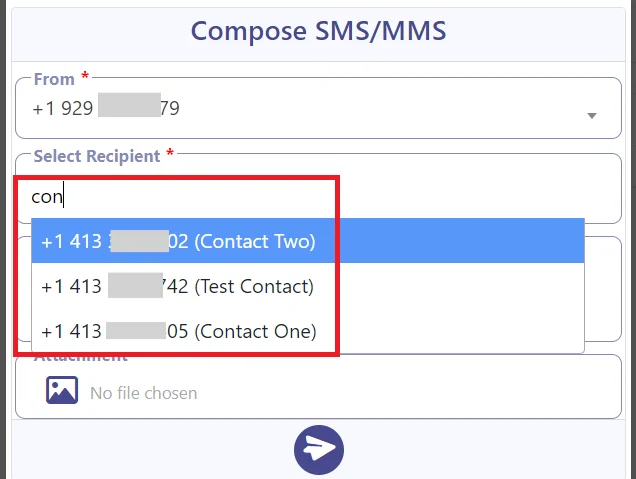
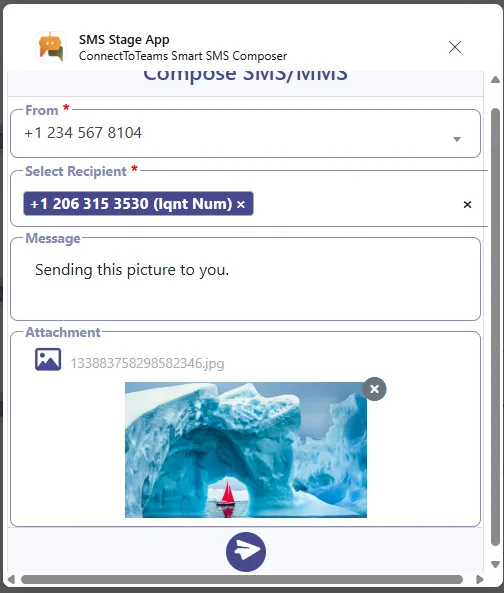
Use the SMS Composer or the SMS Page. See Using the SMS Composer. To start a group text, you must use the SMS Page.
Getting notified
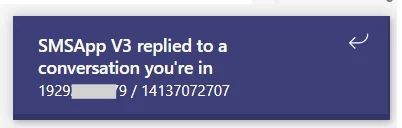
New texts appear in the person's channel and in your Teams Activity feed. If you use Teams on your phone, you also get a push notification.
Delete a text
- Open the channel and find the message.
- Select the trash icon next to it, then Delete.
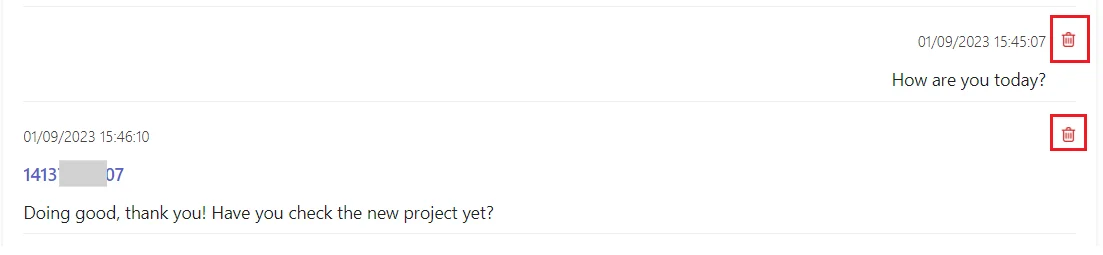
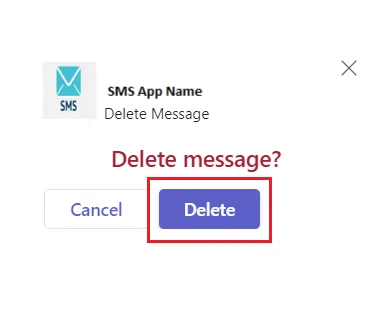
The message is also removed from the SMS Page.

