


There are two ways to send one text to several people. They differ in whether recipients can see each other and where replies go.
| Broadcast | Group text | |
|---|---|---|
| Recipients see each other | No | Yes |
| Replies | Come back to you privately, as separate one-to-one conversations | Seen by everyone in the thread |
| Availability | Always available | Your number must support group texting, and group texting must be enabled for your organization |
| Maximum recipients | 10 | 10 |
| Best for | Announcements, alerts, and individual follow-ups | Small-group conversations where everyone needs to see the discussion |
Not the same as a shared number. A shared number (SMS Group) is one phone number used by several people in your organization. It is not a way of sending to several recipients.
Send a broadcast
- Open the SMS Page in your CallHarbor app in Teams.
- Under Message as, choose the number to send from.
- Select New.
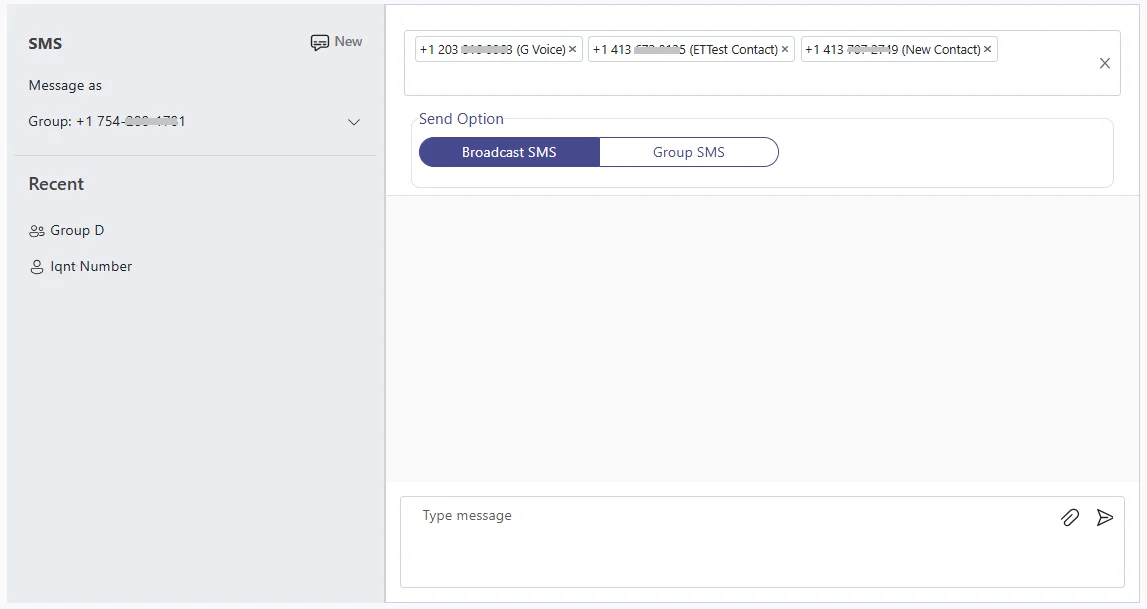
- Enter up to 10 recipients. Press Enter after each one, or paste a list.
- Select Broadcast SMS.
- Type your message and select the send icon.
Send a group text
- Follow steps 1 to 4 above.
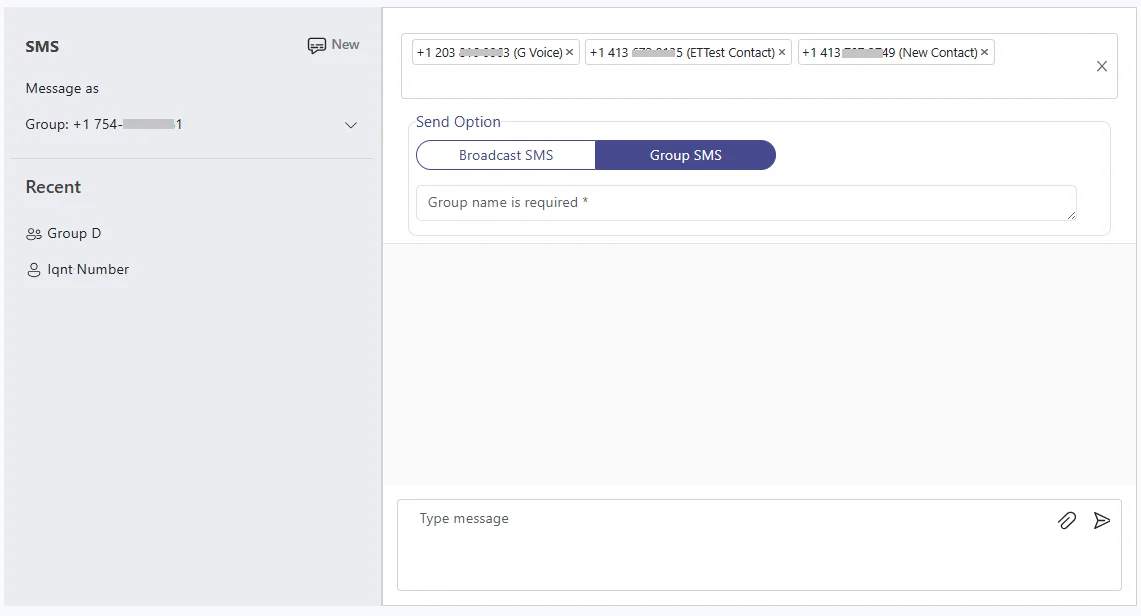
- Select Group SMS.
- Enter a Group Name. Only you see this name; it helps you find the conversation later.
- Type your message and select the send icon.
If you don't see the Group SMS option, group texting isn't available for your number or organization, and messages to several recipients are sent as a broadcast. See Group Texting.
Using plain language instead
In the current CallHarbor app for Teams, you can type a request in the app's Chat tab, such as asking it to send a broadcast or a group text to a list of numbers with your message. The app handles the rest.
Replying
Reply from the SMS Page, or from the matching Teams chat (current app) or Teams channel (legacy app).
Pasting a list of numbers
- Separate numbers with a comma, semicolon, colon, or a new line.
- Plus signs, dashes, brackets, and spaces are cleaned up automatically.
- Only 10 numbers are accepted.
Texting rules to follow
- You are responsible for having permission to text the people you message and for honoring requests to stop.
- In the US and Canada, business texting must follow 10DLC registration rules. Sending bulk or promotional messages outside those rules can get your number blocked by the carriers. If you are unsure what your number is registered for, contact CallHarbor Support before sending.

