Using the SMS Composer (Legacy SMS App)
Last updated: Nov 10, 2026
1
views

Important: the SMS Composer is part of the legacy SMS app, which stops working on October 1, 2027. In the current CallHarbor app for Teams, you send texts from the chat, the SMS Page, or by describing the message in plain language.
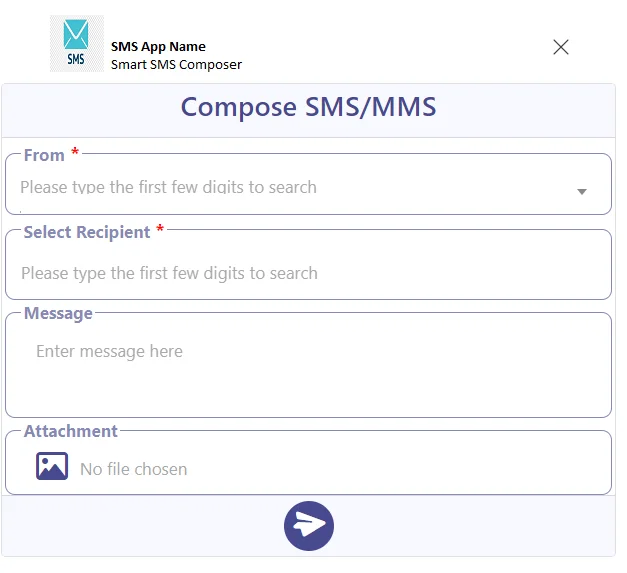
The SMS Composer is a pop-up window for sending a text or picture message without leaving what you are doing in Teams.
Four ways to open it
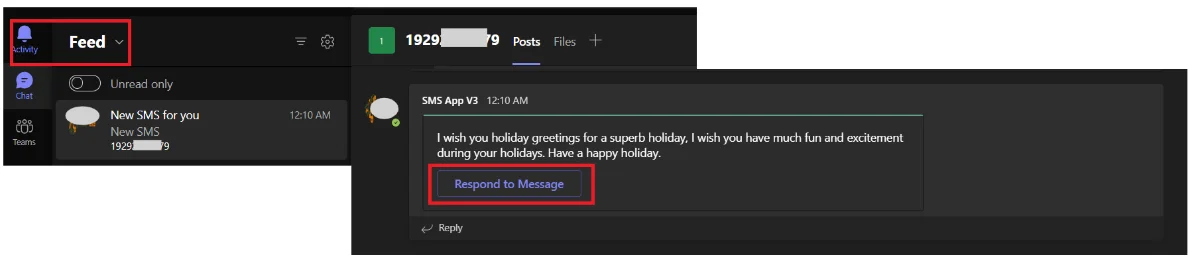
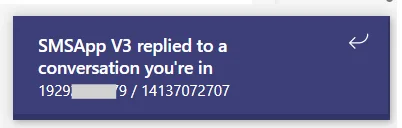
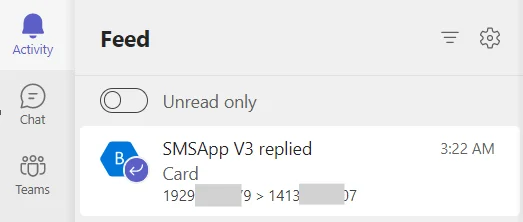
- Respond to Message button. Select it on any incoming text card, in the channel or in your Activity feed. The sender and recipient are filled in for you. In a group text channel, all members of the group text are filled in.

- From a chat message box. In any Teams chat, select + or ... under the message box, search for the SMS app, and select it.
- From a message's menu. Hover over any chat message, select ... (or right-click), and choose Compose SMS.
- By tagging the app. In a one-to-one text channel, select Reply, type @ and the app name, then your message. This sends a quick text without opening the Composer.
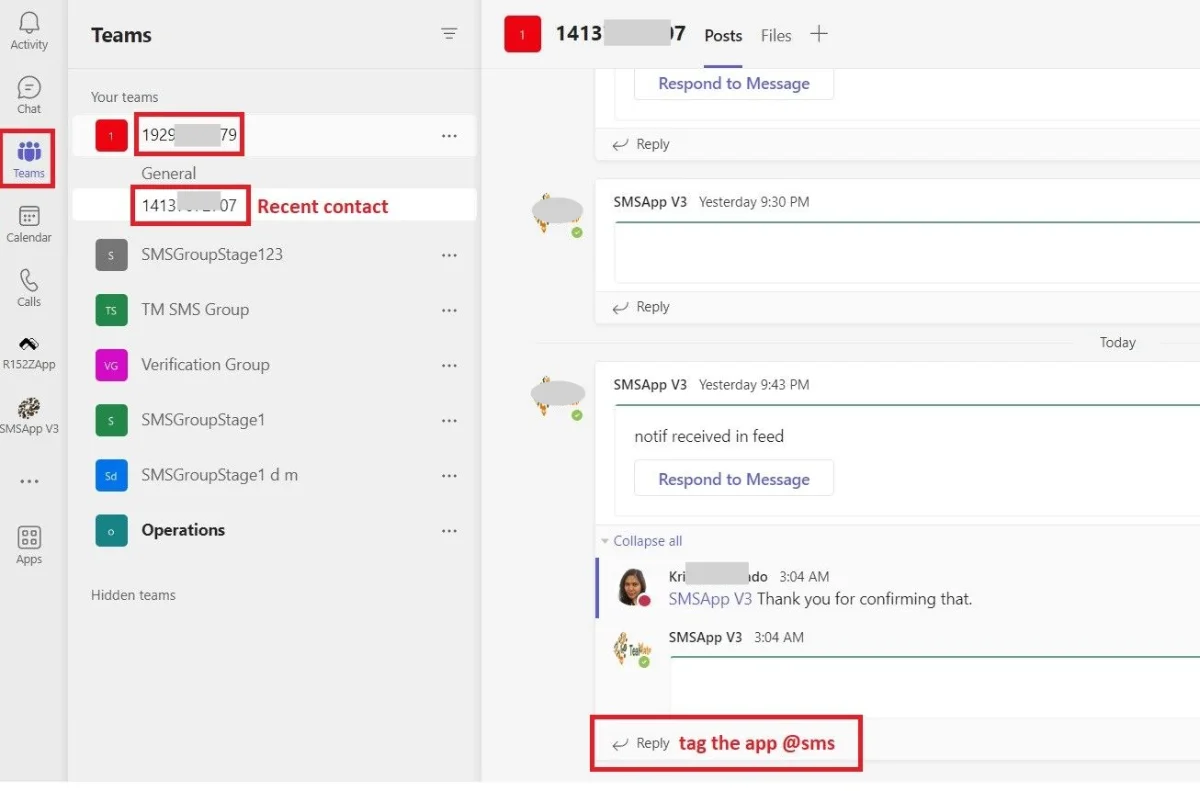
Your organization may have renamed the SMS app. Use the name and icon your administrator gave you.
Send a message

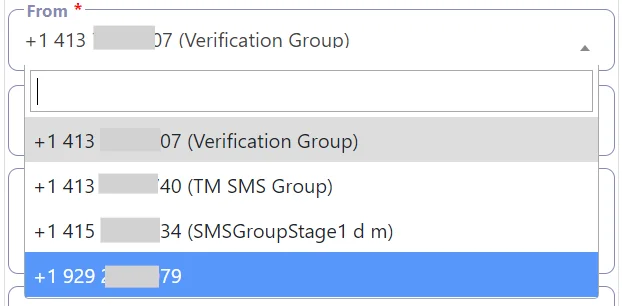
- In From, choose the number to send from. You see your own numbers and any shared numbers you belong to.
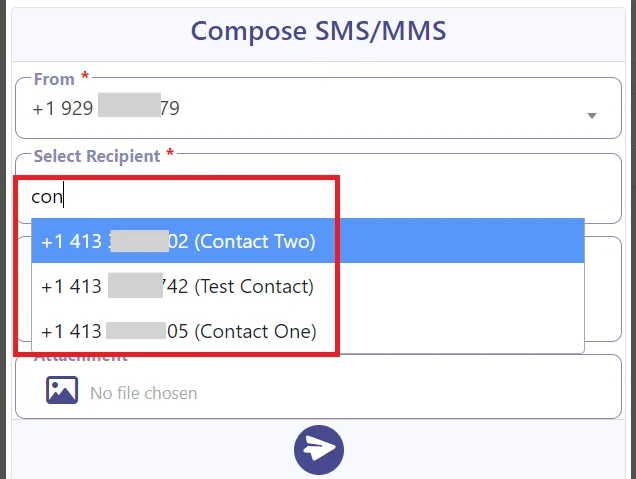
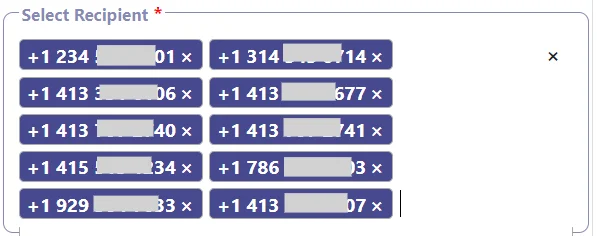
- In Select Recipient, type a contact name or the full mobile number. To send to several people, press Enter or type a comma after each one, up to 10.
- Type your message. Use the attachment button to add a picture or file.
- Select Send.
The message appears in the channel for that conversation and in the SMS Page.
Limits
- The Composer cannot start a new group text. Messages to several recipients are sent to each person separately. To start a group text, use the SMS Page. See Group Texting.
- Picture messages have size limits. See Picture Message (MMS) Limits.
- The regular Reply option under a text card posts a normal Teams message. It is not sent as a text.
Deleting a text from a channel
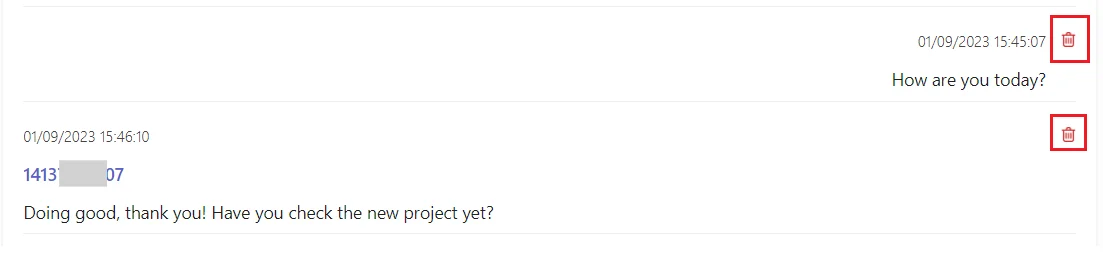
- Open the channel and find the message.
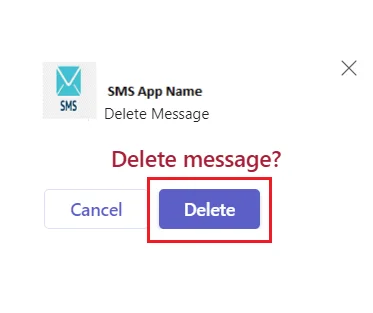
- Select the trash icon, then Delete.
The message is removed from your Teams view and from the SMS Page. It is not erased from your organization's records: your administrator can still see it in messaging reports and in your organization's Microsoft archive.