

Text Notifications on Windows
Last updated: Nov 10, 2026
0
views

To see an alert on your Windows computer when a text arrives on your business number, check your notification settings in the Teams app.
- In Teams, select the three dots at the top of the window, then Settings.
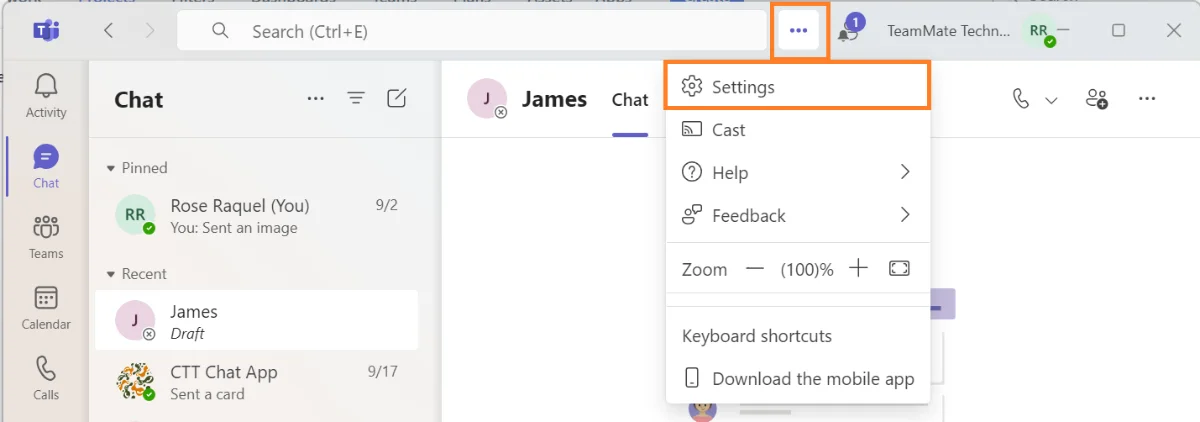
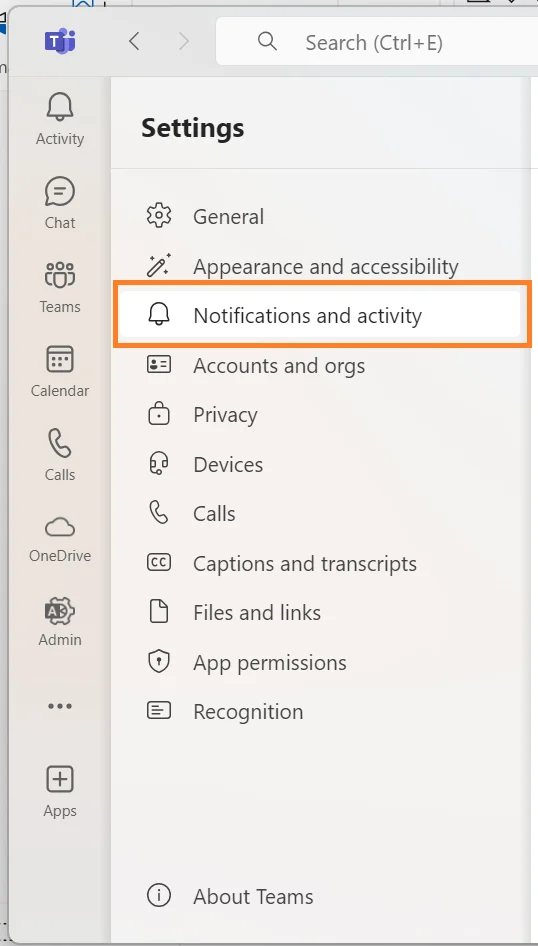
- Select Notifications and activity.
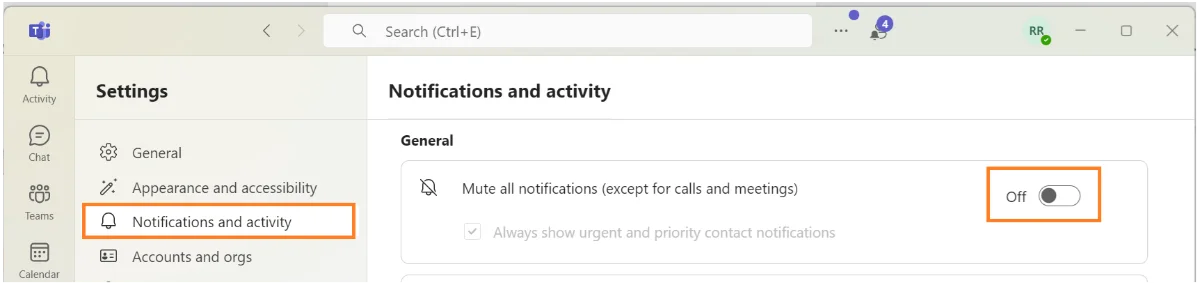
- Make sure notifications are not muted.
- Scroll down to the apps section and expand the SMS app.
- Check that:
- the toggle is On,
- SMS Received is set to Show in Activity and banner, and
- Other Activities is set to Show in Activity and banner.
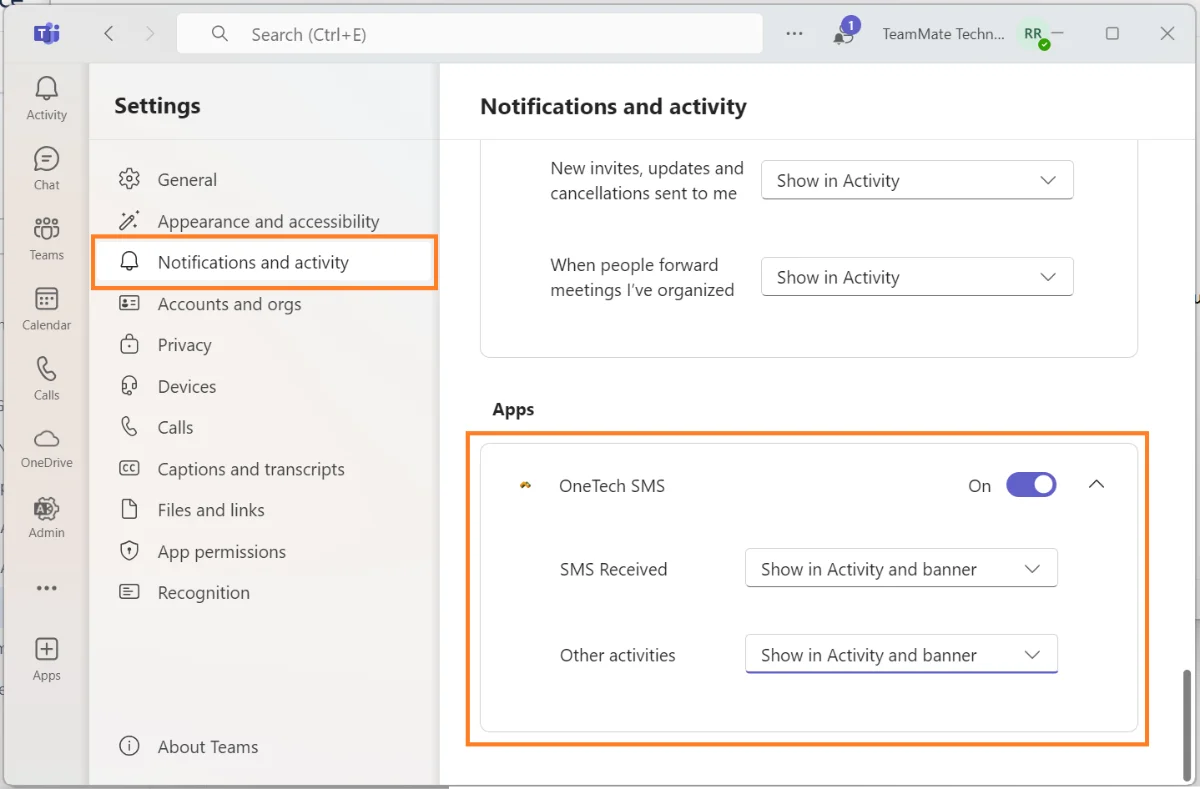
Your organization may have given the SMS app a different name. Look for the name and icon your administrator gave you.
For more, see Microsoft's guide: Manage notifications in Microsoft Teams.

