

Chatting with Slack Users from Teams
Last updated: Nov 10, 2026
1
views

The chat feature of the CallHarbor app for Teams lets you exchange messages and files with people who use Slack, without leaving Microsoft Teams.
If your organization uses federated chat instead of the app, see Chatting with Slack Users Through Federated Chat.
Before you start
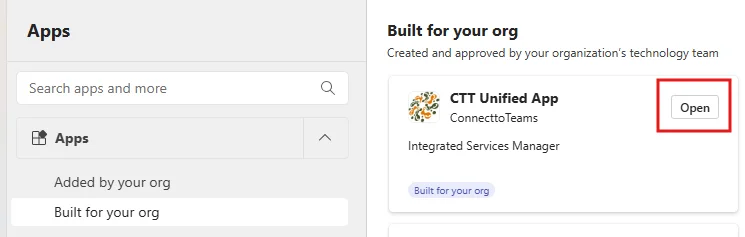
- Your administrator must deploy the app to your Teams. In Apps > Built for your org, the app is ready when its button says Open.
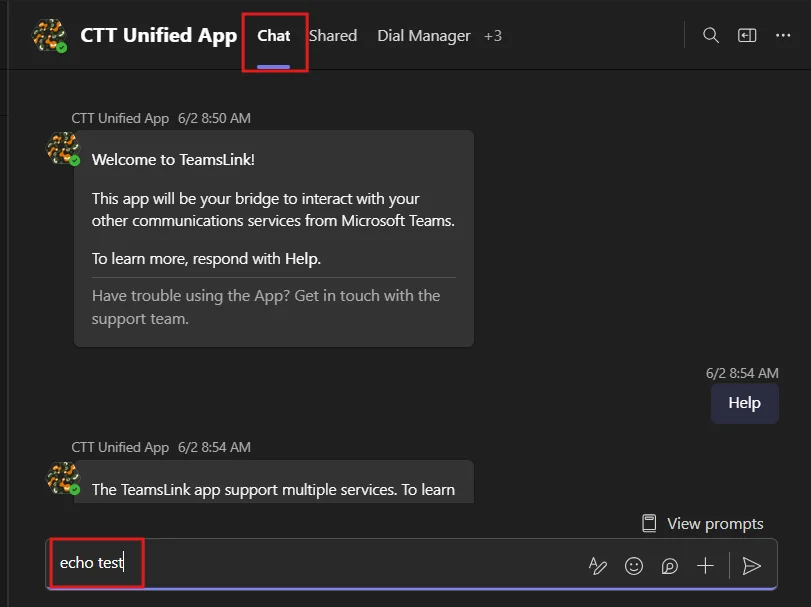
- To check that chat is working, open the app's Chat tab and type echo hello. If the app repeats your message back, it is running.

- For a list of commands, type help chat.

Step 1: Connect a Slack workspace
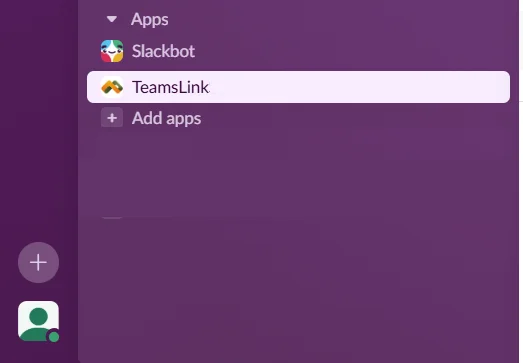
Before you can chat with someone on Slack, a companion app called TeamsLink must be installed in their Slack workspace. You can start this from the Chat tab by typing a request in plain language, for example:
- Connect me with Slack workspace acmecorp.slack.com
- I'd like to talk to Jewel at acmecorp in Slack
What happens next:
- If you gave a valid email address, your contact is emailed a link to install TeamsLink. If not, you are given a link to send them yourself.
- Your contact, or their Slack administrator, opens the link, picks the Slack workspace, and selects Install Teamslink.
- You get a notification in Teams when the install is complete. The app is then available to everyone in that Slack workspace.
Step 2: Invite a specific Slack user
In the Chat tab, type something like:
- I'd like to talk to [email protected] in Slack.
- You see a confirmation that the invite was sent.

- The Slack user receives the invite in the TeamsLink app and selects Confirm.

- You get a notification in Teams with a Connect button. Select it and send the first message.

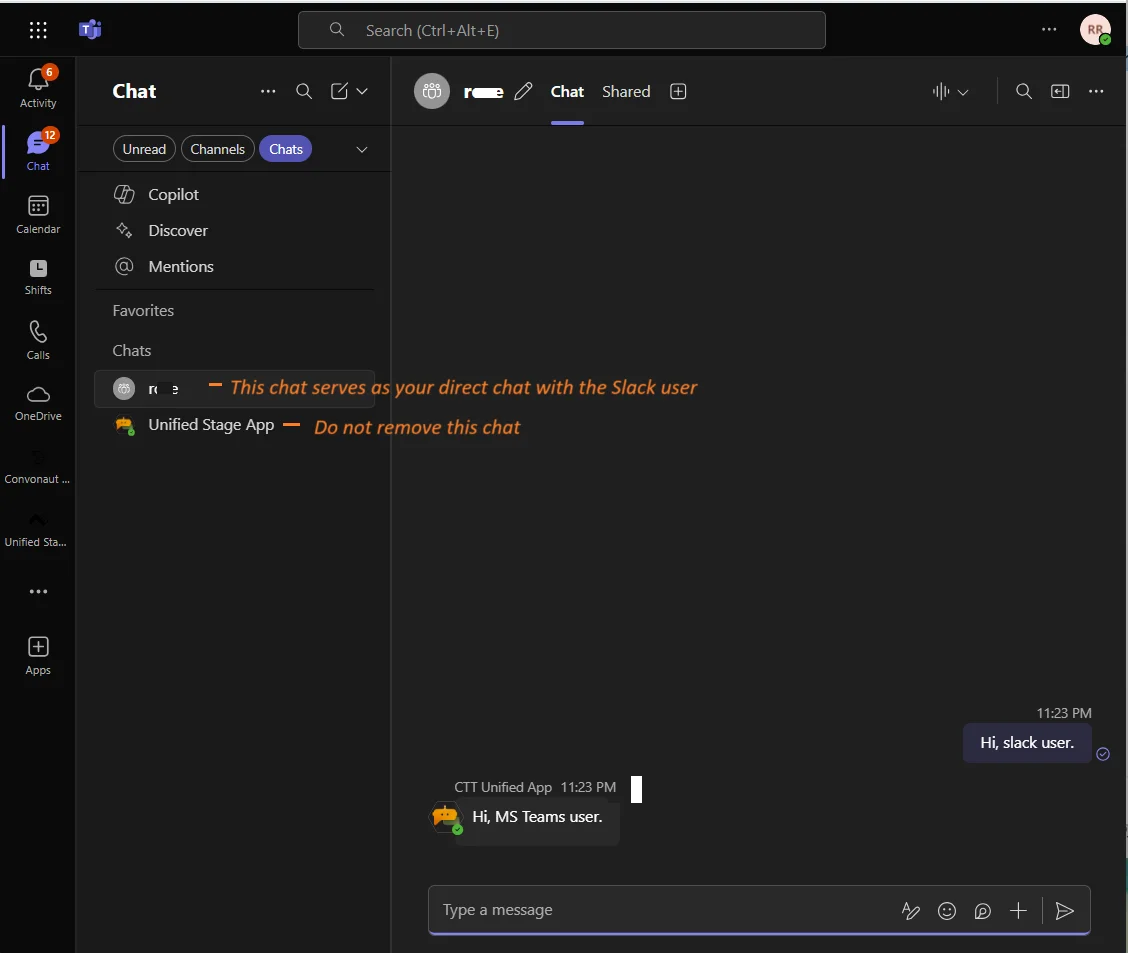
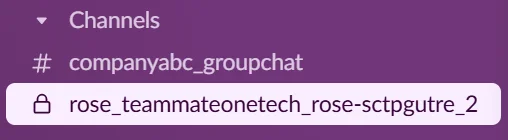
A Teams chat is created for your conversation with that person. On their side, a new Slack channel appears with your name.
Don't start a request with echo, help, or initiate. The app treats those words as commands.
Chatting
- Open the chat named after your Slack contact and message them as usual.
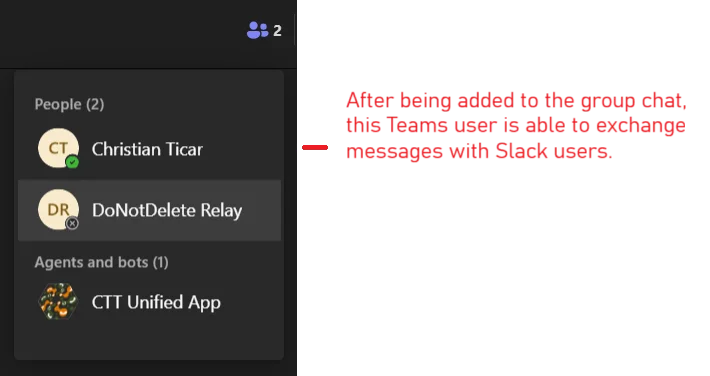
- To bring coworkers into the conversation, add them to the group chat.
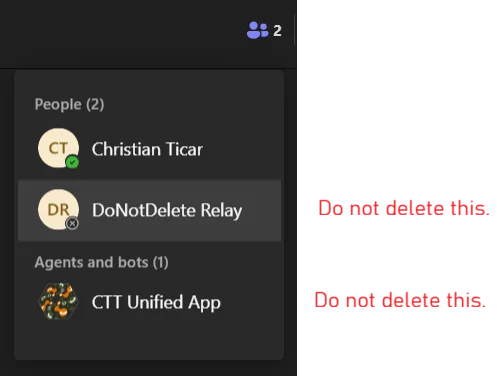
- Do not remove the participant called "DoNotDelete Relay" or the app listed under Agents and bots. They carry the messages between Teams and Slack, and the chat stops working without them.
Guides to share with your contacts
- Slack Administrators: Preparing Your Workspace for Teams Chat
- Slack Administrators: Installing the TeamsLink App
- Slack Users: Chatting with Microsoft Teams Contacts

