

Slack Administrators: Preparing Your Workspace for Teams Chat
Last updated: Nov 10, 2026
1
views

This guide is for the administrator of a Slack workspace whose members want to chat with Microsoft Teams users through the TeamsLink app.
TeamsLink creates a private Slack channel for each connection with a Teams user. For that to work, members of your workspace must be allowed to create private channels.
Allow members to create private channels
- In a web browser, go to https://your-workspace-name.slack.com/admin/permissions/account-types, replacing your-workspace-name with your own.
- Under Member, turn on Create private channels.
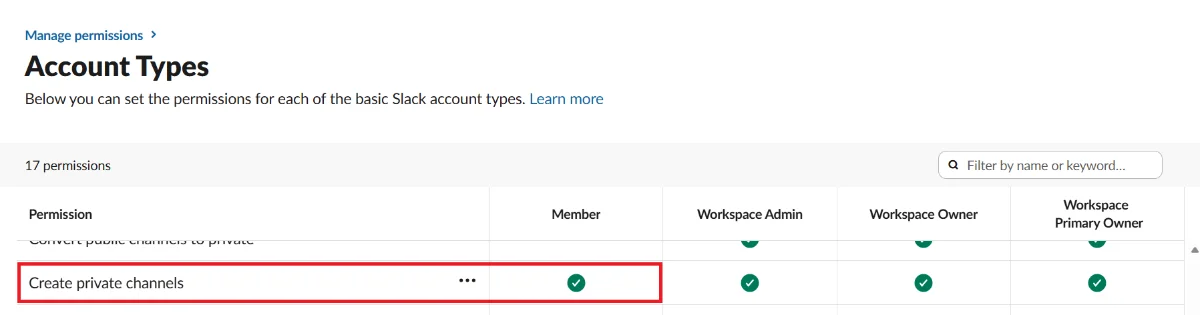
You can also reach this setting from your Slack admin page: Menu > Manage Permissions > Account Types.
Why this matters
If this permission is off, a Slack user can accept an invitation from a Teams user and nothing will happen: no channel appears and no error is shown. See Troubleshooting: Slack Invite Accepted but Nothing Happens.
Next: Slack Administrators: Installing the TeamsLink App.

