


The Dial Manager is the calling screen of the CallHarbor app for Teams. It appears when the Call App is enabled for you. Use it to place calls, review your call history, and jump to your other phone tools.
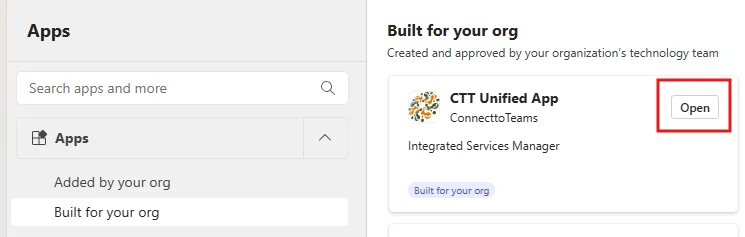
Open the Dial Manager
Select the app in your Teams sidebar, or find it under Apps > Built for your org. If your account is set up for the Call App, the Dial Manager tab is shown. It may open in its own window.
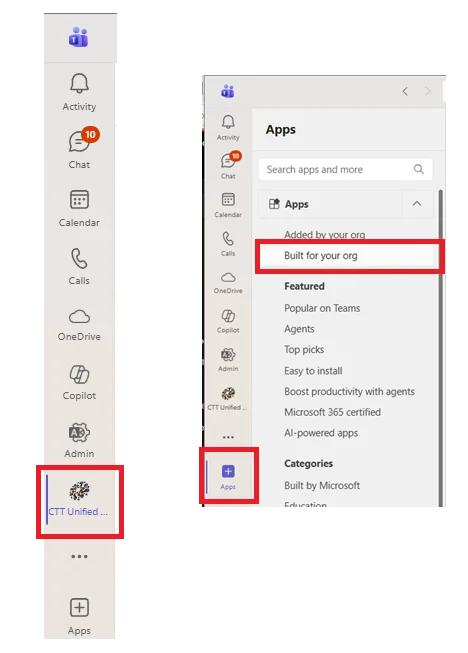
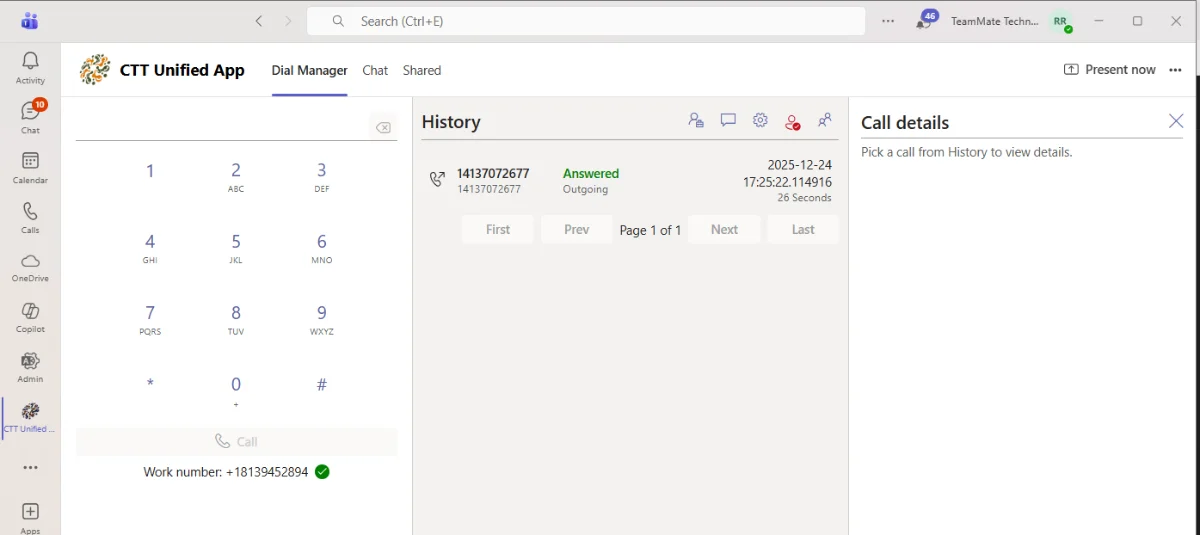
Place a call
- Enter the number on the dial pad.
- Check your Work number at the bottom of the dial pad. A green checkmark means it is active.
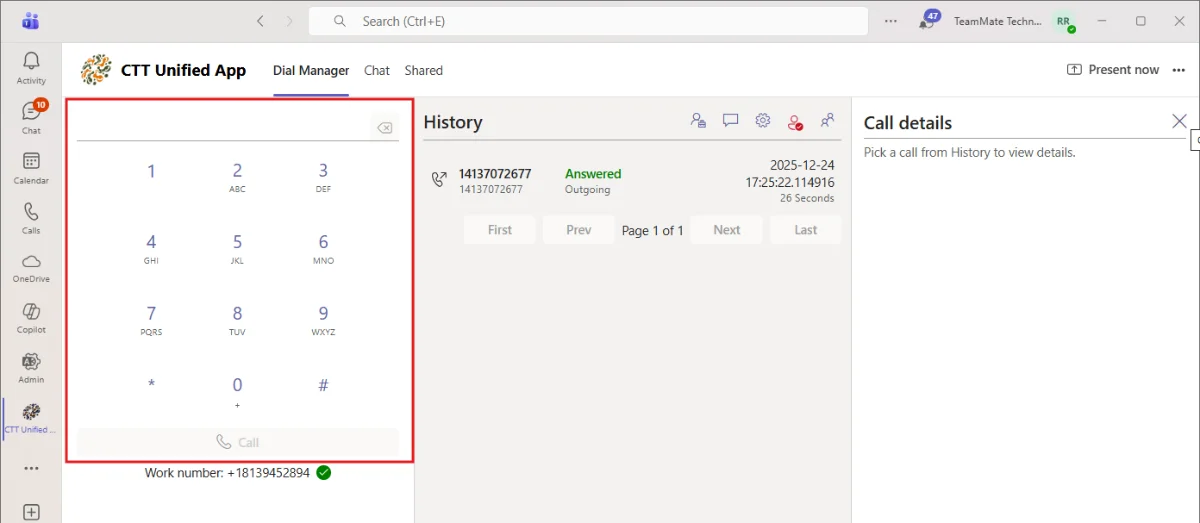
- Select Call.
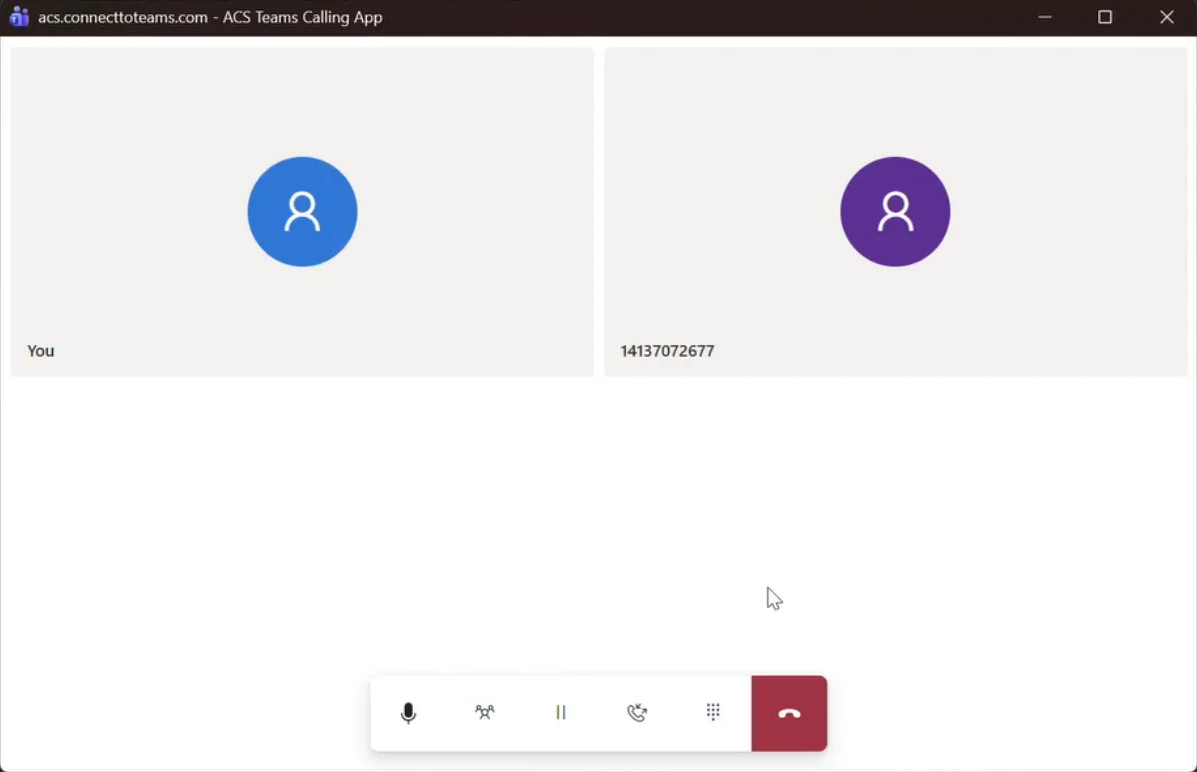
A call window opens showing the call's progress, with buttons for Mute, Add Participant, Hold, Transfer, and End Call.
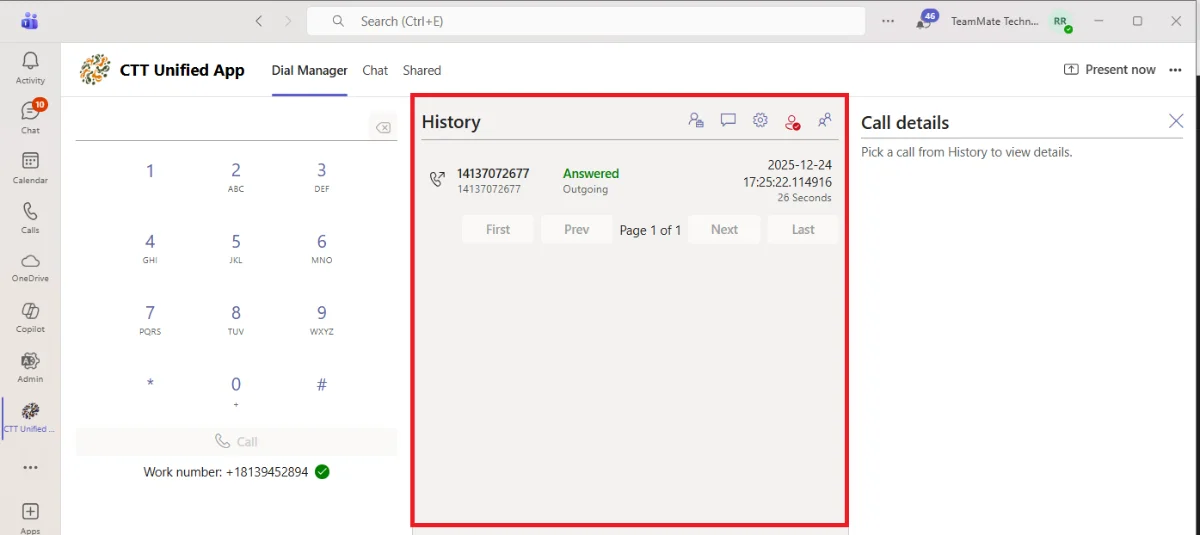
Call history
The History panel lists your recent calls with the number, whether the call was answered, rejected, or missed, when it happened, and how long it lasted. Use First, Prev, Next, and Last at the bottom to page through older calls.
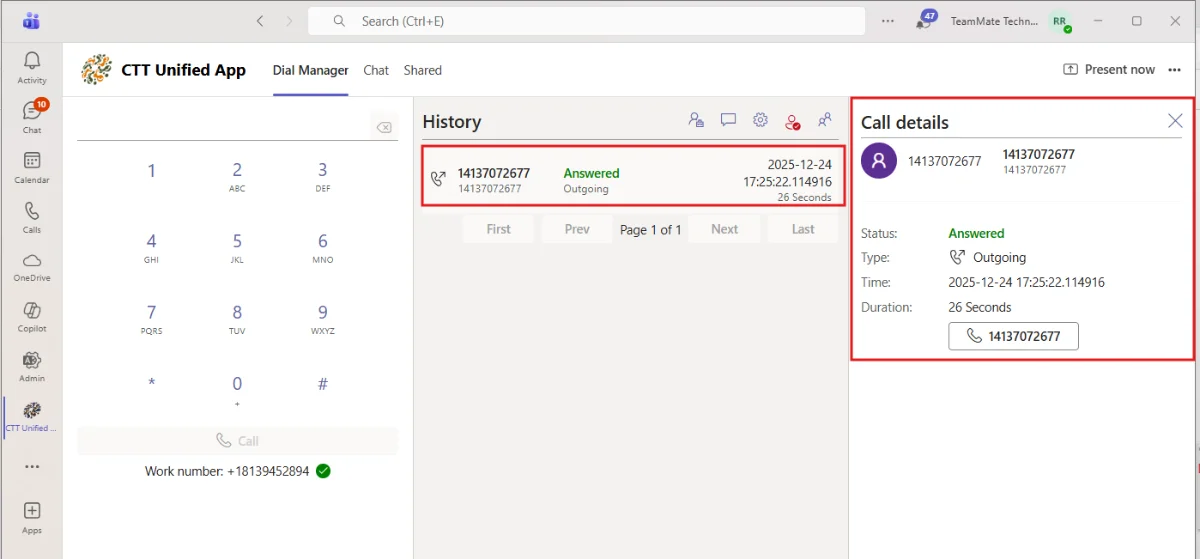
Select any row to see the call's details. Select the phone number button to call it again.
The icons at the top right
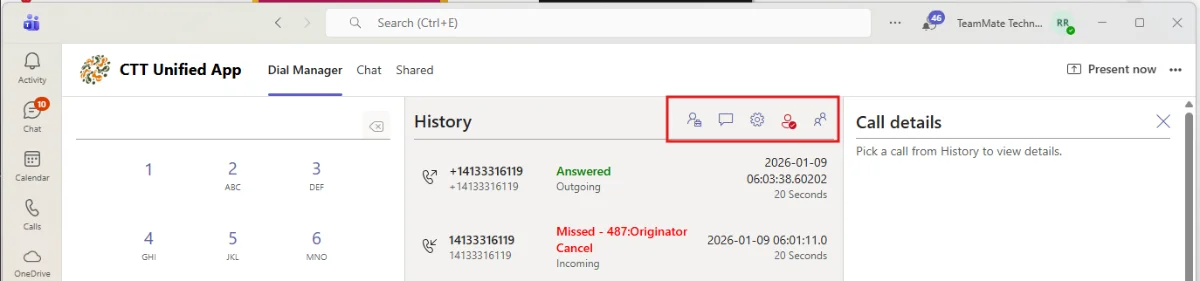
Hover over an icon to see its name.
| Icon | What it opens |
|---|---|
| User portal | Your CallHarbor user portal. In most cases you are signed in automatically. |
| SMS | The SMS Page, for sending and receiving text and picture messages. |
| Feature codes | Your star code shortcuts, such as call forwarding and Do Not Disturb. |
| Presence | The setting that pauses incoming calls based on your Teams status. |
| Contacts | Your Outlook contacts and your organization's directory. |
| History | Returns you to your call history. |
To come back to the Dial Manager from any of these screens, select the X at the top right.
Contacts
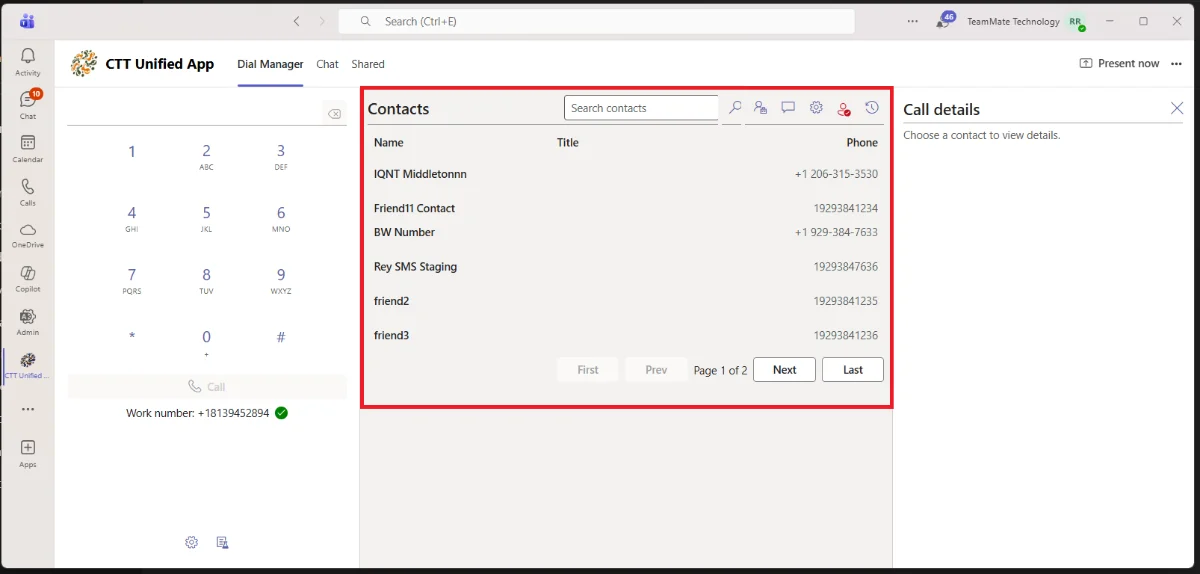
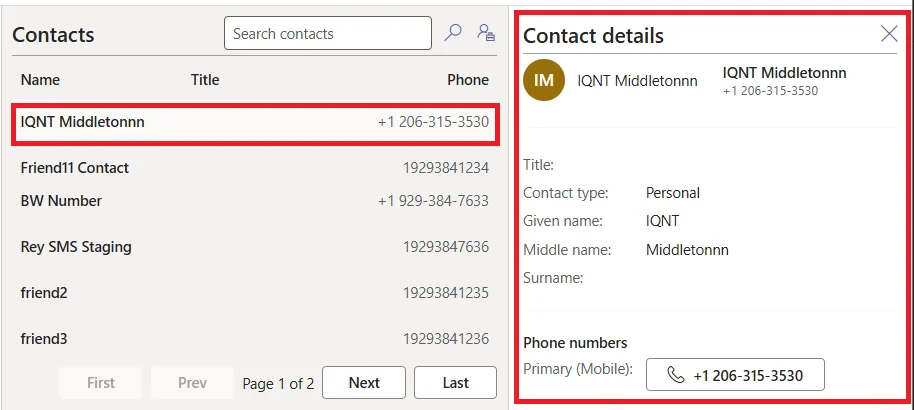
The Contacts panel shows your personal Outlook contacts and your organization's contacts. Select a contact to see their details, then select their phone number to call.
Related articles
- Using the Call App in Teams
- Using the SMS Page
- Using Star Codes in Teams
- Pausing Incoming Calls Based on Your Teams Status

