

Installing and Pinning the App in Teams
Last updated: Nov 10, 2026
1
views

Add your CallHarbor app in Microsoft Teams once, then pin it so the dialer and your other phone features are always one click away.
Install the app
- In Microsoft Teams, select the three dots (...) in the left sidebar, or select Apps.
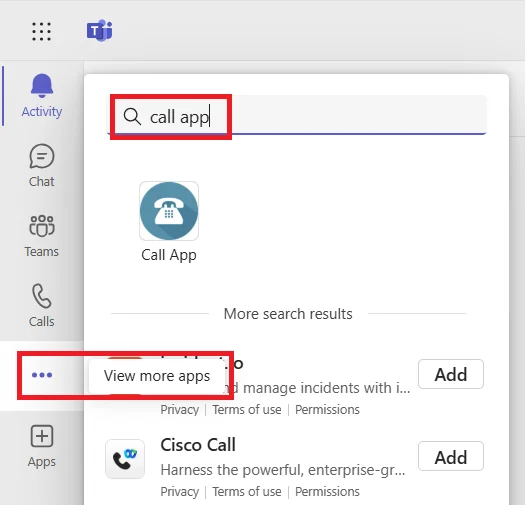
- Search for your app by name, or look under Built for your org.
- Select the app, then select Add or Open.
Pin the app
- With the app open, right-click its icon in the left sidebar.
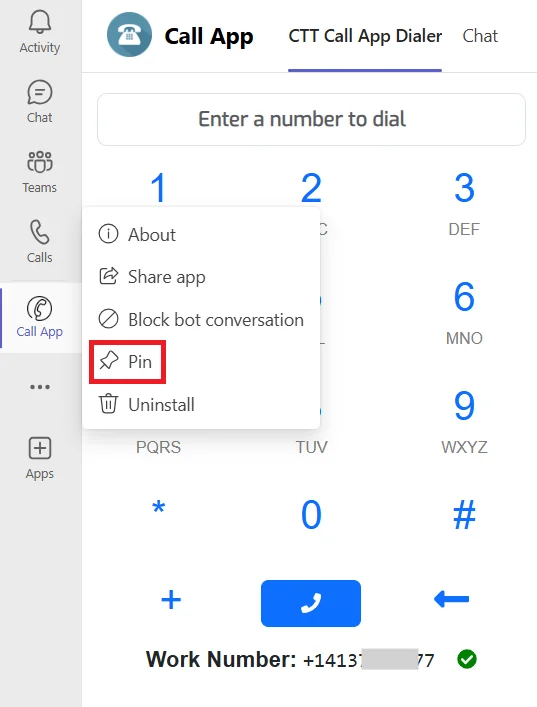
- Select Pin.
The app now stays in your sidebar, even after you restart Teams.
Good to know
- The app is ready to use when its button says Open. If it still says Add after 24 hours, contact your administrator or CallHarbor Support.
- Your organization may have given the app its own name and icon. Use the one your administrator told you about.

