

Getting Started with the CallHarbor App for Teams
Last updated: Nov 10, 2026
1
views

The CallHarbor app for Teams brings your phone system features, the Call App dialer, texting, and cross-platform chat together in one app inside Microsoft Teams. Which parts you see depends on the services your organization has set up for you.
Before you start
- Your administrator must set you up for at least one service: phone system features, the Call App, texting, or chat.
- Your administrator must deploy the app to your Teams.
Open the app
- In Teams, go to Apps > Built for your org and find the app.
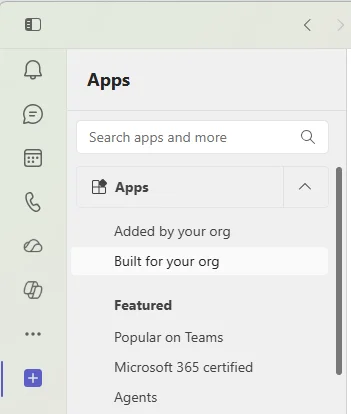
- The app is ready when the button says Open. If it still says Add after 24 hours, contact your administrator or CallHarbor Support.

- Select Open. To keep it handy, right-click the app icon in the sidebar and select Pin.
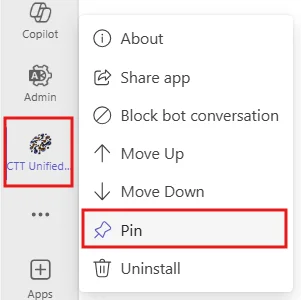
Do not delete the chat that is created when the app is installed.
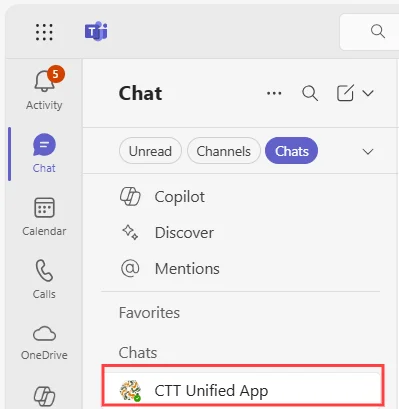
Sign in to the app (one time)
The app needs your permission to act on your behalf in Teams.
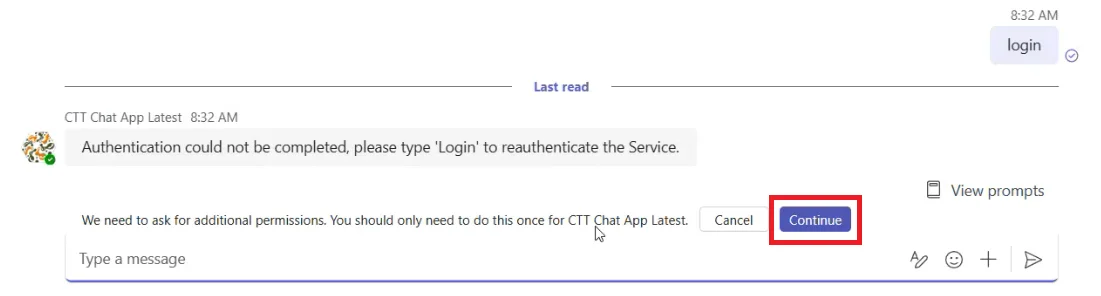
- Open the app's Chat tab and send the word login.
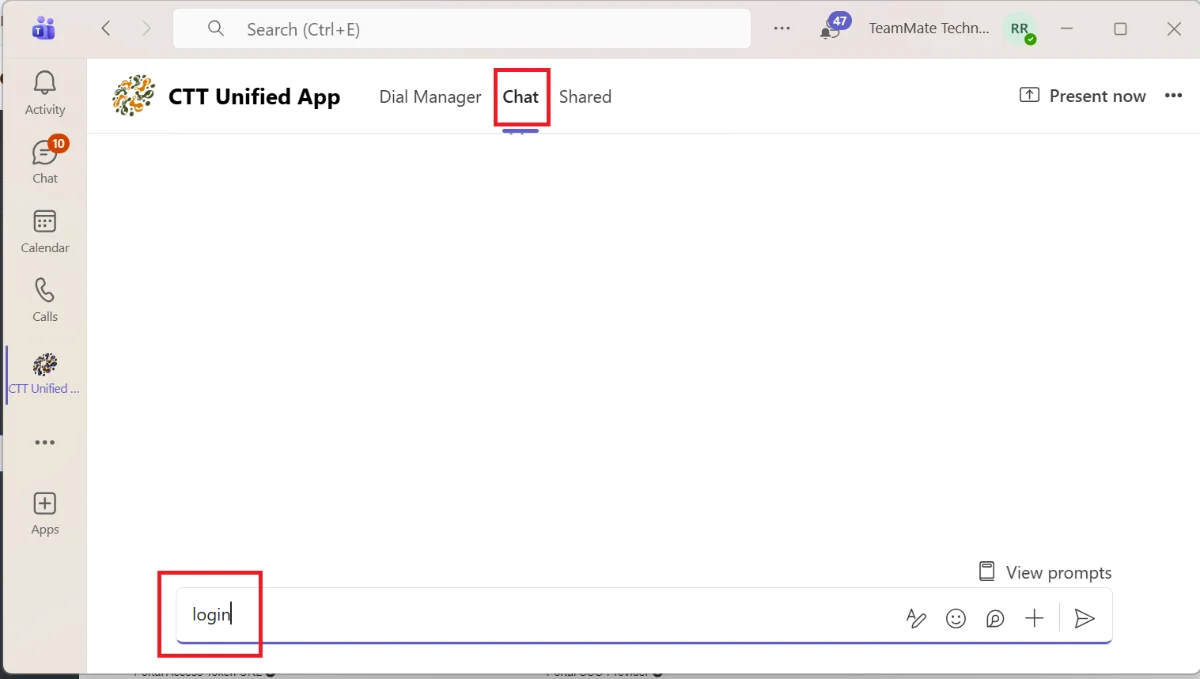
- A message explains that the app needs extra permissions. Select Continue.
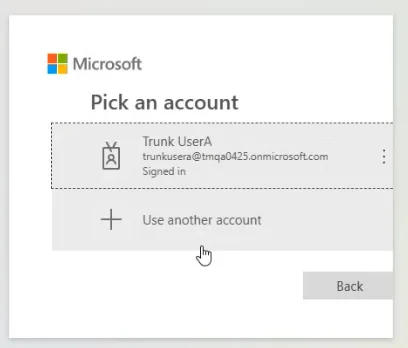
- At the Microsoft sign-in prompt, choose your work account.
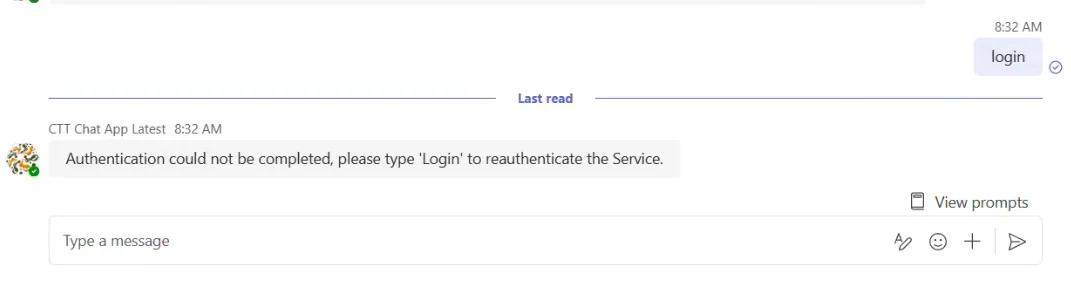
- You return to the Chat tab. The Continue and Cancel buttons are gone, which means sign-in is complete.
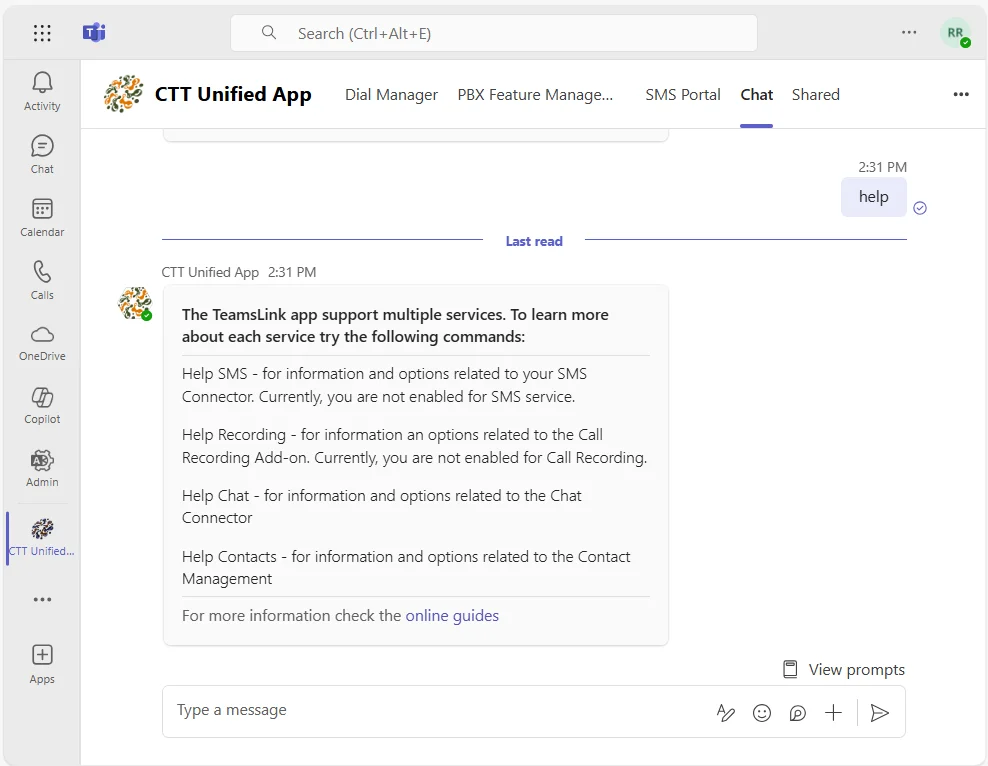
- Wait a couple of minutes, then send help. If the app answers, you are ready to go.
If the app later shows a permission error, repeat these sign-in steps.

What you see first
The first screen depends on your services, in this order:
- Dial Manager, if you have the Call App.
- Your user portal, if you have phone system features.
- The SMS Page, if you have texting.
- If you have none of these, you see the app's Chat tab.
Use the icons near the top right of the app to switch between the screens available to you.


Guides for each service
- Calling: Using the Call App in Teams and Using the Dial Manager
- Phone system features: Using Star Codes in Teams and Microsoft Teams Calling: Supported Features
- Texting: Texting with the CallHarbor App for Teams
- Chat with Slack: Chatting with Slack Users from Teams

