

Listening to Voicemail in Teams
Last updated: Nov 10, 2026
0
views

If the CallHarbor app is installed in your Teams, you are told about new voicemail and can listen to it without leaving Teams.
Check your voicemail
- In Microsoft Teams, open the CallHarbor app and go to the Chat tab.
- When you have new voicemail, you get a notification in your Teams Activity feed and a card with a Listen to Voicemail button. The button shows how many new messages you have.
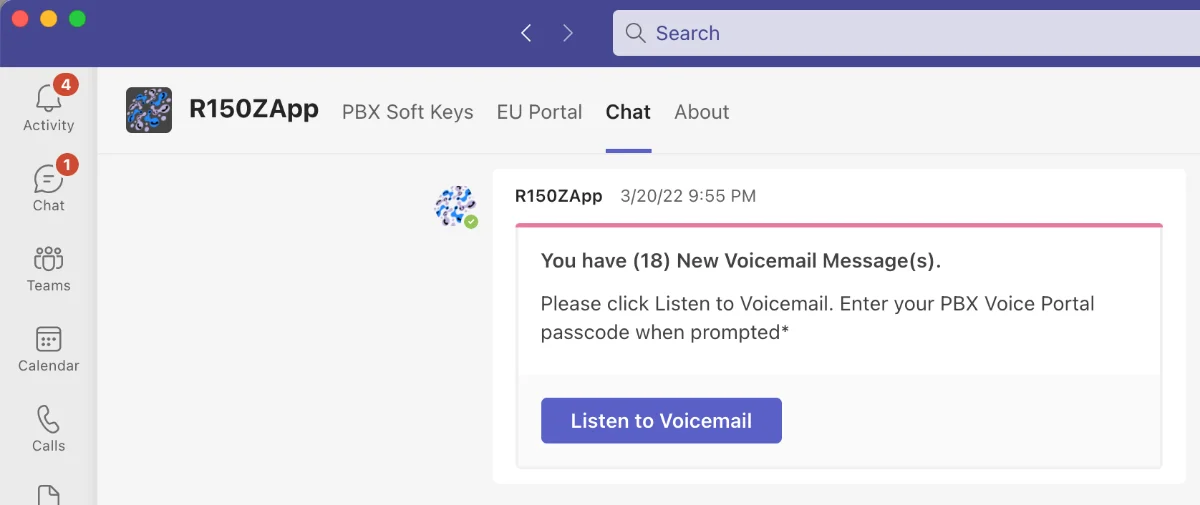
- Select Listen to Voicemail. Teams rings you with an incoming call. Answer it to be connected to your voicemail box.
- If asked, enter your voicemail PIN.
Good to know
- The call you receive after selecting the button is your voicemail system calling you. It is not a new caller.
- If you don't see voicemail notifications, the app may not be installed for you yet, or voicemail cards may be turned off for your organization. Contact CallHarbor Support.
- Don't want these notifications? See Turning Off Voicemail Notifications in Teams.

