


Important: this article applies only to the legacy SMS app, which stops working on October 1, 2027. The current CallHarbor app for Teams uses chats, so there are no teams or channels to rename or restore.
In the legacy SMS app, each text number assigned to you appears as a team in Microsoft Teams, and each person you text appears as a channel in that team.
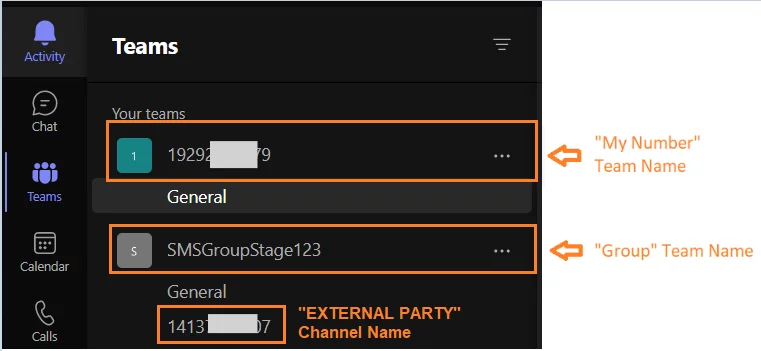
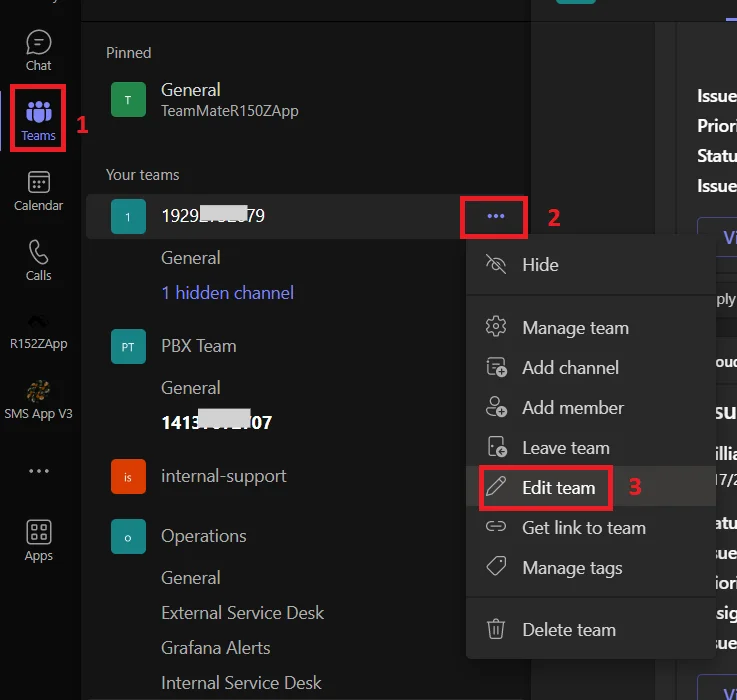
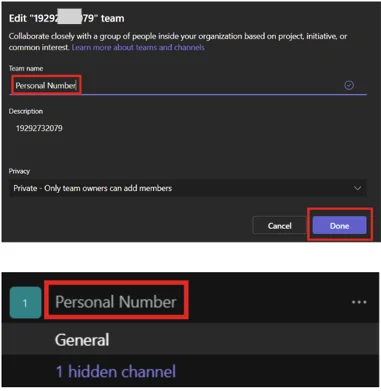
Rename a team or channel
You can rename the team for your text number the same way you rename any team in Teams. Nothing else needs to be done afterward.
Note: if the person you are texting is saved as a contact, the channel is named after the contact. If you rename that channel, it changes back to the contact's name when the next message arrives.
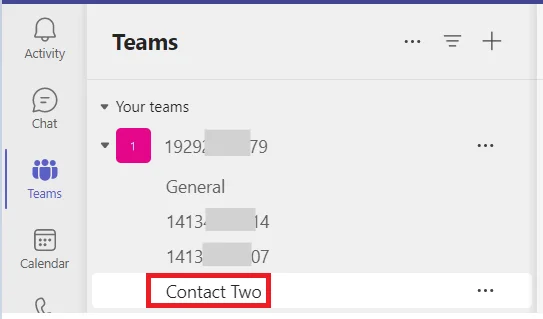
Do not delete an SMS team or channel
If a team used for texting is deleted, incoming texts to that number stop reaching you.
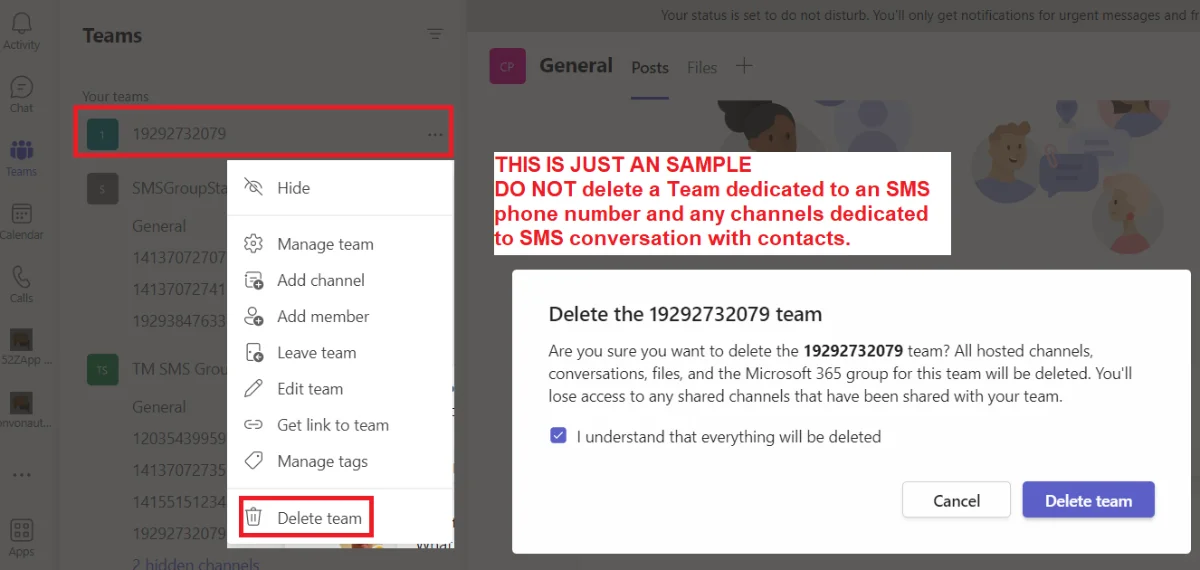
Restore a deleted team or channel
This must be done by your Microsoft 365 administrator.
- Sign in to the Microsoft Entra admin center.
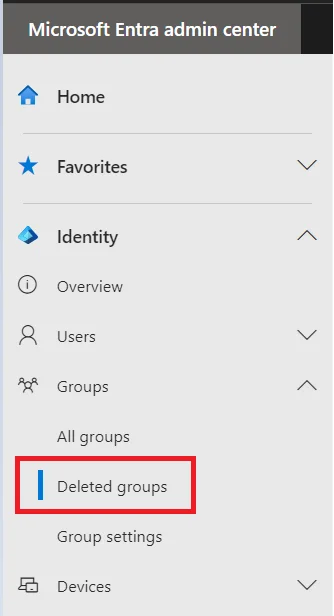
- Go to Groups > Deleted groups.
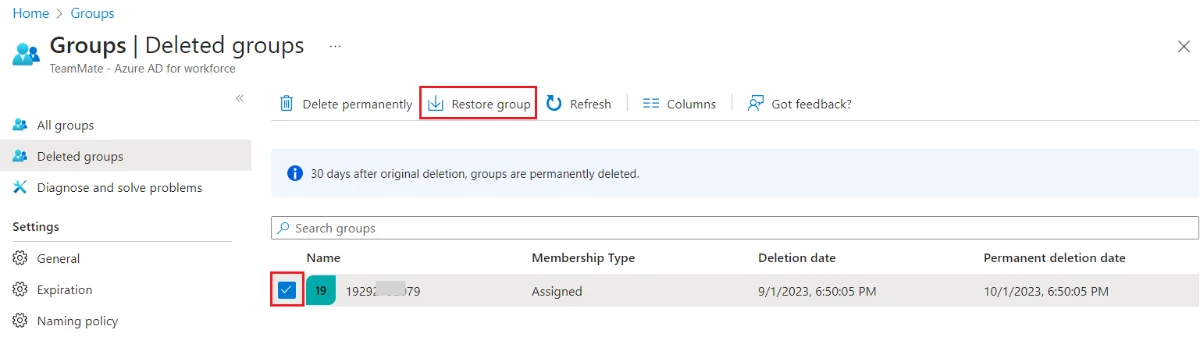
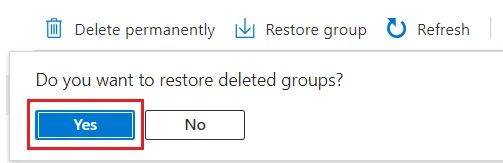
- Check the box next to the deleted SMS team, select Restore group, then Yes.
- It can take 4 to 24 hours for the team to reappear in Teams.
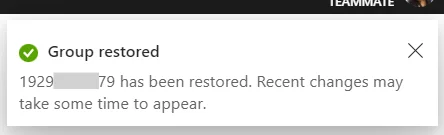
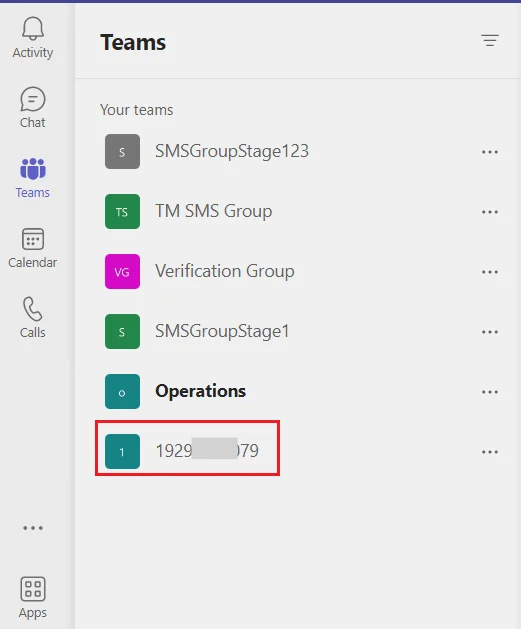
- Restored teams and channels show at the bottom of your list.
- Don't try to recreate the team or channel by hand. You will get an error saying the channel name already exists. Restore it instead.
Need help? Contact CallHarbor Support.

