

Text Notifications on Android
Last updated: Nov 10, 2026
0
views

To be alerted on your Android phone when a text arrives on your business number, notifications must be allowed in two places: Android's settings and the Teams app.
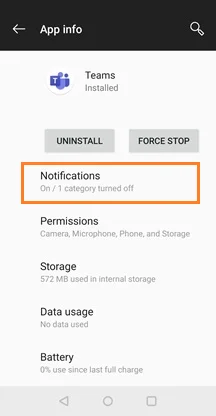
1. Allow notifications in Android
- Press and hold the Teams app icon, then tap App info.
- Tap Notifications and make sure they are turned on.
2. Allow notifications in the Teams app
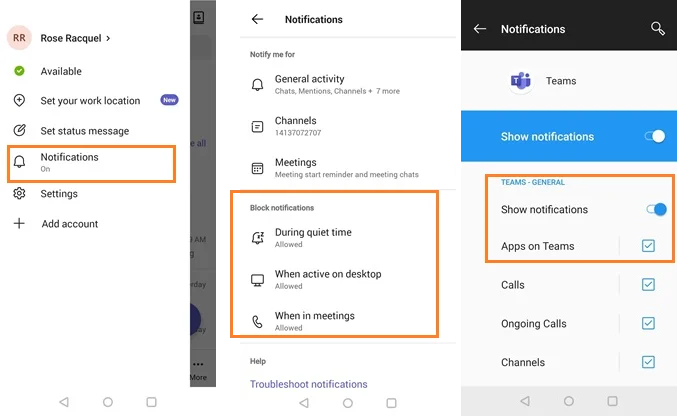
- Open Teams and tap your profile picture.
- Tap Notifications.
- Make sure Apps on Teams is checked.
Still not getting alerts?
In the Teams notification settings, look under Block notifications. Try turning off Quiet hours and When active on desktop, then test again.
For more, see Microsoft's guide: Manage notifications in Microsoft Teams.

