

Text Notifications on iPhone and iPad
Last updated: Nov 10, 2026
0
views

To be alerted on your iPhone or iPad when a text arrives on your business number, notifications must be allowed in two places: your device's settings and the Teams app.
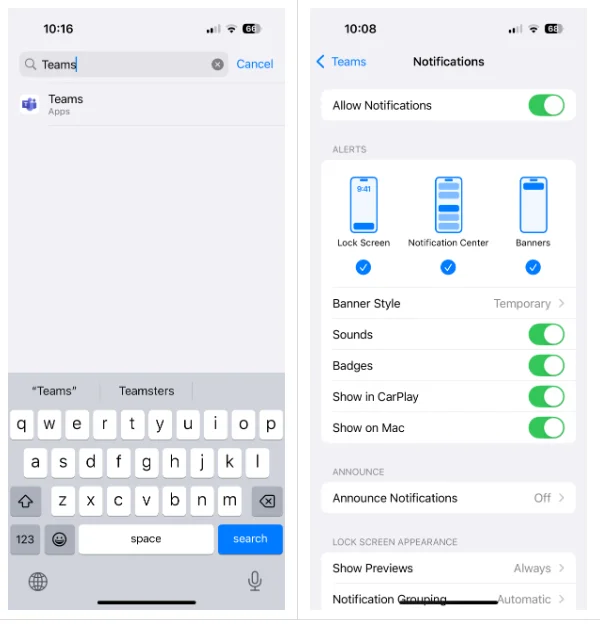
1. Allow notifications in iOS
- Open Settings and find Teams.
- Tap Notifications and turn on Allow Notifications.
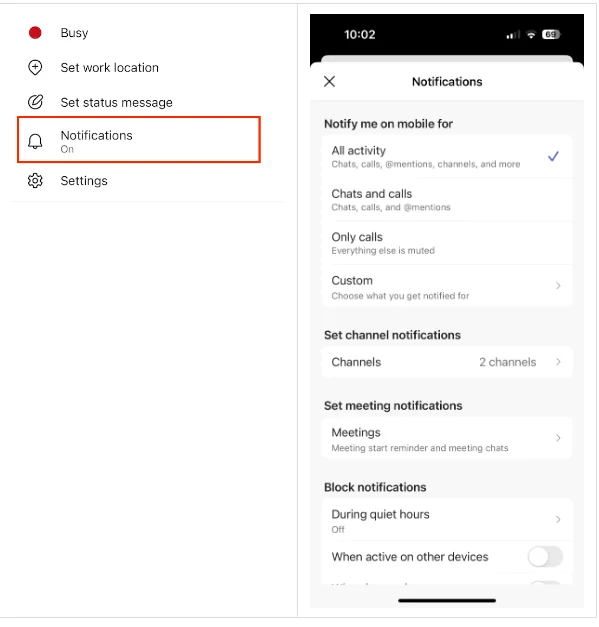
2. Allow notifications in the Teams app
- Open Teams and tap your profile picture.
- Tap Notifications.
- Under Notify me on mobile for, choose the level you want.
Still not getting alerts?
- If you limited Teams notifications to certain activities, try All Activity and test again.
- Under Block notifications, try turning off Quiet hours and When active on other devices, then test again.

