

Slack Administrators: Installing the TeamsLink App
Last updated: Nov 10, 2026
0
views

This guide is for the administrator of a Slack workspace. Installing the TeamsLink app lets people in your workspace chat with the Microsoft Teams organization that invited you.
Before you start
- Allow members to create private channels. See Slack Administrators: Preparing Your Workspace for Teams Chat.
- Have the install link ready. You should have received it by email, or your Teams contact may have sent it to you directly.
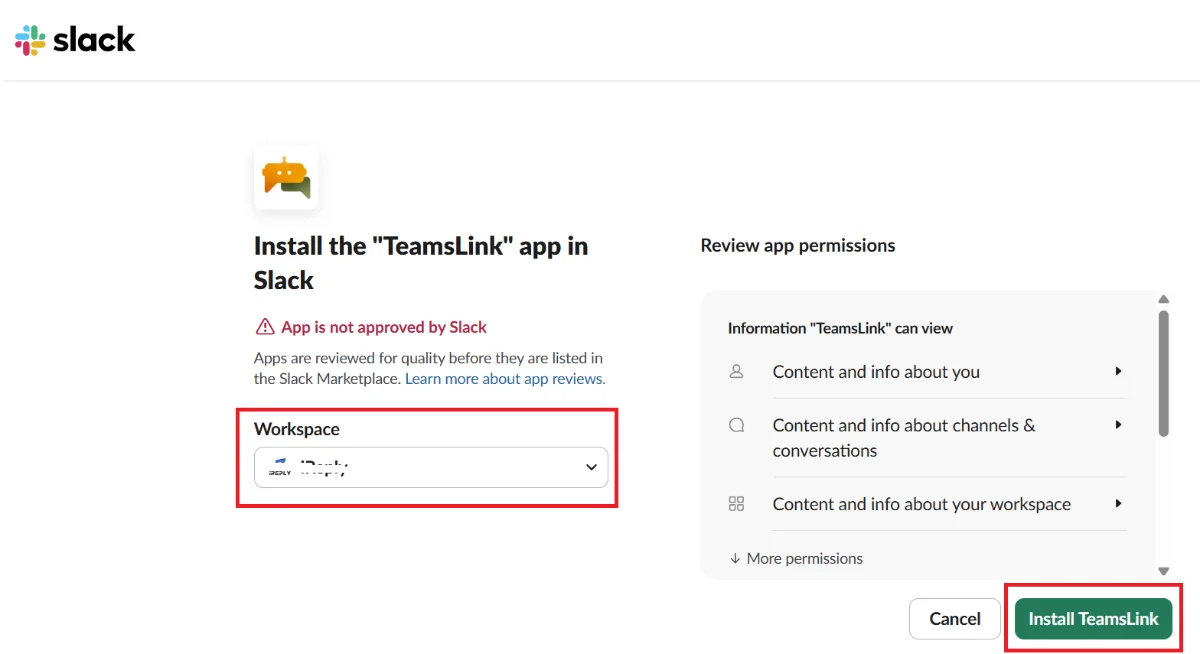
Install the app
- Open the link from the invitation. A permission page appears.
- In the Workspace drop-down, select the Slack workspace you want to connect.
- Select Install Teamslink.
Result
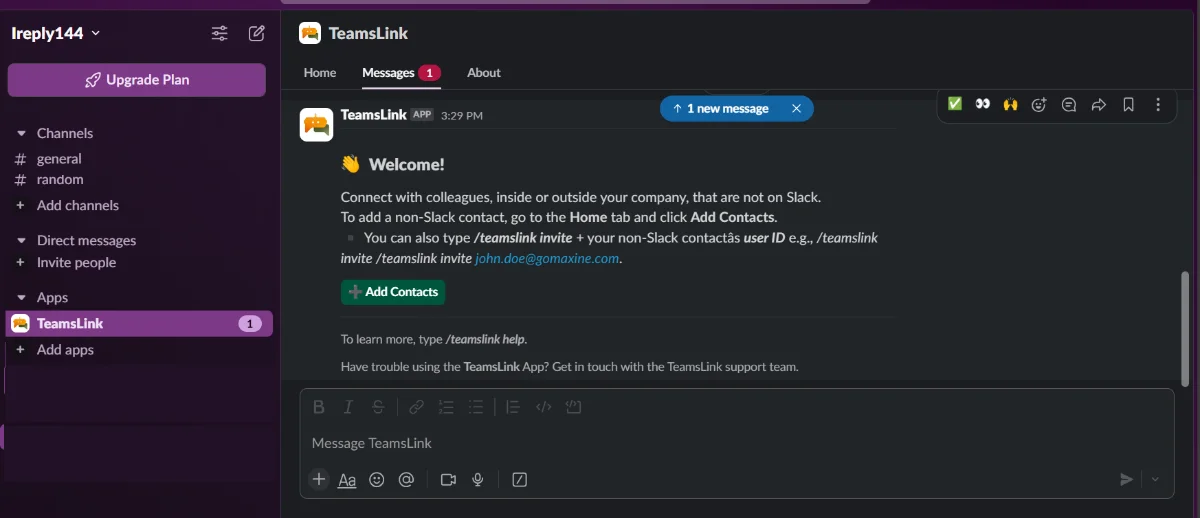
TeamsLink appears in the Apps list of your Slack workspace. People in your workspace can now connect with users in the Teams organization that sent the invitation.
Next, share Slack Users: Chatting with Microsoft Teams Contacts with your team.

