

Slack Users: Chatting with Microsoft Teams Contacts
Last updated: Nov 10, 2026
0
views

This guide is for people who use Slack and want to chat with someone on Microsoft Teams. It works through an app called TeamsLink, which your Slack administrator installs. Once it is installed, you can find it under Apps in your Slack workspace.
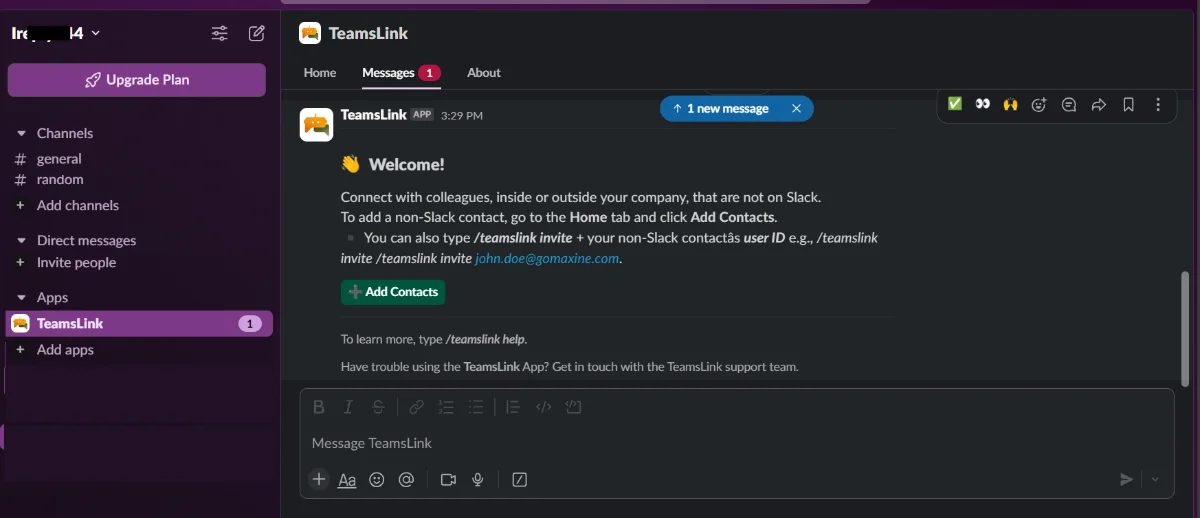
Find your TeamsLink ID
Your Teams contact may ask for your ID so they can invite you.
- In Slack, send the command /teamslink help
- In the response, select Show My ID.
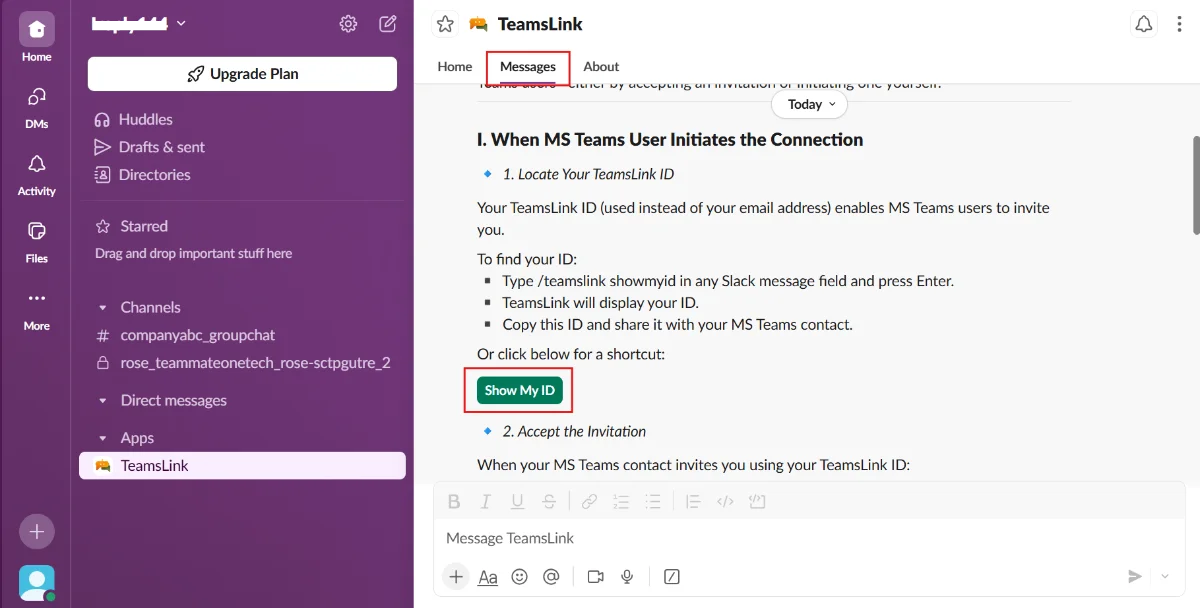
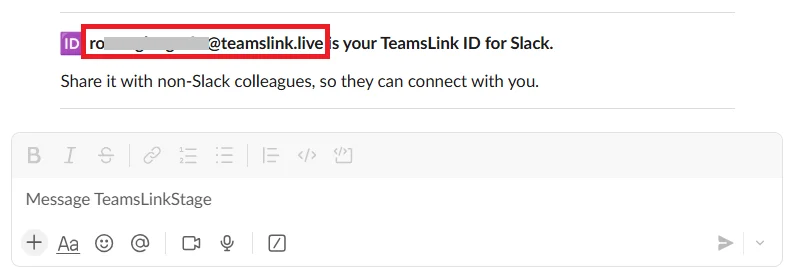
- Copy the ID and send it to your Teams contact.
Accept an invitation from a Teams contact
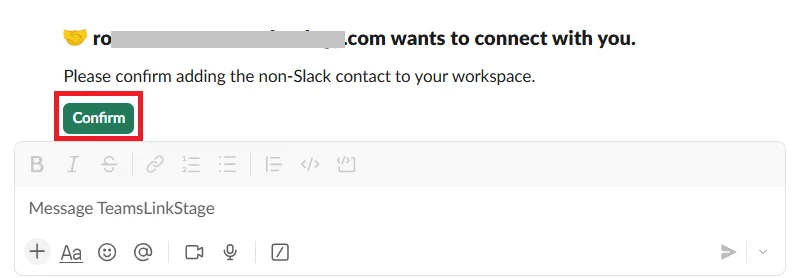
- When the invitation arrives in Slack, select Confirm. A browser page opens asking for permission.
- Select the Slack workspace you want to connect.
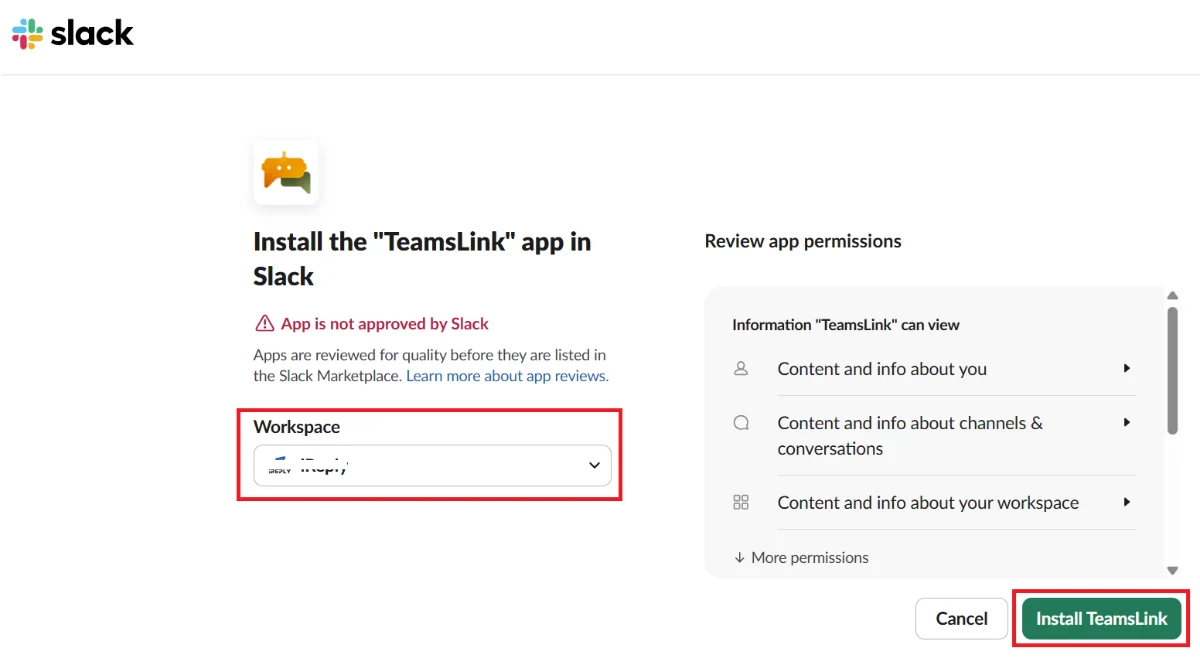
- Select Install TeamsLink.
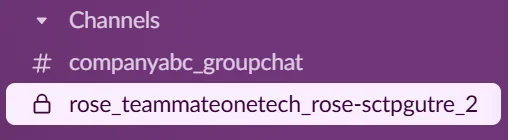
You see a welcome message and can close the browser. A new channel named after your Teams contact appears in your Slack channel list. Chat with them there.
Invite a Teams contact yourself
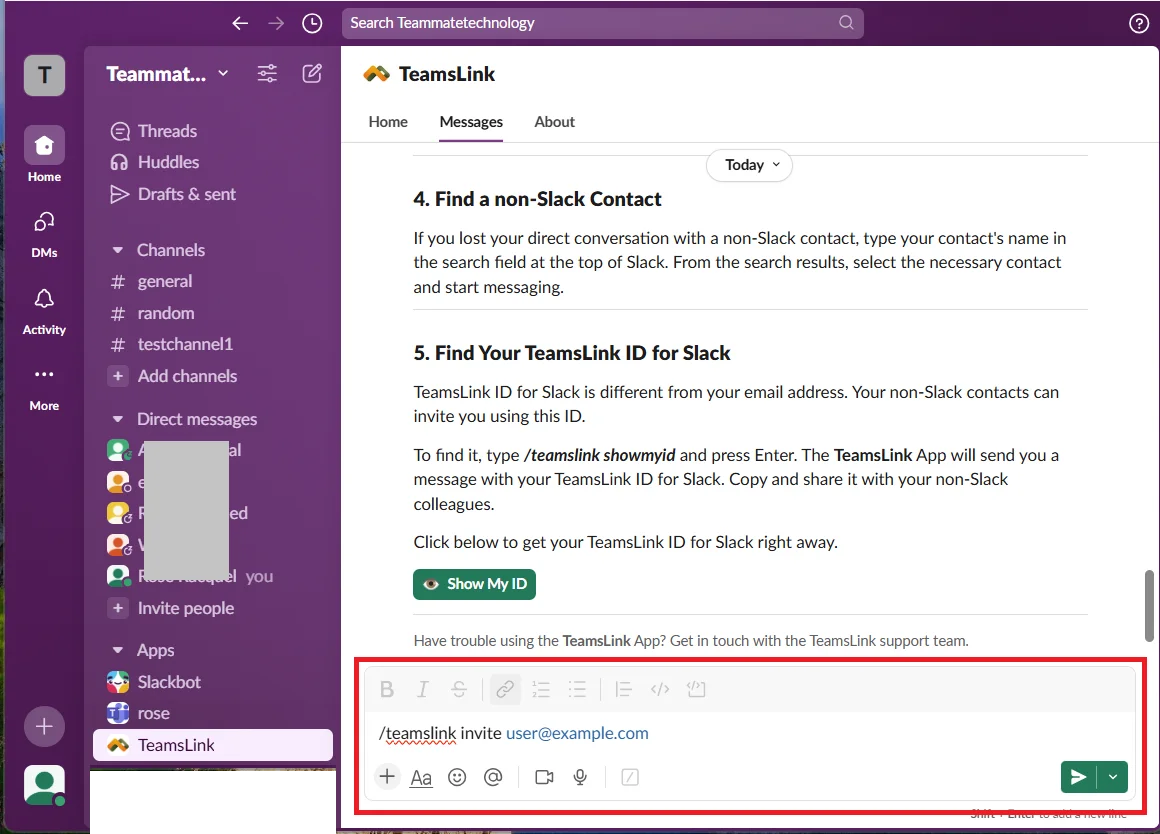
- Open the TeamsLink app's Messages tab.
- Send /teamslink invite followed by your contact's Teams email address.

- When your contact accepts, select Confirm.
- On the permission page, check that the correct Slack workspace is shown at the top right, then select Allow.
A new conversation named after your Teams contact is created. Use it to chat with them.
Other useful commands
- /teamslink echo hello checks that the app is working. It should repeat your message back.


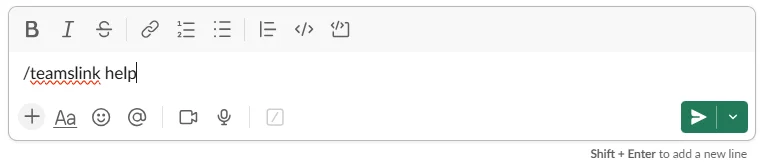
- /teamslink help lists everything the app can do.
Accepted an invite but nothing happened?
Your Slack workspace may not allow members to create private channels. Ask your Slack administrator to review Slack Administrators: Preparing Your Workspace for Teams Chat.

