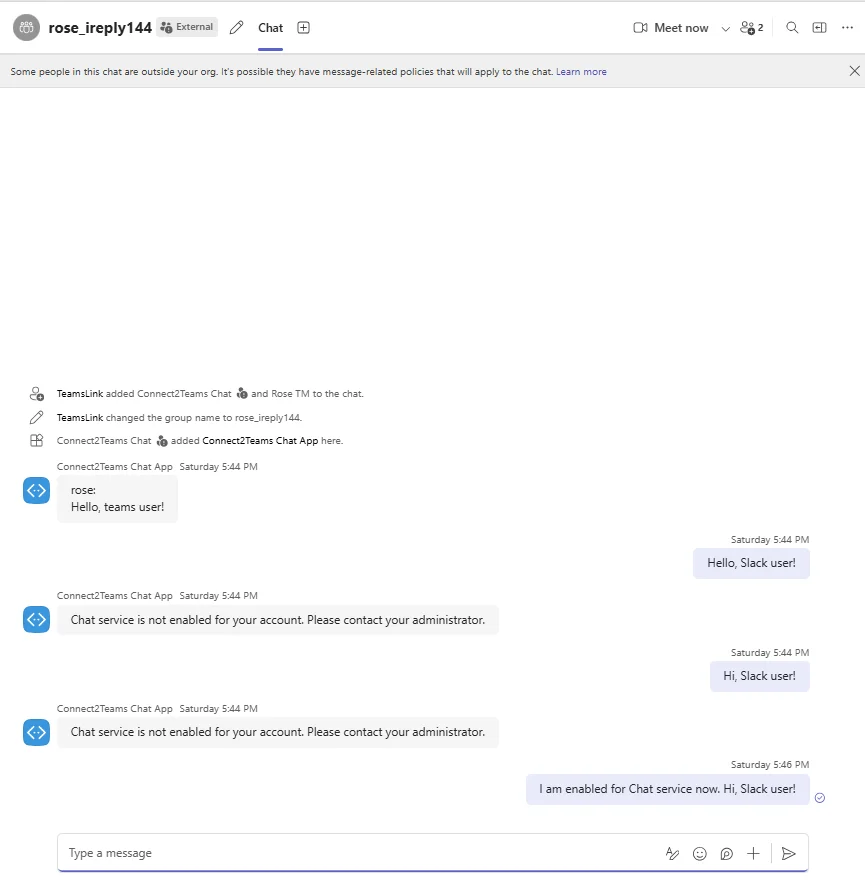
If your organization uses federated chat, you can message Slack users one-on-one straight from your Microsoft Teams chat list. Each Slack contact gets their own Teams chat, so you message them the same way you message anyone else.
Before you start
- Chat must be enabled for you. Ask your administrator or contact CallHarbor Support.
- To invite a Slack contact, you need their TeamsLink ID. They can find it in Slack by sending /teamslink help and selecting Show My ID.
Find the Connect2Teams Chat
Once chat is enabled, a chat named Connect2Teams Chat appears in your Teams chat list. This is where you send commands, such as inviting a contact.
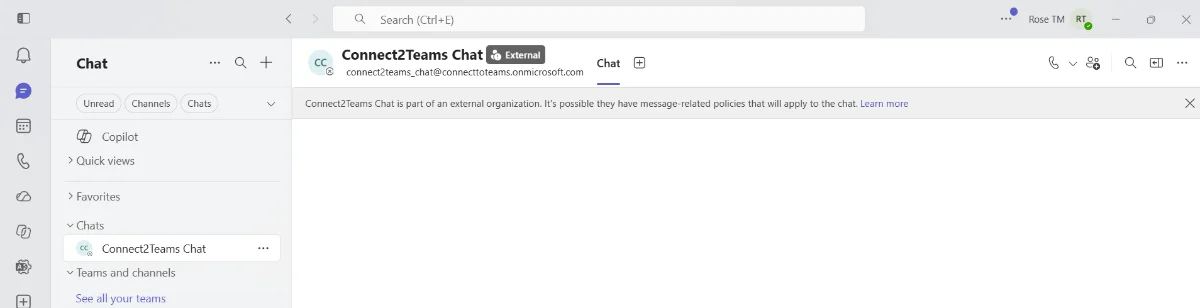
The External label and the banner at the top of this chat are expected. It is a relay account outside your organization that passes your messages to Slack.
Invite a Slack contact
- Open the Connect2Teams Chat chat.
- Send invite followed by your contact's TeamsLink ID.
A new group chat appears right away, named with your name and the contact's ID. Message your Slack contact there. Their replies appear in the same chat.
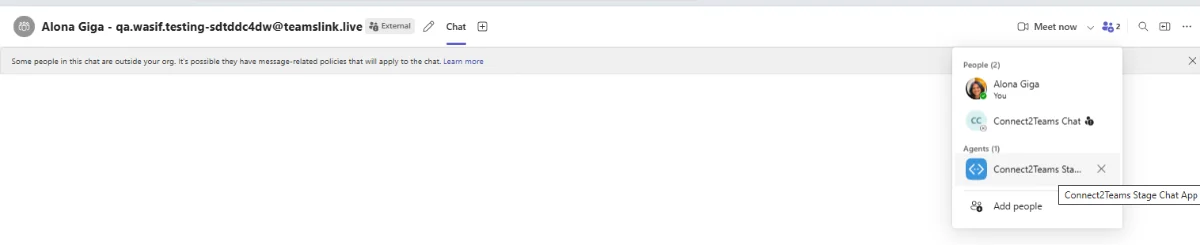
The group chat includes you, Connect2Teams Chat (which stands in for your Slack contact), and Connect2Teams Chat App under Agents (which relays the messages).
Do not remove Connect2Teams Chat from the group chat. If it is removed by accident, your administrator needs to turn chat off and back on for you to restore it.
Share a file
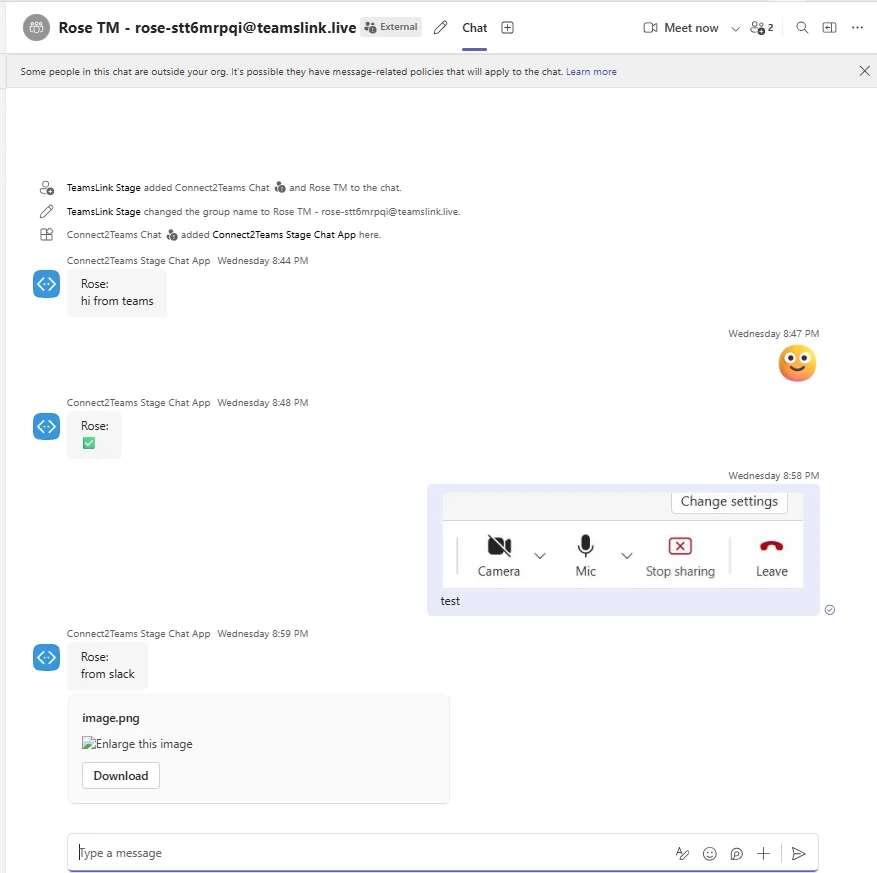
Copy the file and paste it straight into the message box. The paperclip (attach) button is not available in federated chat.
When a Slack contact invites you
Slack users can start the conversation too, by sending /teamslink invite and your Teams email address from the TeamsLink app in Slack. The group chat is created for you automatically.
You can only reply if chat is enabled for you. If you can't send messages, ask your administrator or contact CallHarbor Support.