

Finding Your CallHarbor Apps in Microsoft Teams
Last updated: Nov 10, 2026
0
views

CallHarbor's calling and messaging tools are delivered as apps inside Microsoft Teams. Which apps you have depends on what your organization's Microsoft 365 administrator has set up and deployed for you.
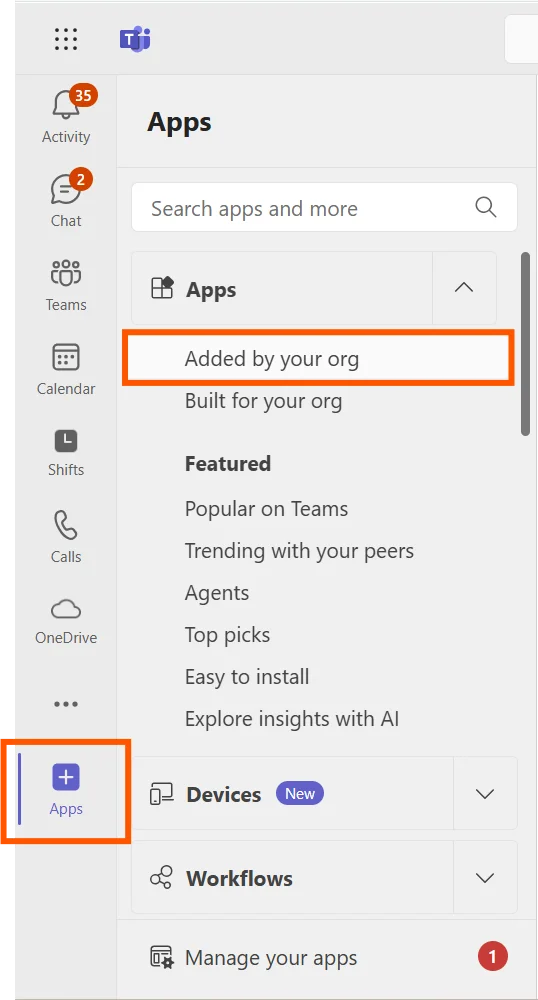
Where to find them
- In Microsoft Teams, select Apps in the left sidebar.
- Select Built for your org (some versions of Teams label this Added by your org).
- Any apps your organization has deployed for you are listed here.
If you don't see an app
- Your administrator may not have deployed it yet, or it may not be assigned to your account.
- The app may appear under a different name than you expect. Use the name and icon your administrator gave you.
Once you find your app, see Installing and Pinning the App in Teams to keep it handy.
Need help? Contact CallHarbor Support.

